> For the complete documentation index, see [llms.txt](https://docs.cloudeka.ai/llms.txt). Markdown versions of documentation pages are available by appending `.md` to page URLs; this page is available as [Markdown](https://docs.cloudeka.ai/guideline-for-individual/deka-vpn/configuration-deka-vpn-openvpn/download-component-client-export/download-viscosity-inline-config.md).
# Download Viscosity Inline Config
The following are the steps to use **Viscosity Inline Config** for setting up your OpenVPN connection:
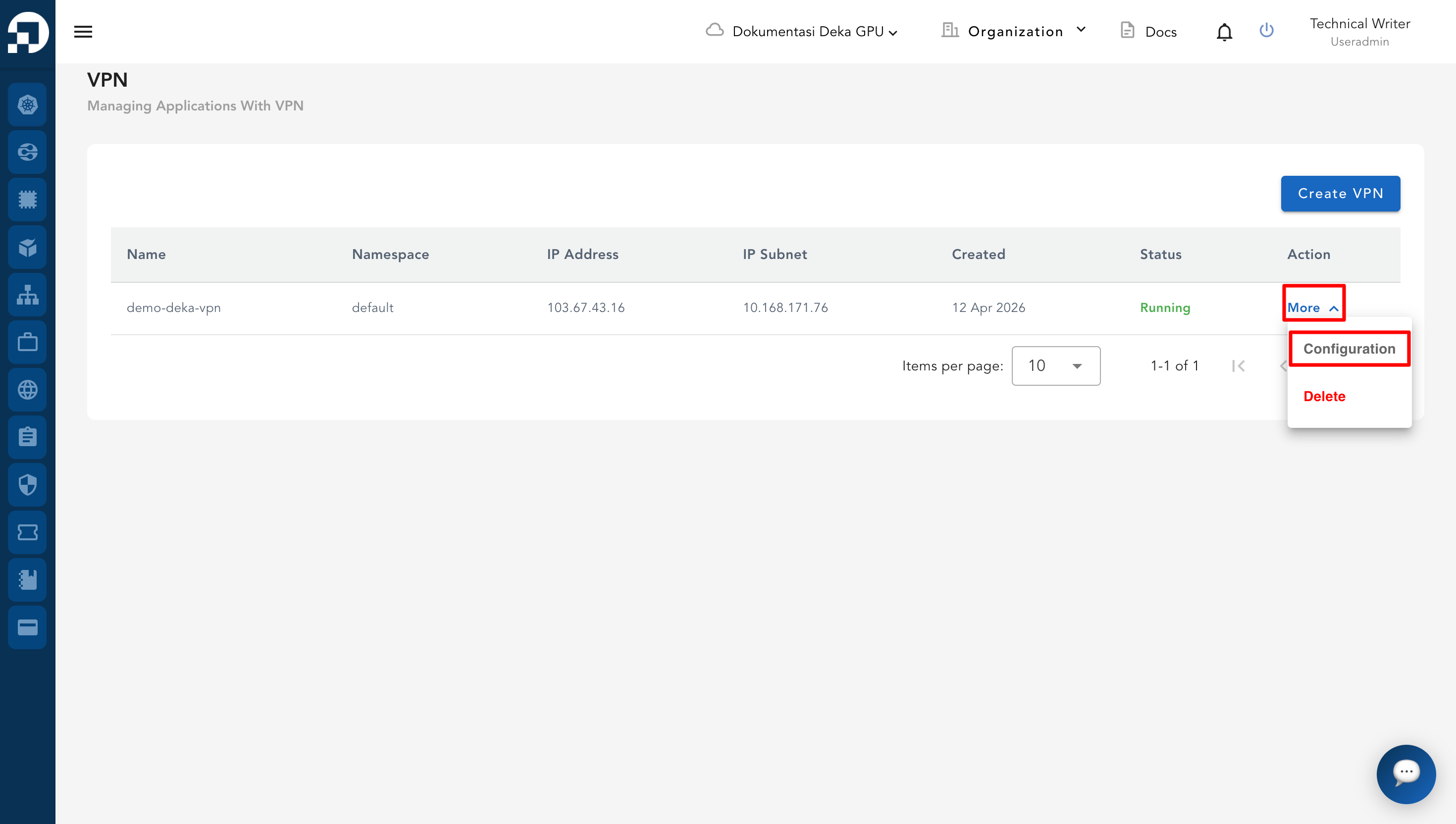
* In the VPN list, click **More** then **Configuration** for the VPN you want to manage.
* On the Configuration page, click the **OpenVPN** tab. In the **Download Component Client Export** section, click **Viscosity Inline Config** to download the `.ovpn` configuration file.
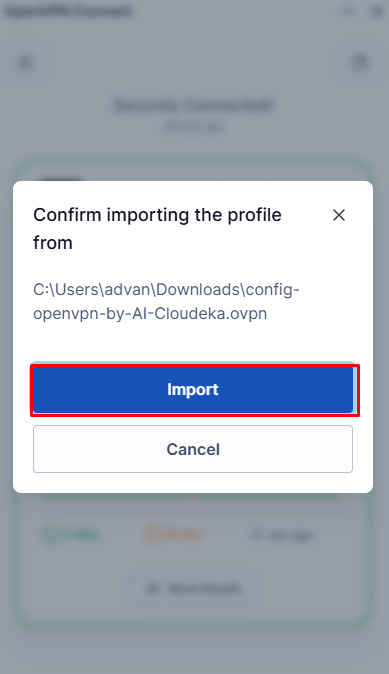
* After the file (e.g., `config-openvpn-by-AI-Cloudeka.ovpn`) has been downloaded, open it from your browser’s download manager or your Downloads folder.
* When prompted, confirm by clicking **Import** to add the profile into your OpenVPN client.
* Once imported, the configuration will be available in your OpenVPN client, ready for connection.
.png)