> For the complete documentation index, see [llms.txt](https://docs.cloudeka.ai/llms.txt). Markdown versions of documentation pages are available by appending `.md` to page URLs; this page is available as [Markdown](https://docs.cloudeka.ai/guideline-for-individual/reference/deployment-llama-3.1-70b-with-vllm-on-kubernetes/getting-the-hugging-face-api-key.md).
# Getting the Hugging Face API Key
Before deploying the LLaMA model, you need to obtain an API key from Hugging Face. Follow these steps to get your API key.
{% hint style="info" %}
Make sure you already have an account on Hugging Face.
{% endhint %}
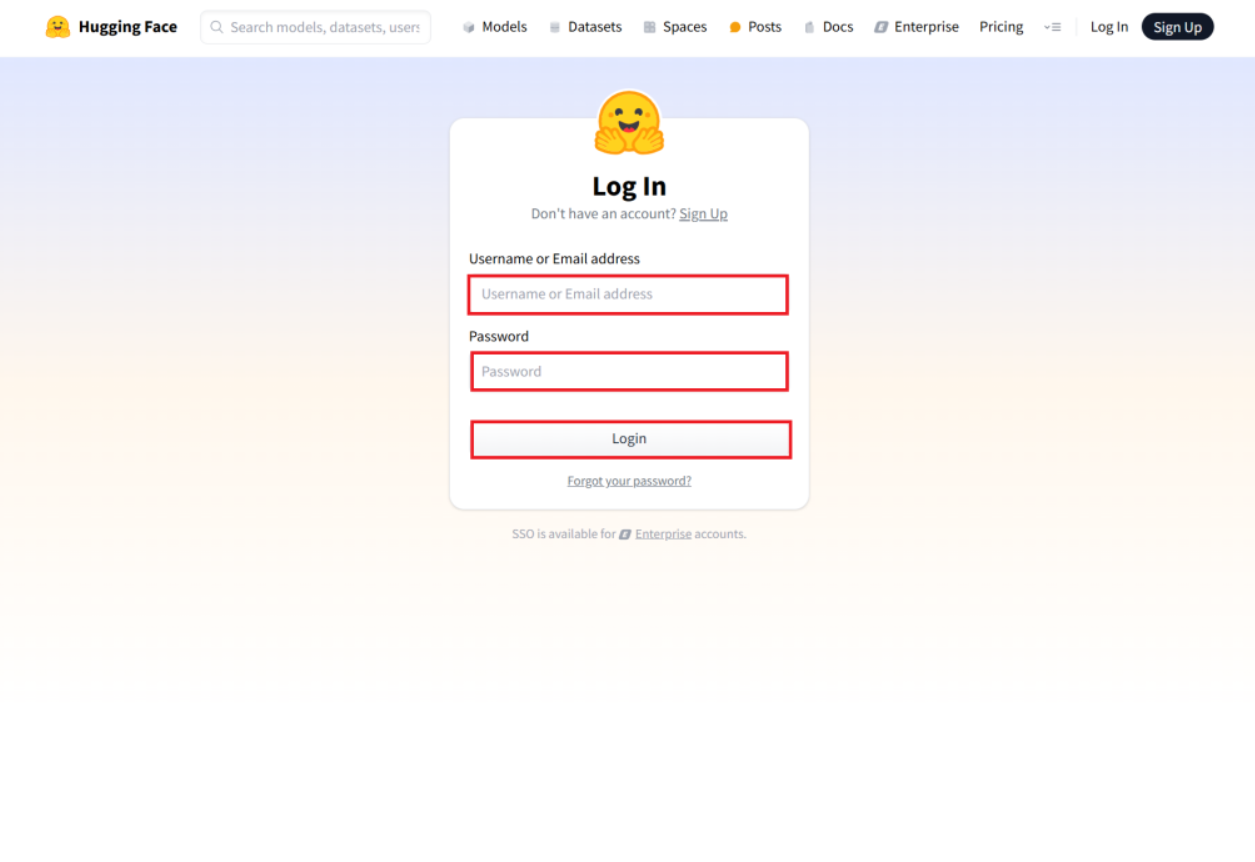
Go to the [Hugging Face](https://huggingface.co/login) website and enter the "Username/Email address" and "password" you use. Click the Login button to enter Hugging Face.
Login Hugging Face
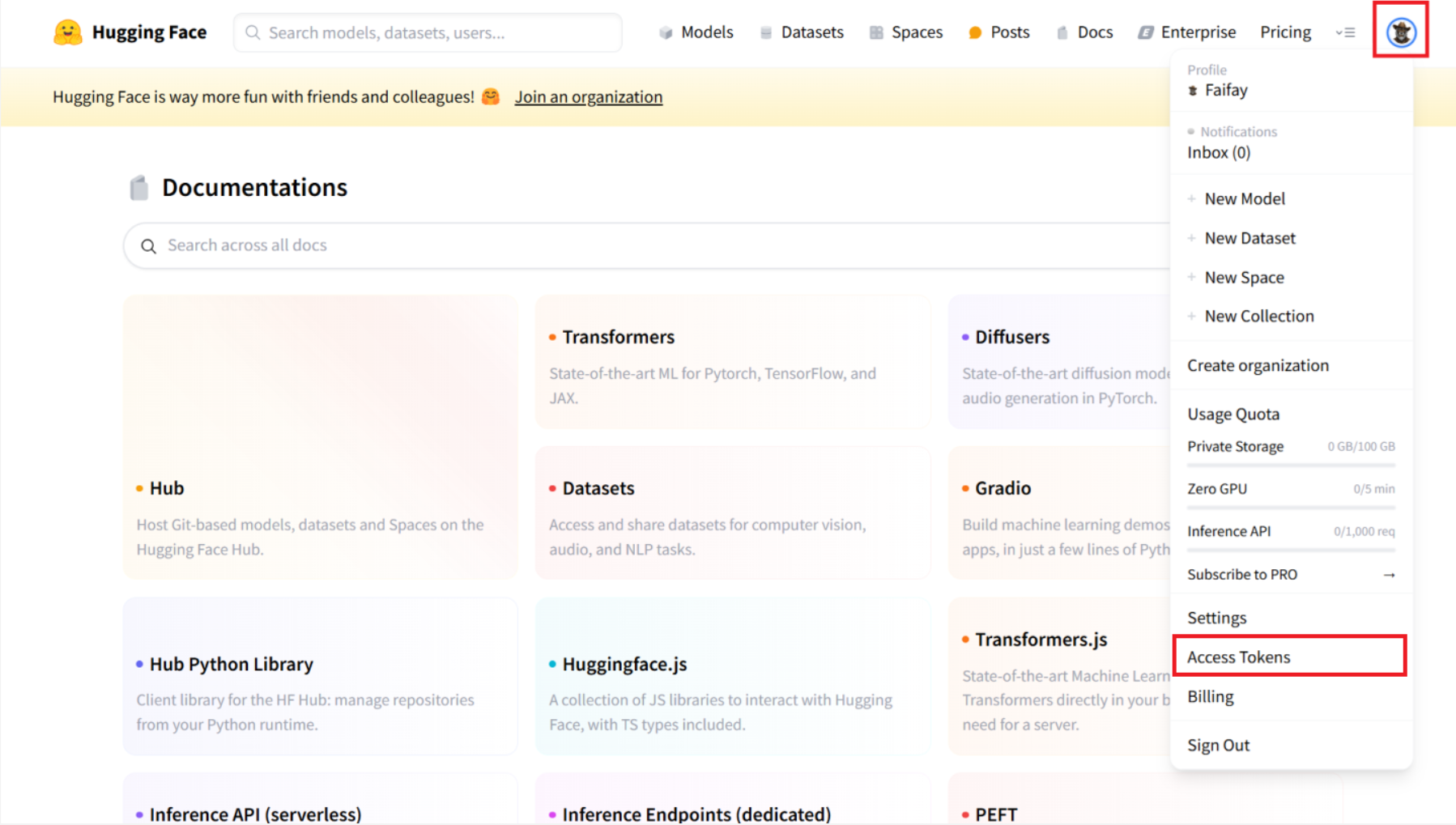
After entering the Hugging Face page, press profile at the top right and select Access Token.
Access Token
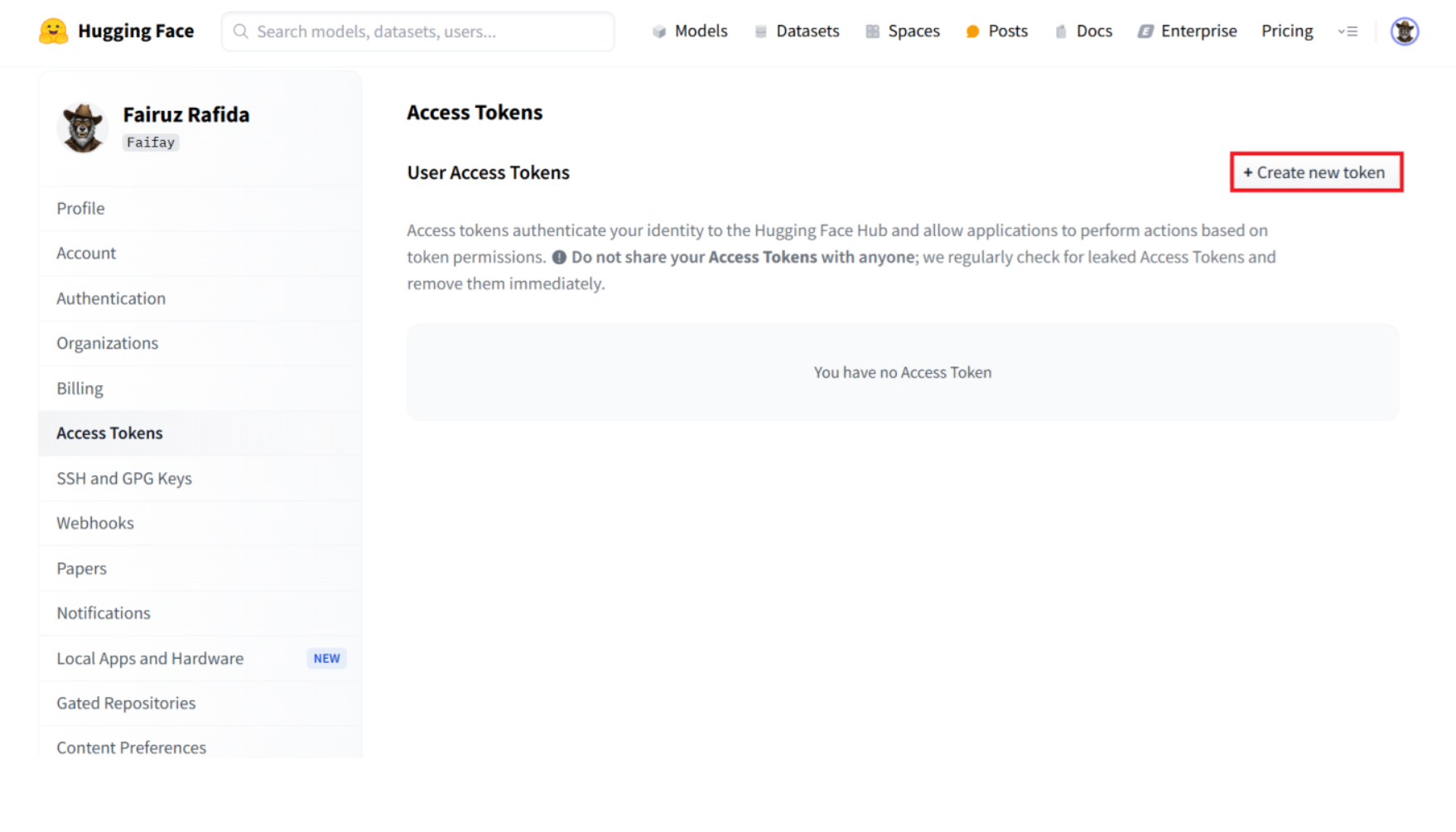
On the Access Tokens page press the "+ Create new token" button.
Create New Token
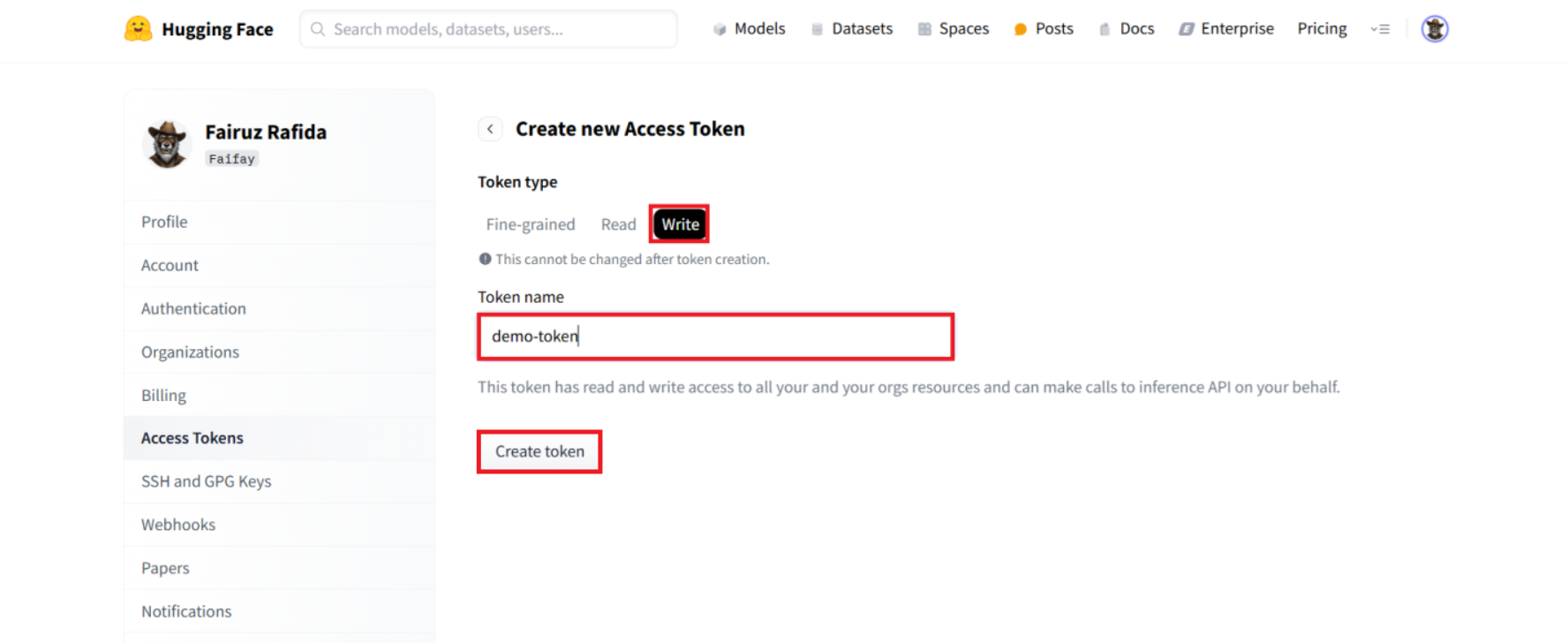
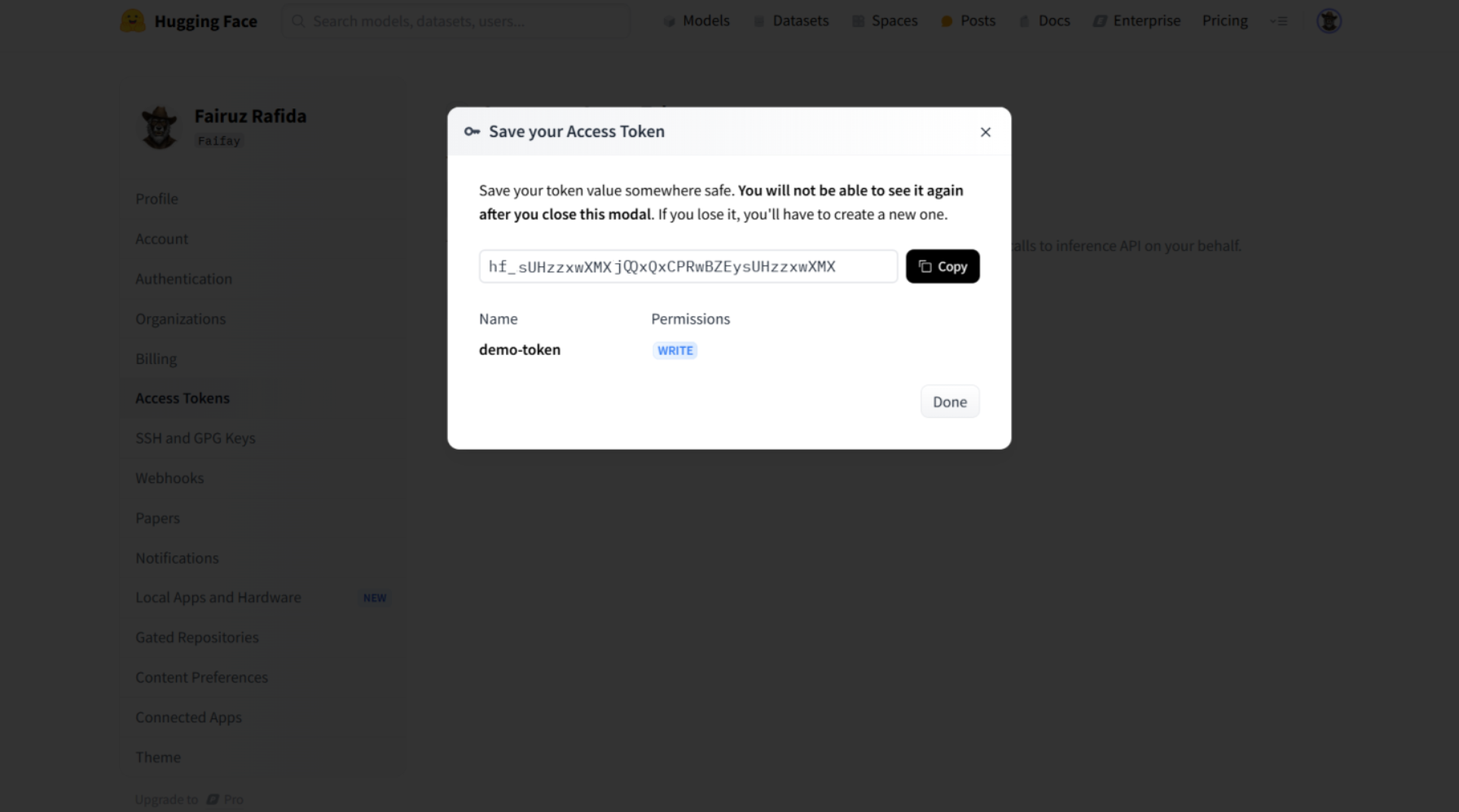
In this guide, the token type used is Write, enter the token name. Click the **Create Token** button to create a new token for Hugging Face.
Create Token
Once you have generated the token, save it securely. You will need it to authenticate your requests to Hugging Face models.
Token
## Encoding the Hugging Face API Token to Base64
To convert your Hugging Face API token into a text format represented by Base64 characters. You can run the following syntax according to the operating system your computer uses.
### Linux
On computers using the Linux operating system, you can follow the following steps. Open a terminal on your computer. Run the following command to encode your Hugging Face token to base64.
```bash
echo -n 'your-hugging-face-token' | base64
```
Replace `your-hugging-face-token` with your actual Hugging Face token. The command will output the base64-encoded token.
```bash
aGZfQUZiV0phb2RTR1RqUXhReENQUXhRekV5c1VIenp4d1hNWA==
```
### Windows
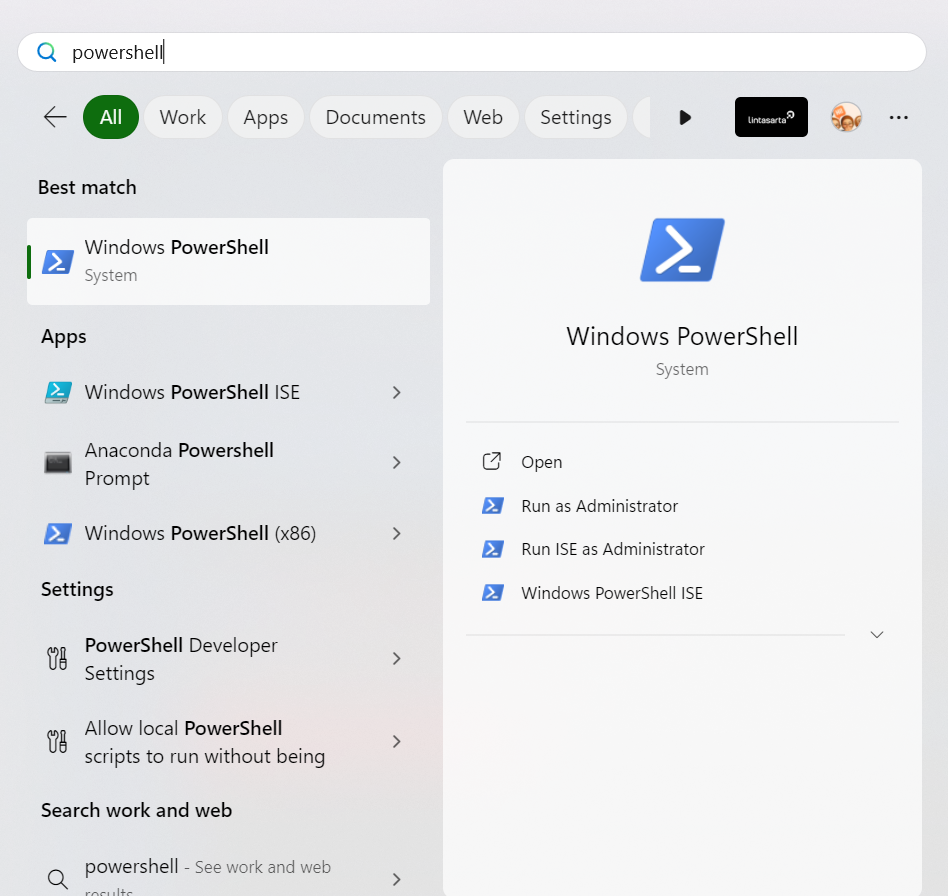
On computers using the Windows operating system, use PowerShell. Open PowerShell on your computer.
Open Powershell
Use the following command to encode your token using Base64 in PowerShell.
```bash
[Convert]::ToBase64String([Text.Encoding]::UTF8.GetBytes("your-hugging-face-token"))
```