> For the complete documentation index, see [llms.txt](https://docs.cloudeka.ai/llms.txt). Markdown versions of documentation pages are available by appending `.md` to page URLs; this page is available as [Markdown](https://docs.cloudeka.ai/guideline-for-individual/service-portal-ai/organization-settings/create-user/transfer-creator-role.md).
# Transfer Creator Role
To use the **Transfer Creator Role** feature, users must complete the **Sign Up** process first.\
The Creator role is automatically assigned to users who register for the first time. Detailed instructions on how to sign up can be found in the [**sign up.**](/guideline-for-individual/service-portal-ai/introduction.md)
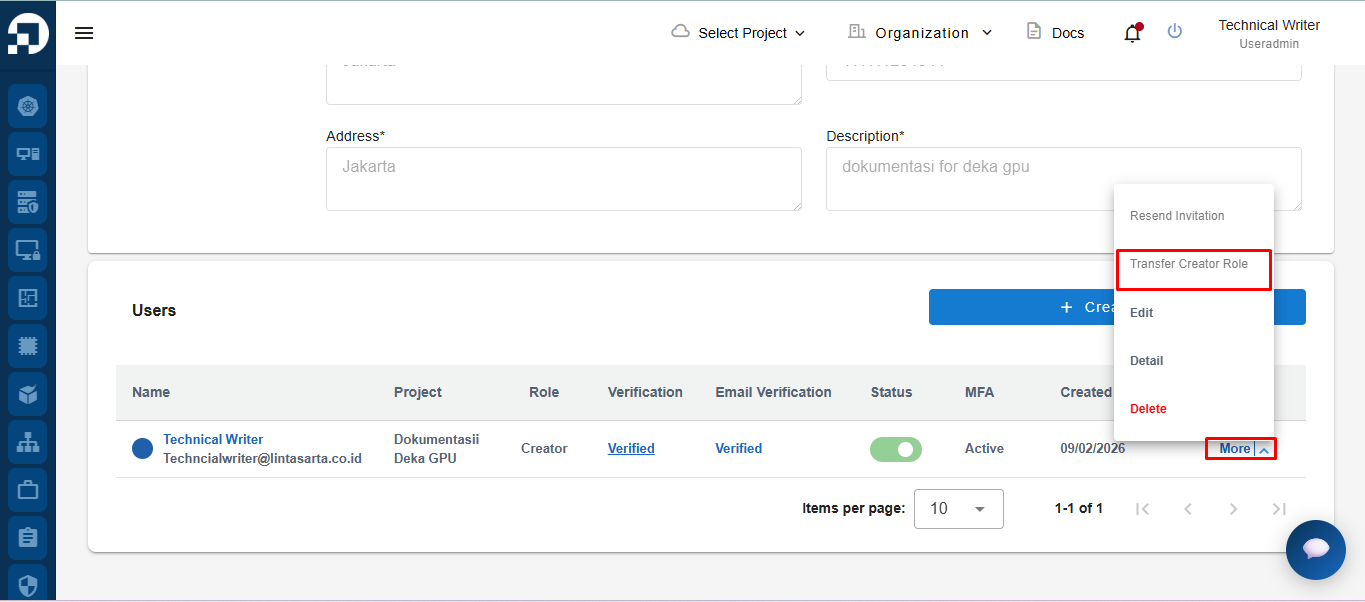
On the **Organization Settings** page, scroll down to the **Users Section**, click **More** on the account with the **Creator** role, then select **Transfer Creator Role**.
{% hint style="danger" %}
**Note :** If the **Transfer Creator Role** option is not visible or cannot be clicked, it means there is **no other user available** in the organization.
To enable this feature, make sure there is **at least one additional user** in the same organization. You may need to **invite another user or create a new role** first before the Creator role can be transferred.
{% endhint %}
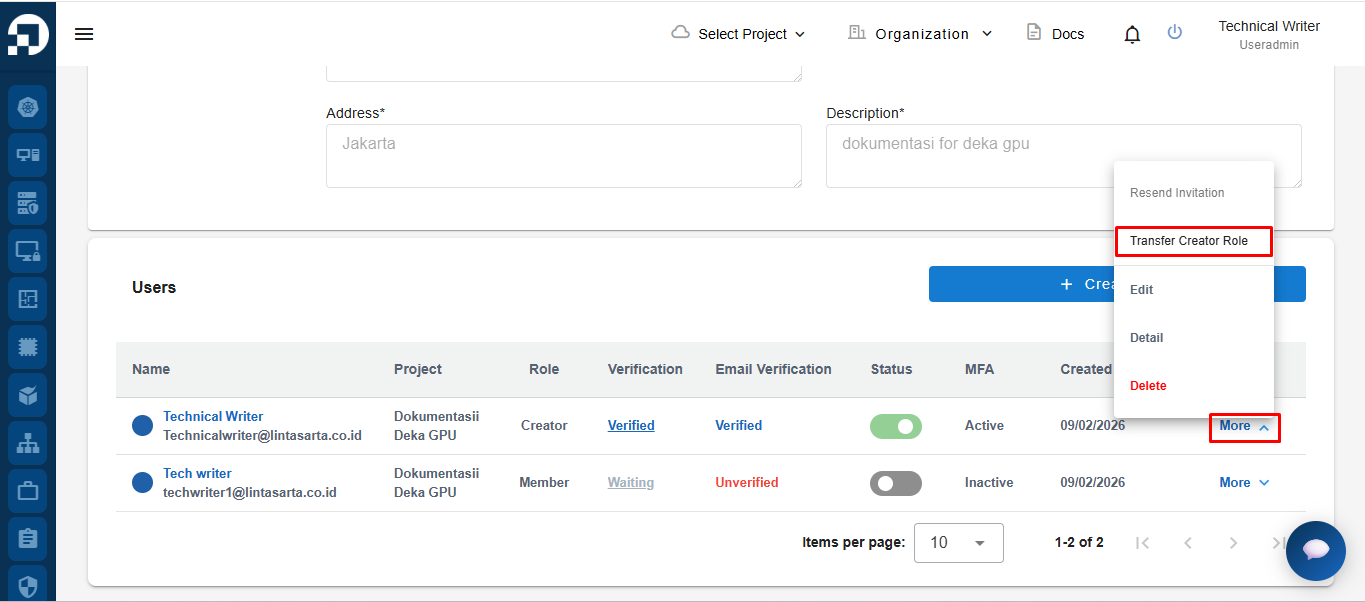
If the **Transfer Creator Role** option is not available, you need to add another user to the organization.Detailed instructions on how to add a user can be found in the [**create user**](/guideline-for-individual/service-portal-ai/organization-settings/create-user.md).
After the additional user has been successfully created and verified, return to **Organization Settings**, click **More** on the account with the **Creator** role, and select **Transfer Creator Role**.\
The **Transfer Creator Role** option will now be available and can be used.
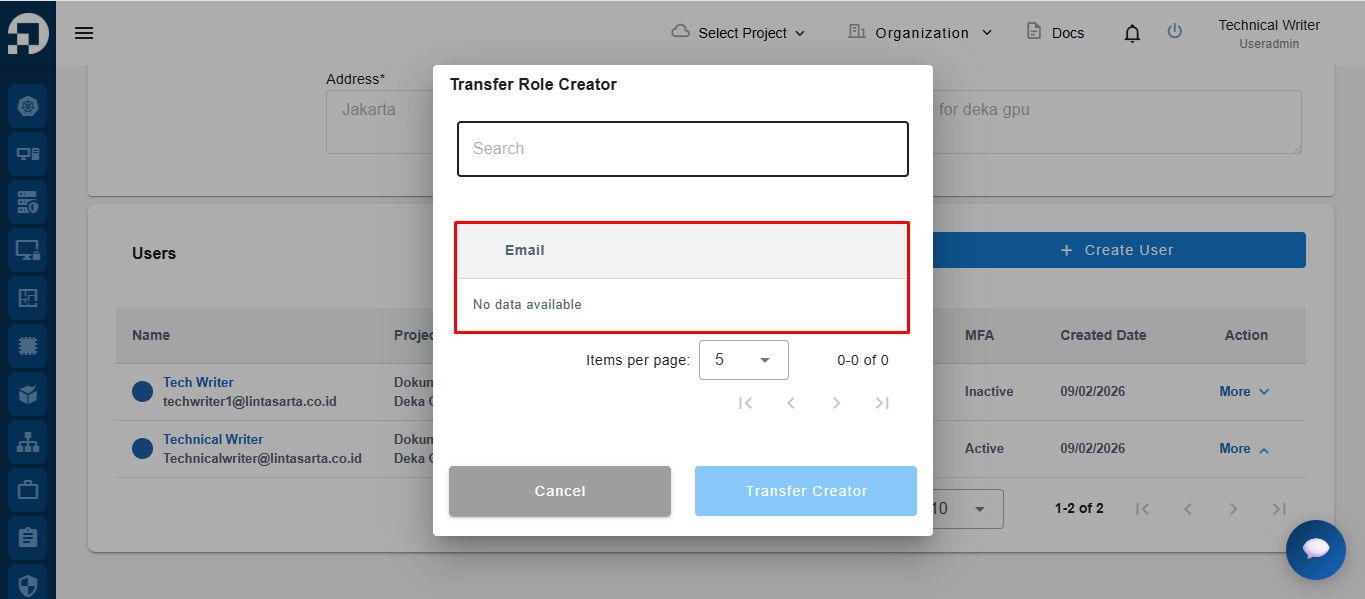
The system will display the **Transfer Creator Role** page, showing a list of users that can be selected as the role recipient.
{% hint style="danger" %}
**Note:**
1. As shown in the image below, if the **Transfer Creator Role** page displays the message *No data available*, it means there is **no other user with an Active status** in the organization.
2. Users with an **Inactive** status cannot be selected as the recipient of the Creator role.
3. Make sure the other user is **active and verified**. If not, perform **Resend Verification** first to activate the user account.
{% endhint %}
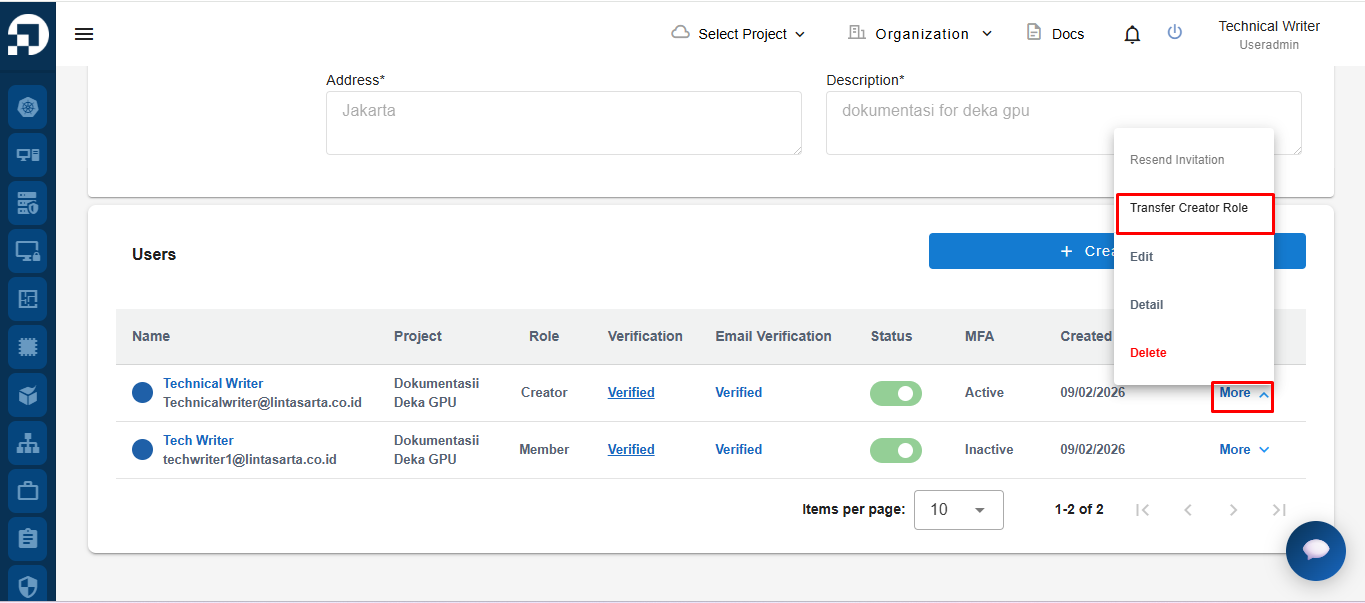
If the user is not active, you can perform **Resend Invitation**. Detailed instructions are available in the [**Resend Invitation**](/guideline-for-individual/service-portal-ai/organization-settings/create-user/resend-invitation.md)**.**
After the account is verified and active, click **More**, then select **Transfer Creator Role**.
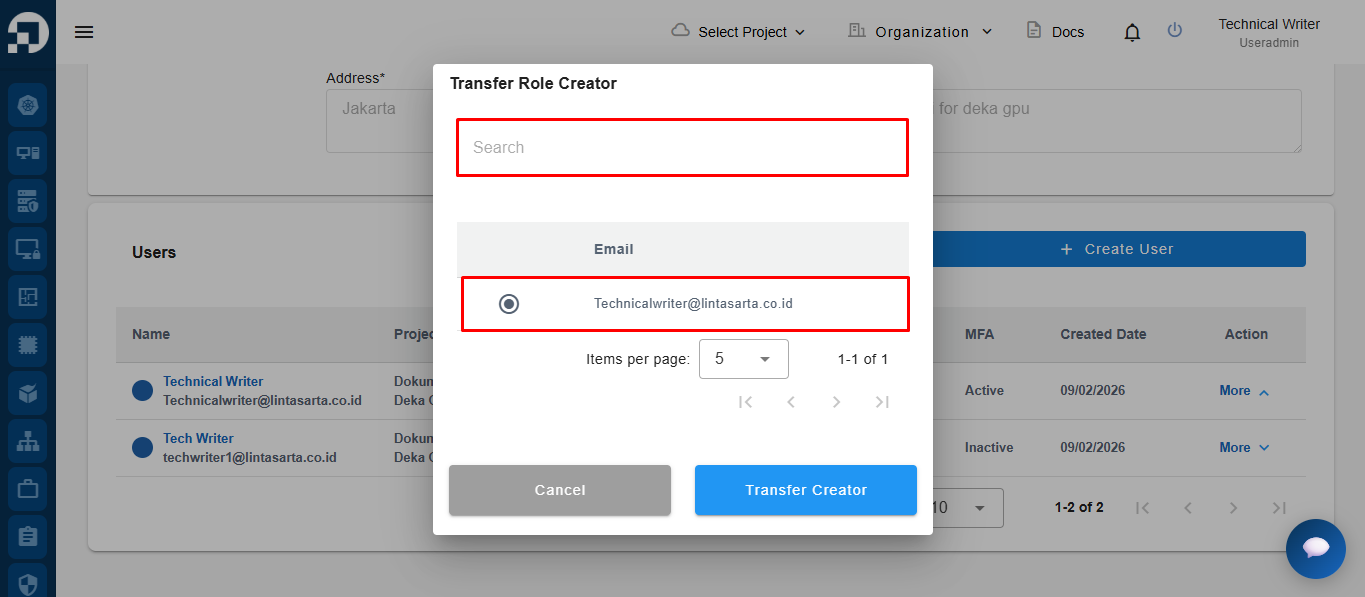
After all processes are completed, the **Transfer Role Creator** page will be displayed. Users can search for an account using the **Search** field or directly select the user account to transfer the role.
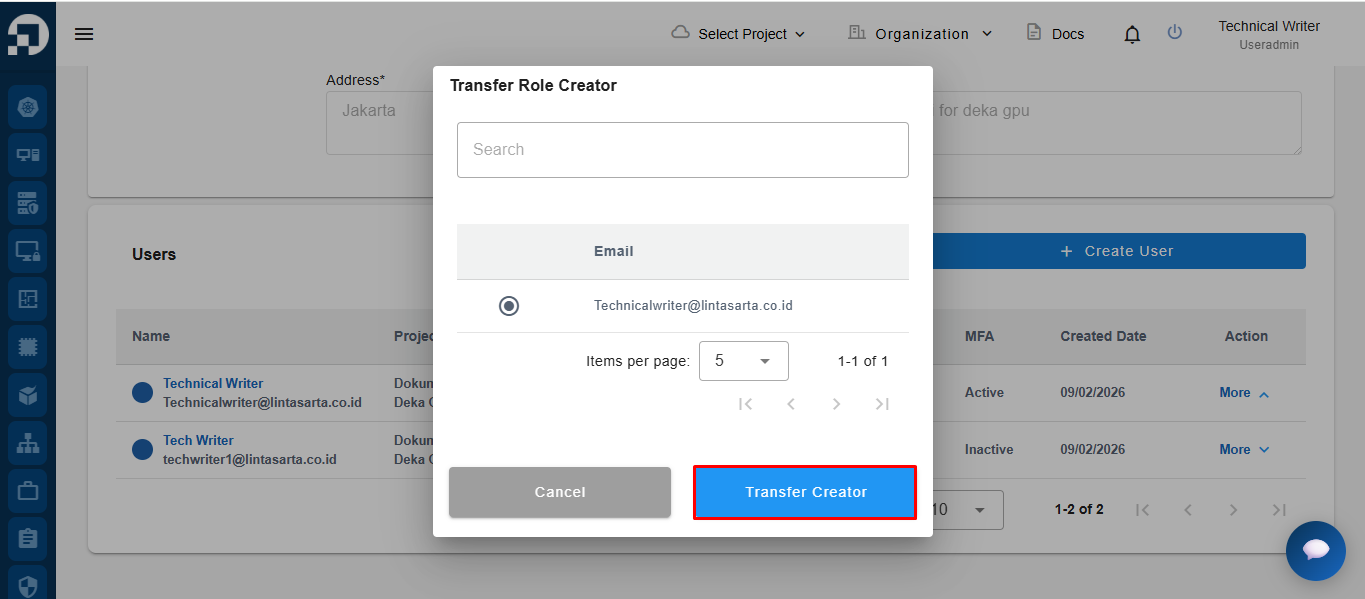
After selecting the user account to receive the role, click the **Transfer Creator** button to proceed.
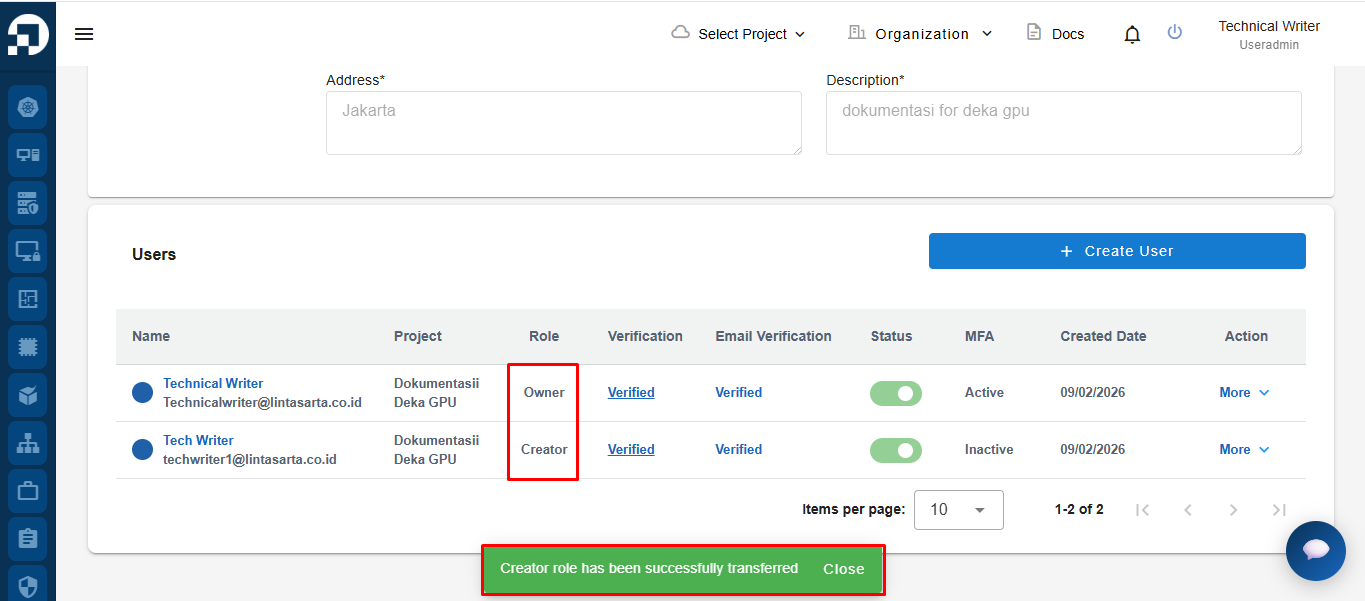
If the transfer process is successful, the system will display the notification **“Creator role has been successfully transferred”**, and the user role will be automatically updated as indicated.