> For the complete documentation index, see [llms.txt](https://docs.cloudeka.ai/llms.txt). Markdown versions of documentation pages are available by appending `.md` to page URLs; this page is available as [Markdown](https://docs.cloudeka.ai/guideline-for-individual/starter-guide/create-a-deka-notebook.md).
# Create a Deka Notebook
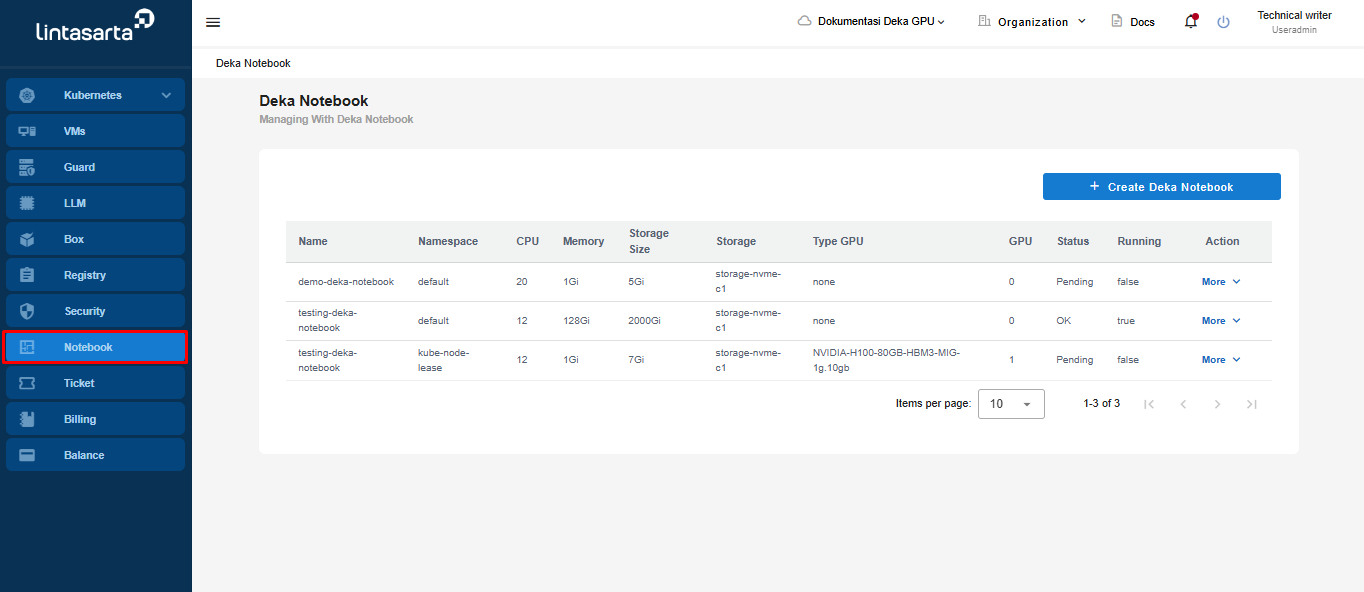
This guide only explains how to create a Deka Notebook for the SME project type in the Service Portal Deka GPU. On the Service Portal Deka GPU page, select the **Notebook** menu.
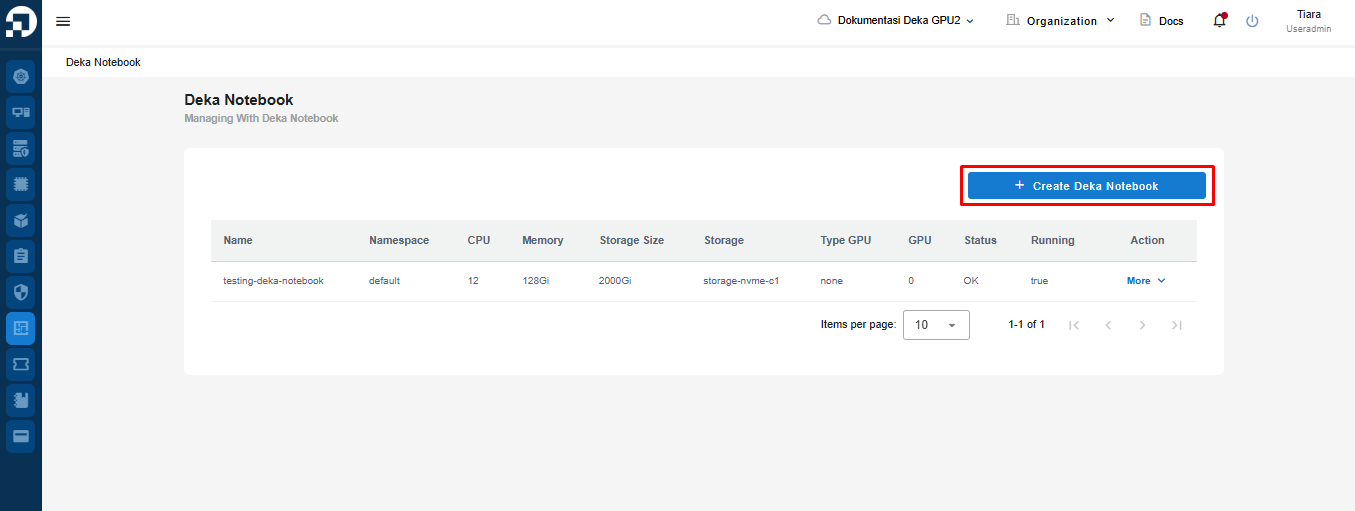
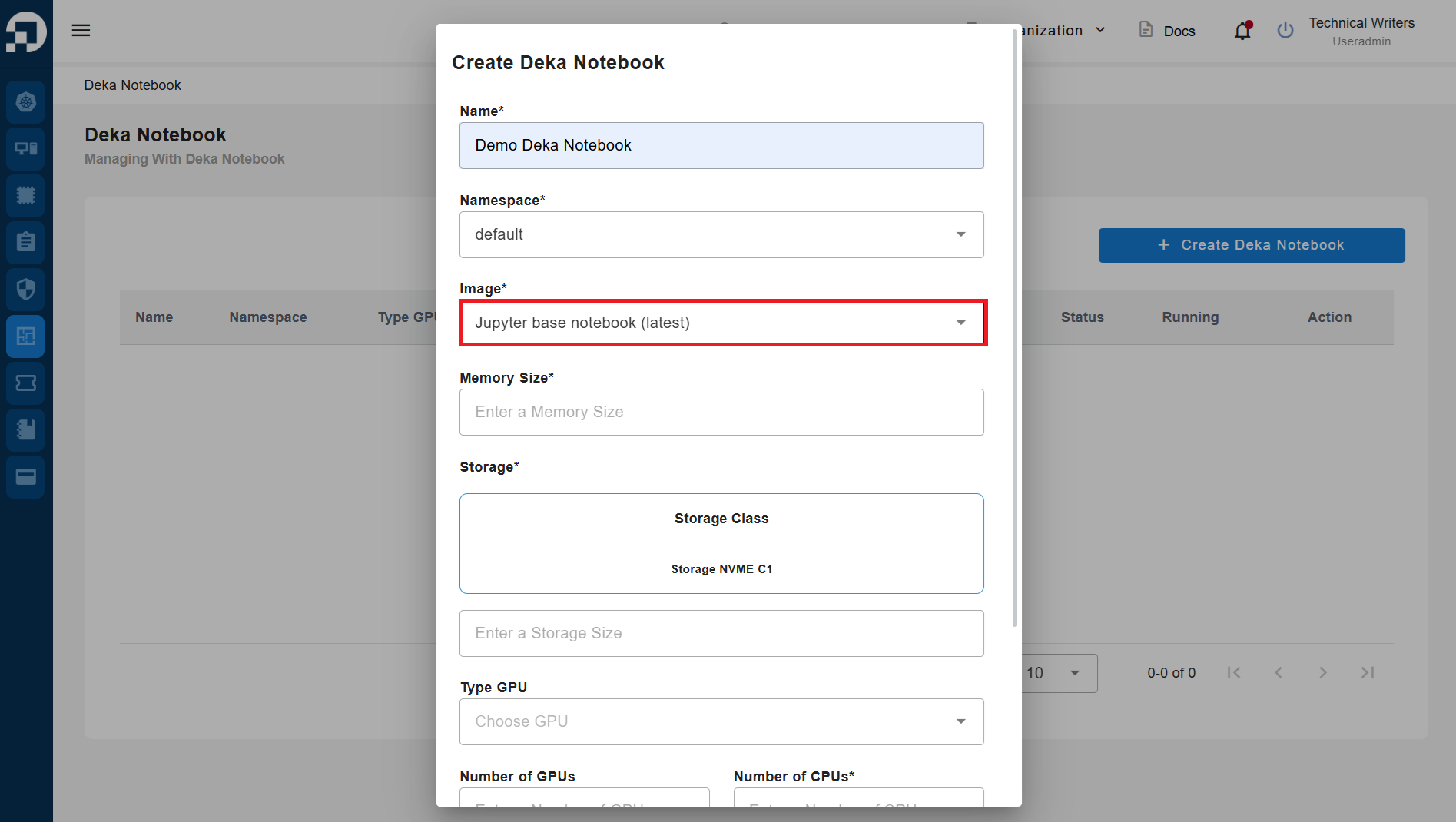
On the Deka Notebook page, click the "+ Create Deka Notebook" button to create Deka Notebook.
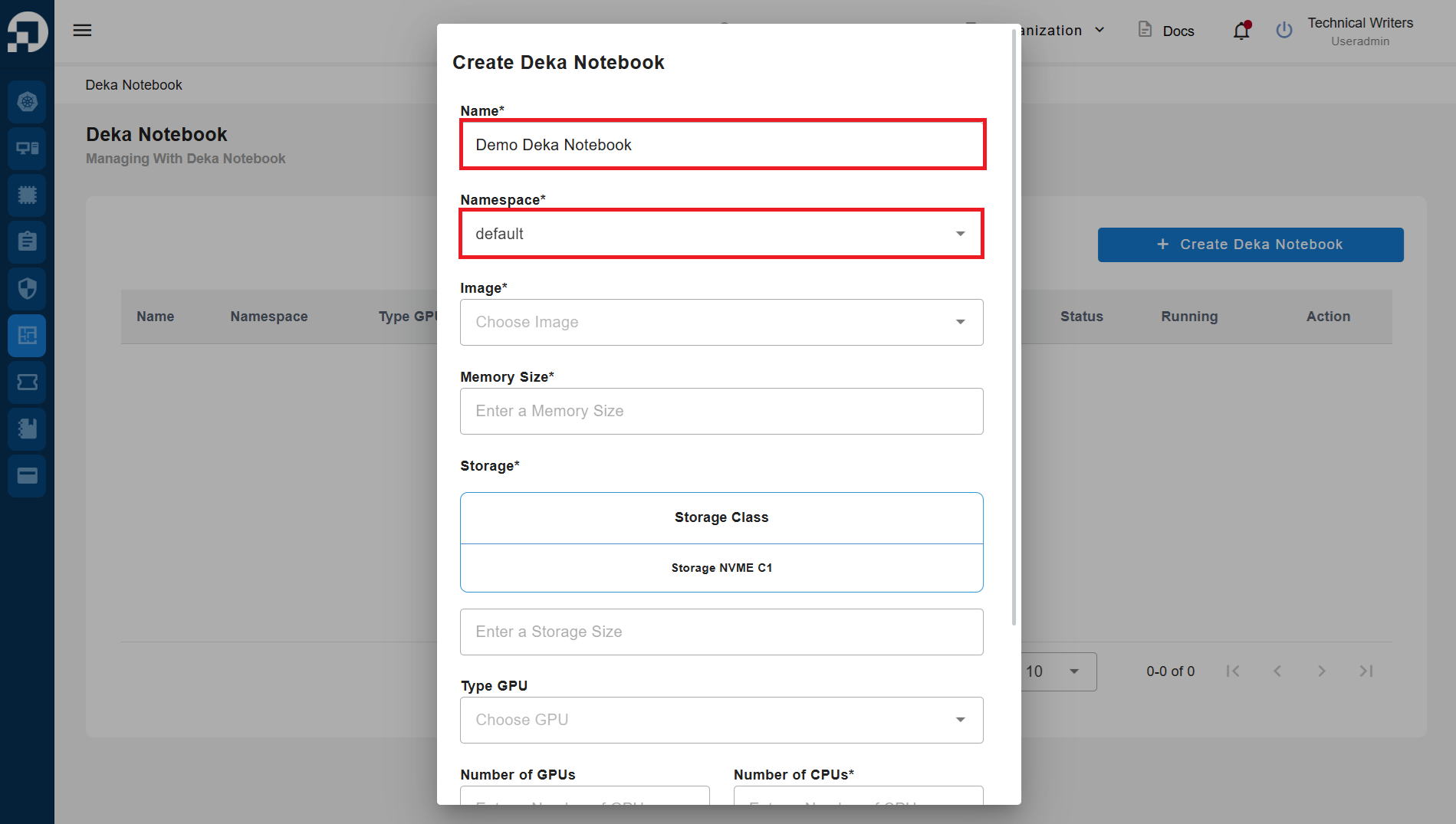
Enter the **name** and select the **namespace type** to be used.
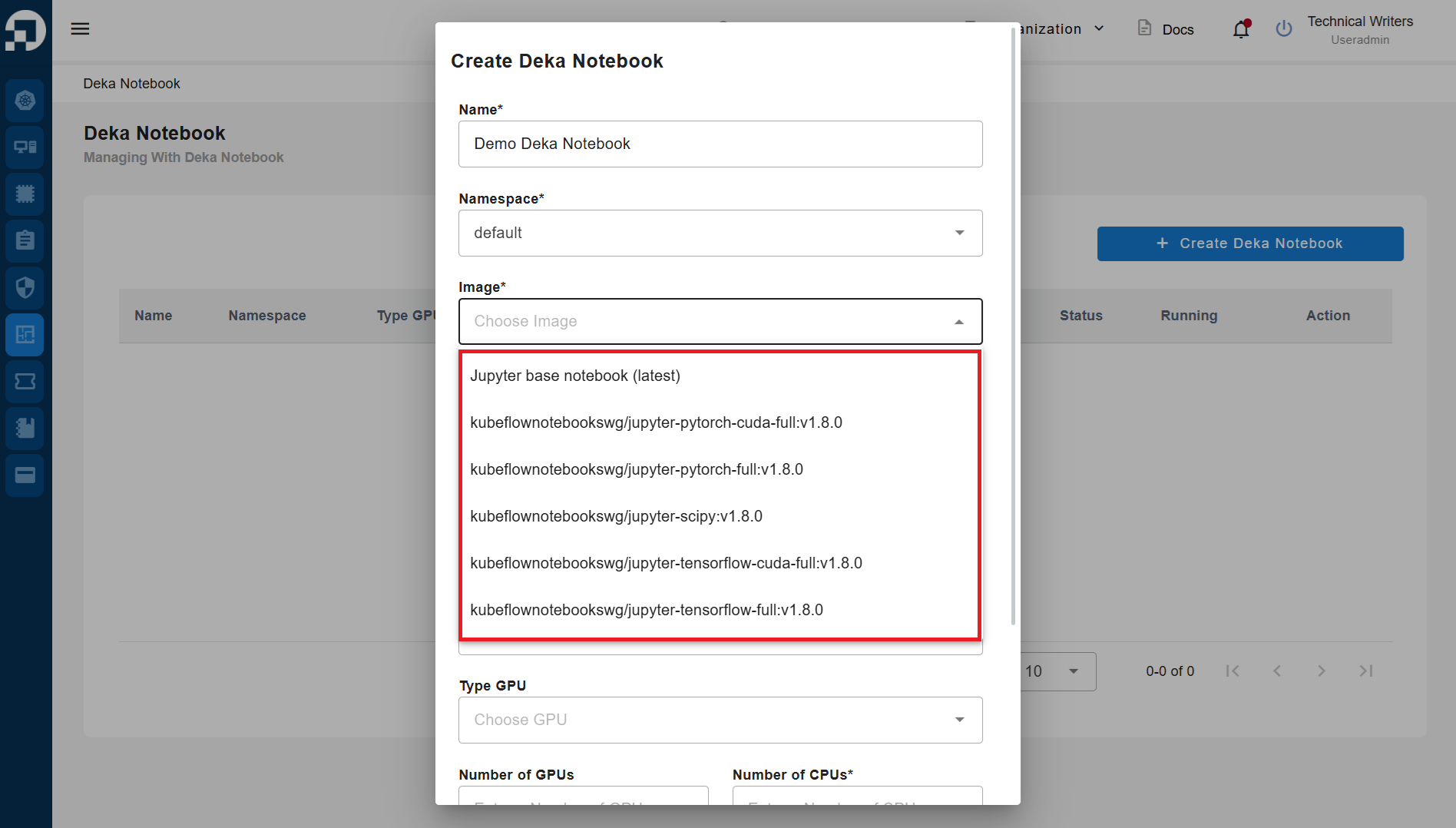
Select the **container image** to be used, in this guide use the **Jupyter base notebook (latest)**.
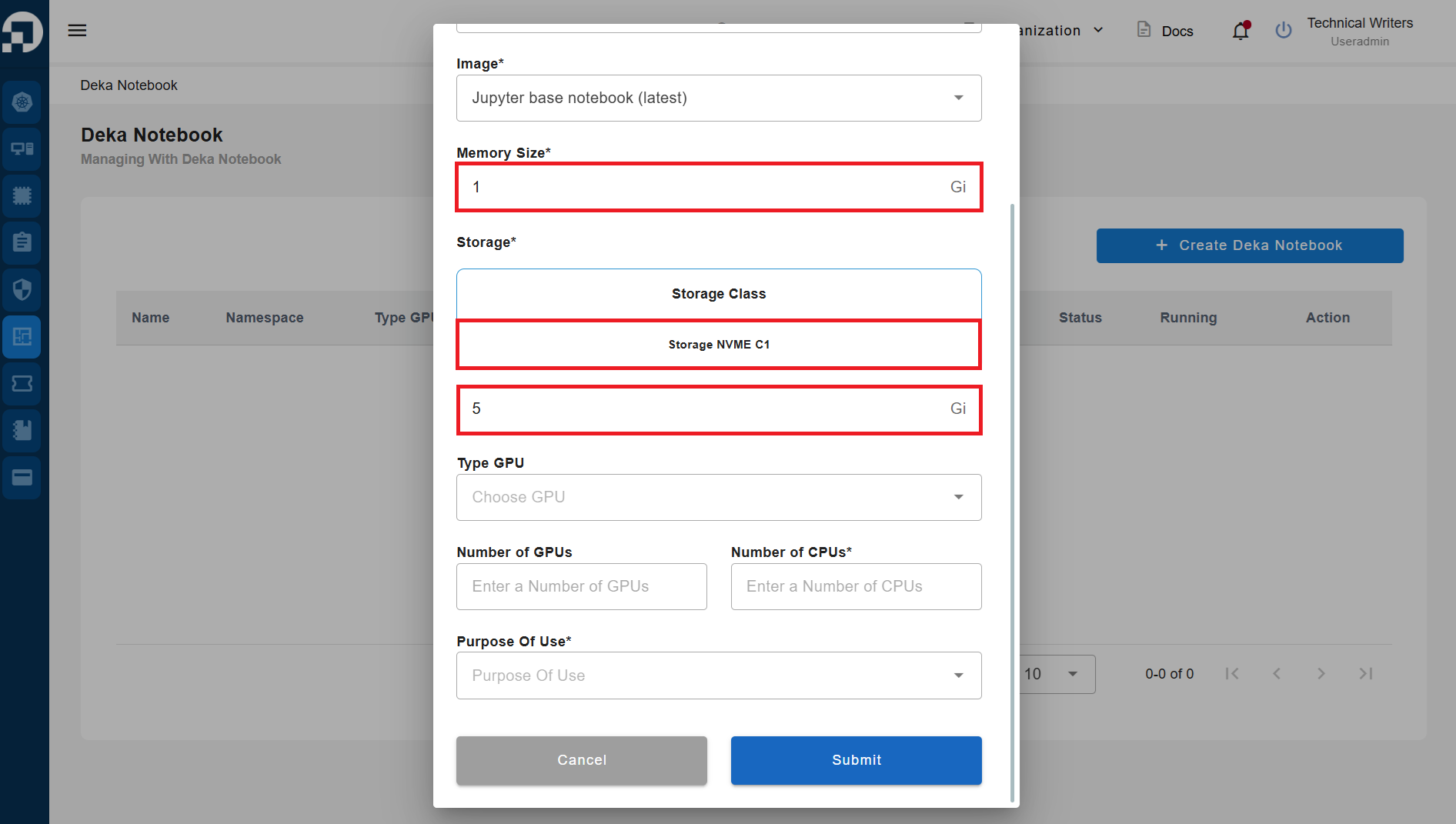
Specify the **Memory Size** to be used; in this guide, we use **1 Gi**. The **Storage size** used is **5 GB**.
{% hint style="warning" %}
The storage size has already been determined in the **"Add Ons"** section when selecting **Add Your Package** in the [**Choose a Package**](/guideline-for-individual/starter-guide/choose-a-package.md) sub-section. Therefore, you cannot use a storage size exceeding the predetermined limit.
{% endhint %}
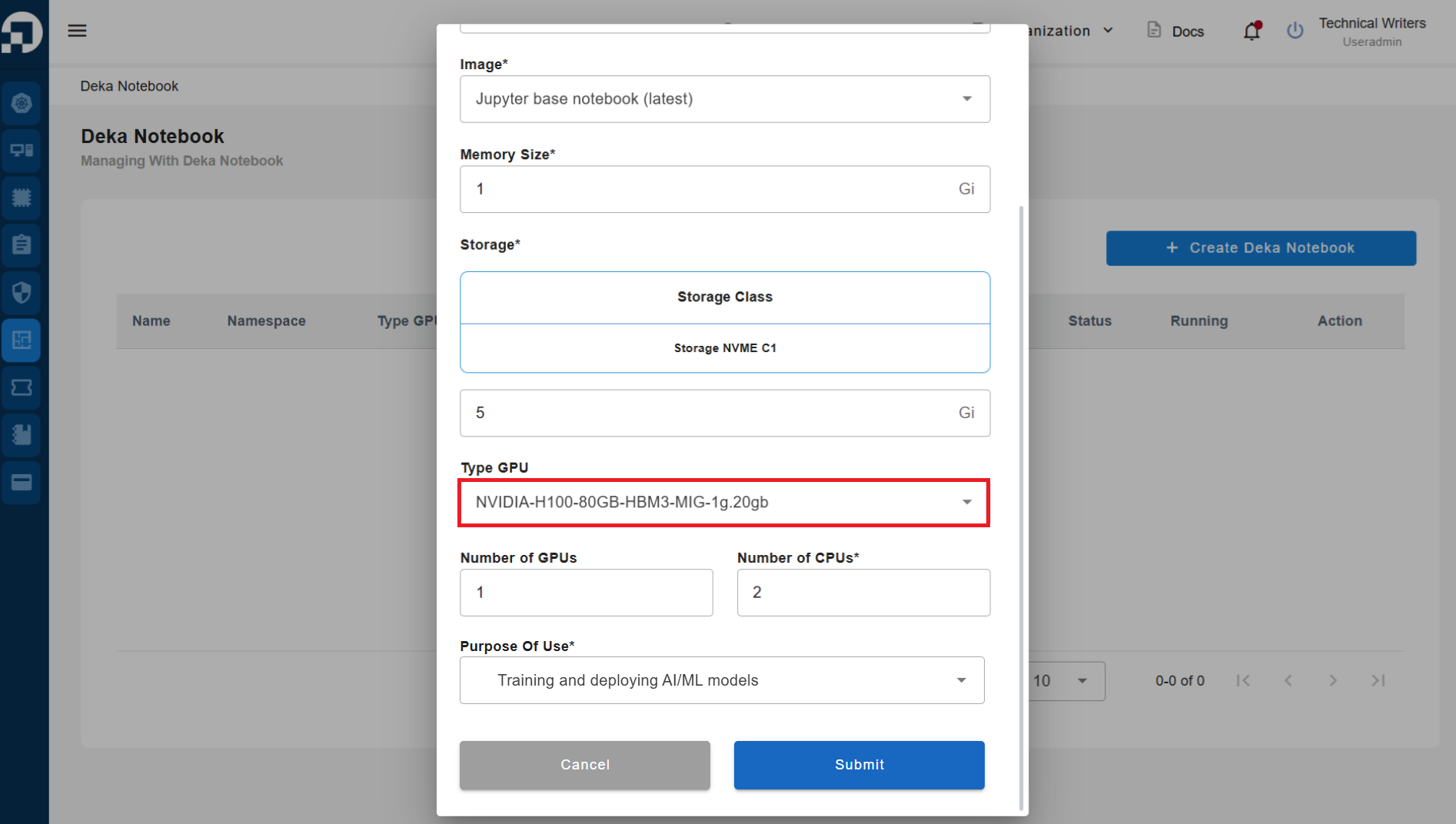
In the GPU Type section, select an available GPU type.
{% hint style="warning" %}
The available GPU types correspond to the package you selected when choosing a package in the [Choose a Package ](/guideline-for-individual/starter-guide/choose-a-package.md)section.
{% endhint %}
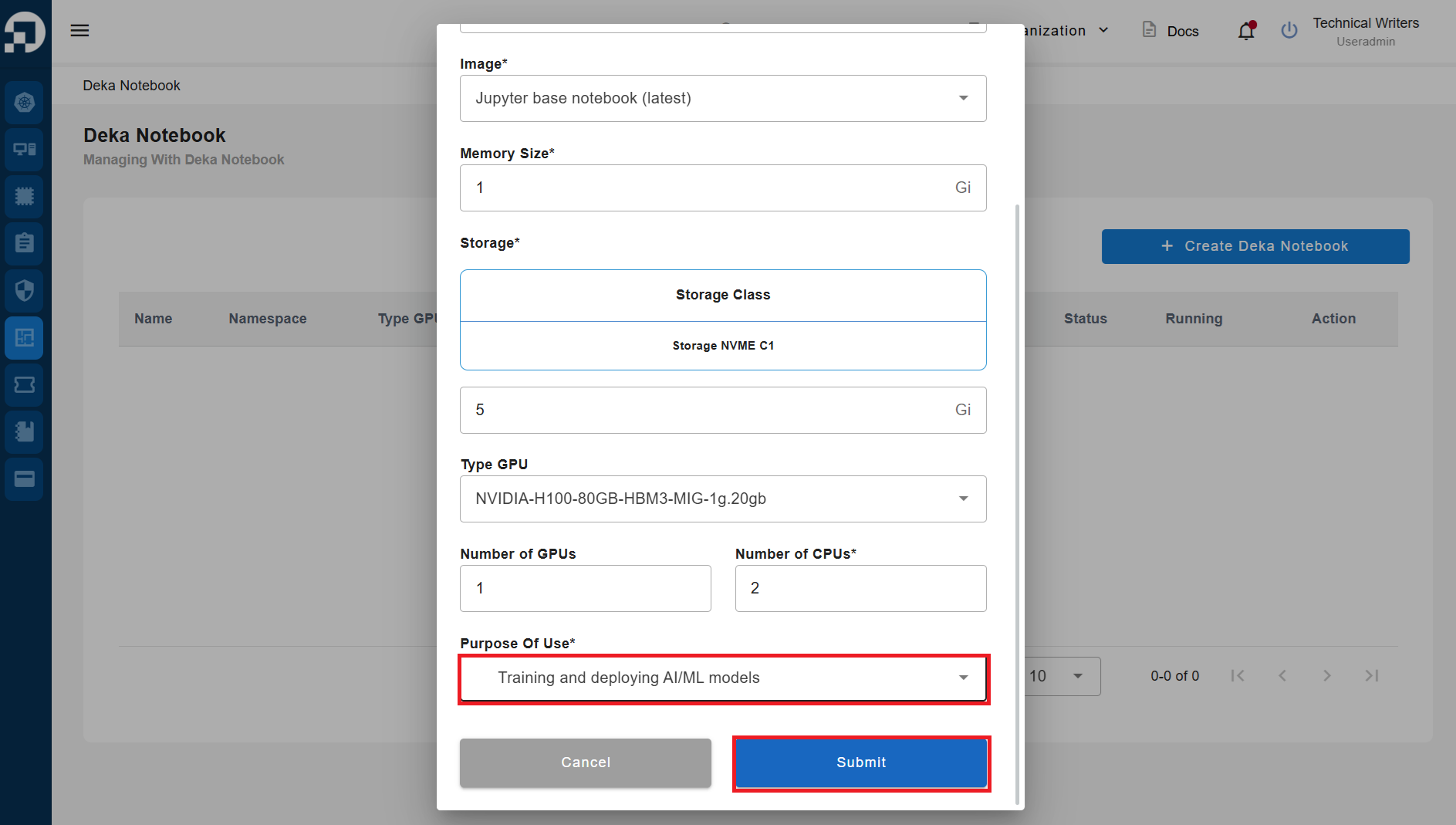
Specify the **Purpose Of Use** and press the **Submit** button to create the Deka Notebook.
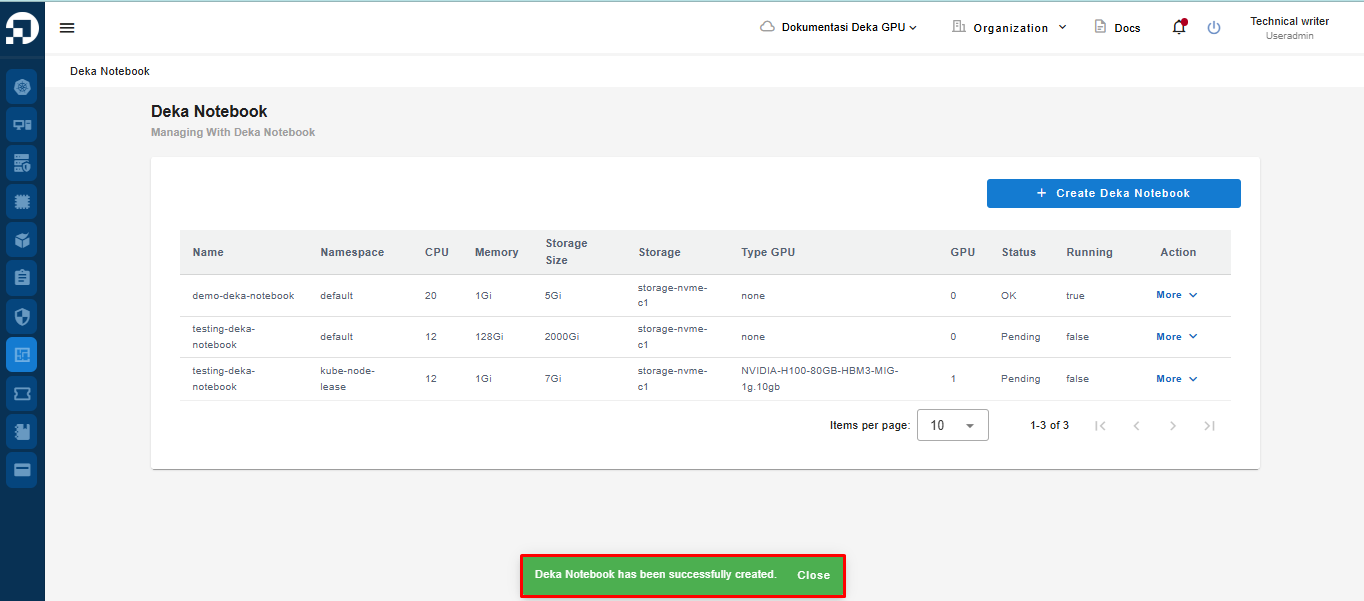
Wait for the process to complete and for the notification **"Deka Notebook has been successfully created"** to appear.
For further explanation about Deka Notebook in the Service Portal, you can click [this link](/guideline-for-individual/deka-notebook/introduction.md).