> For the complete documentation index, see [llms.txt](https://docs.cloudeka.ai/llms.txt). Markdown versions of documentation pages are available by appending `.md` to page URLs; this page is available as [Markdown](https://docs.cloudeka.ai/news/getting-started-after-migrating-to-cloudeka-service-portal.md).
# Getting Started After Migrating to Cloudeka Service Portal
{% hint style="success" %}
This guide provides an overview of the steps required to access the new Cloudeka Service Portal. It helps users transition from the previous portal to the new platform and continue accessing Cloudeka services using their existing accounts.
{% endhint %}
So, let's follow these steps:
### Access the old Cloudeka Service Portal
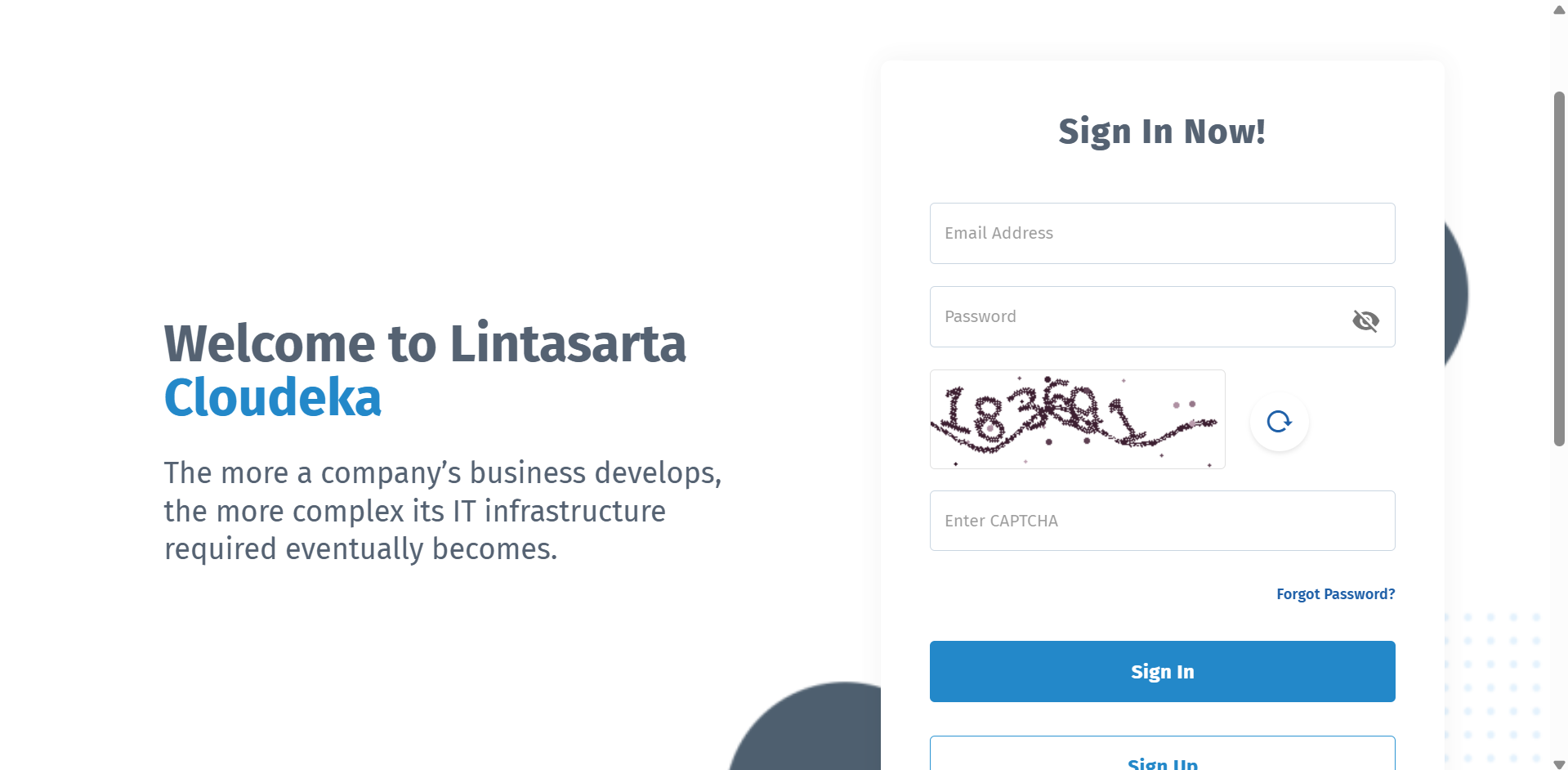
Open [**https://cmd.cloudeka.id**](https://cmd.cloudeka.id/) in your browser.
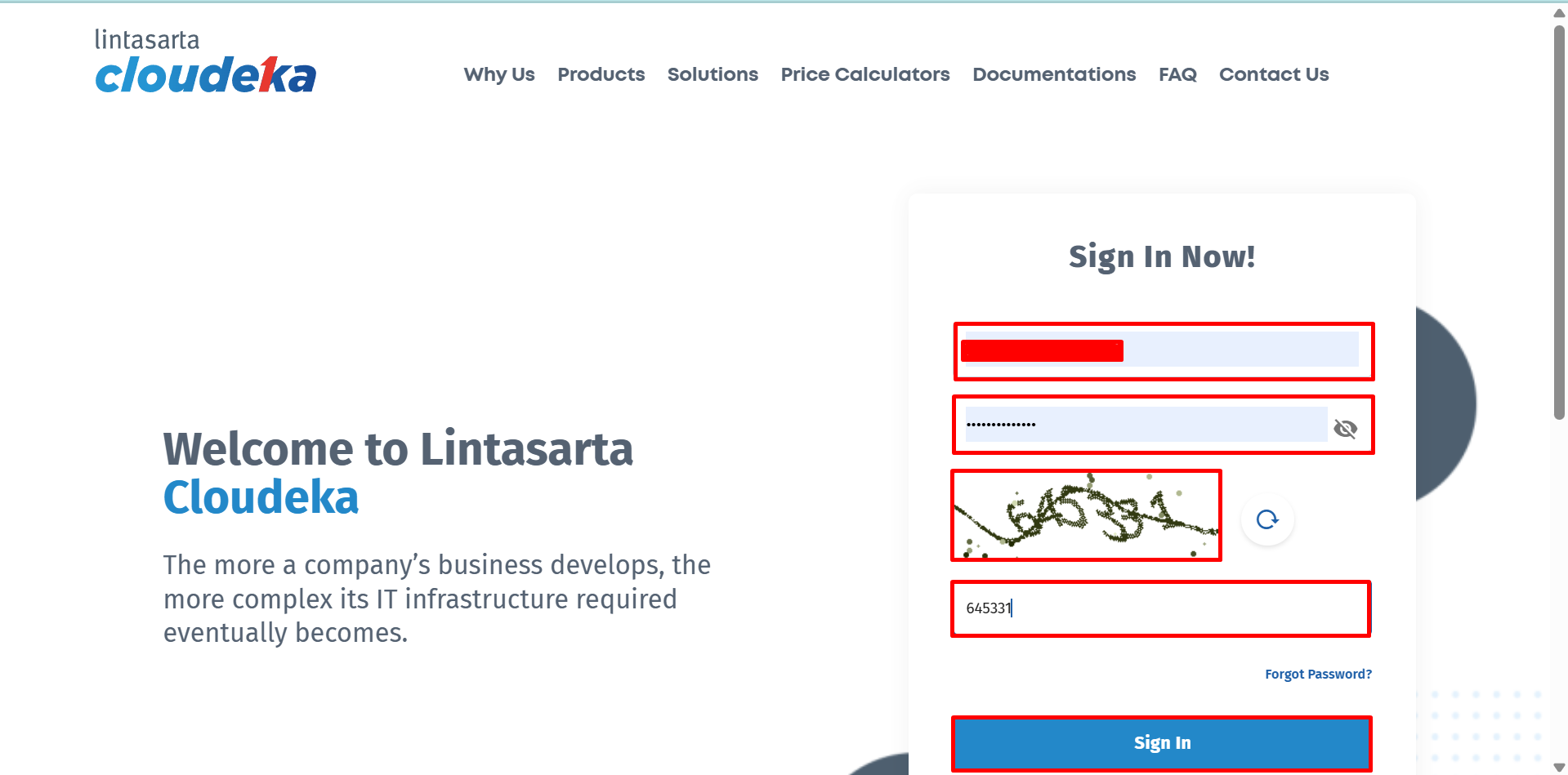
### **Sign in to your account**
Enter your username and password in the designated fields, complete the CAPTCHA verification, and click Sign In.
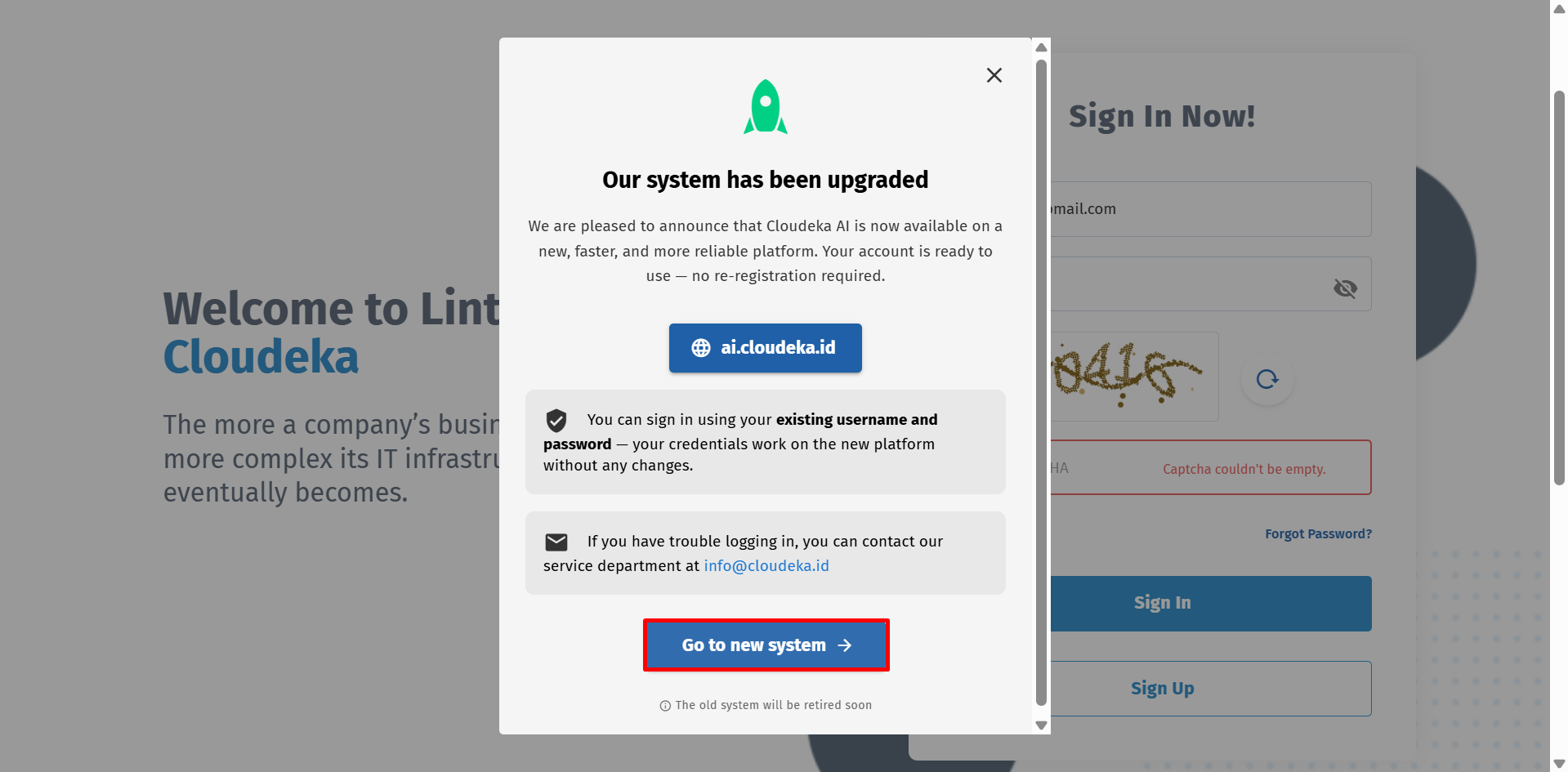
### View the migration notification
After signing in, the system displays a notification prompting you to switch to the new Cloudeka Service Portal . Click **Go to new system** to access the new portal.
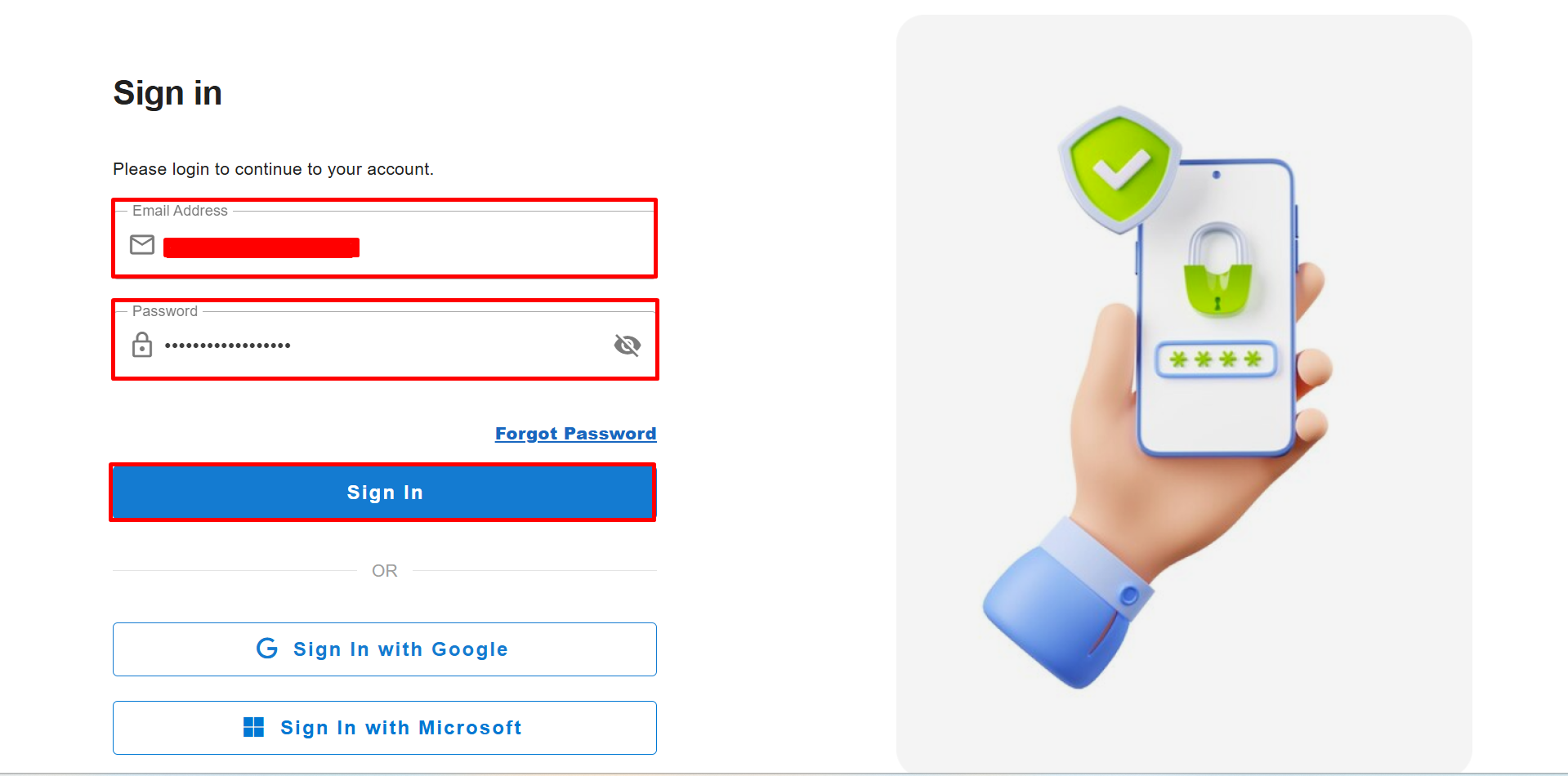
### Sign in to the new system
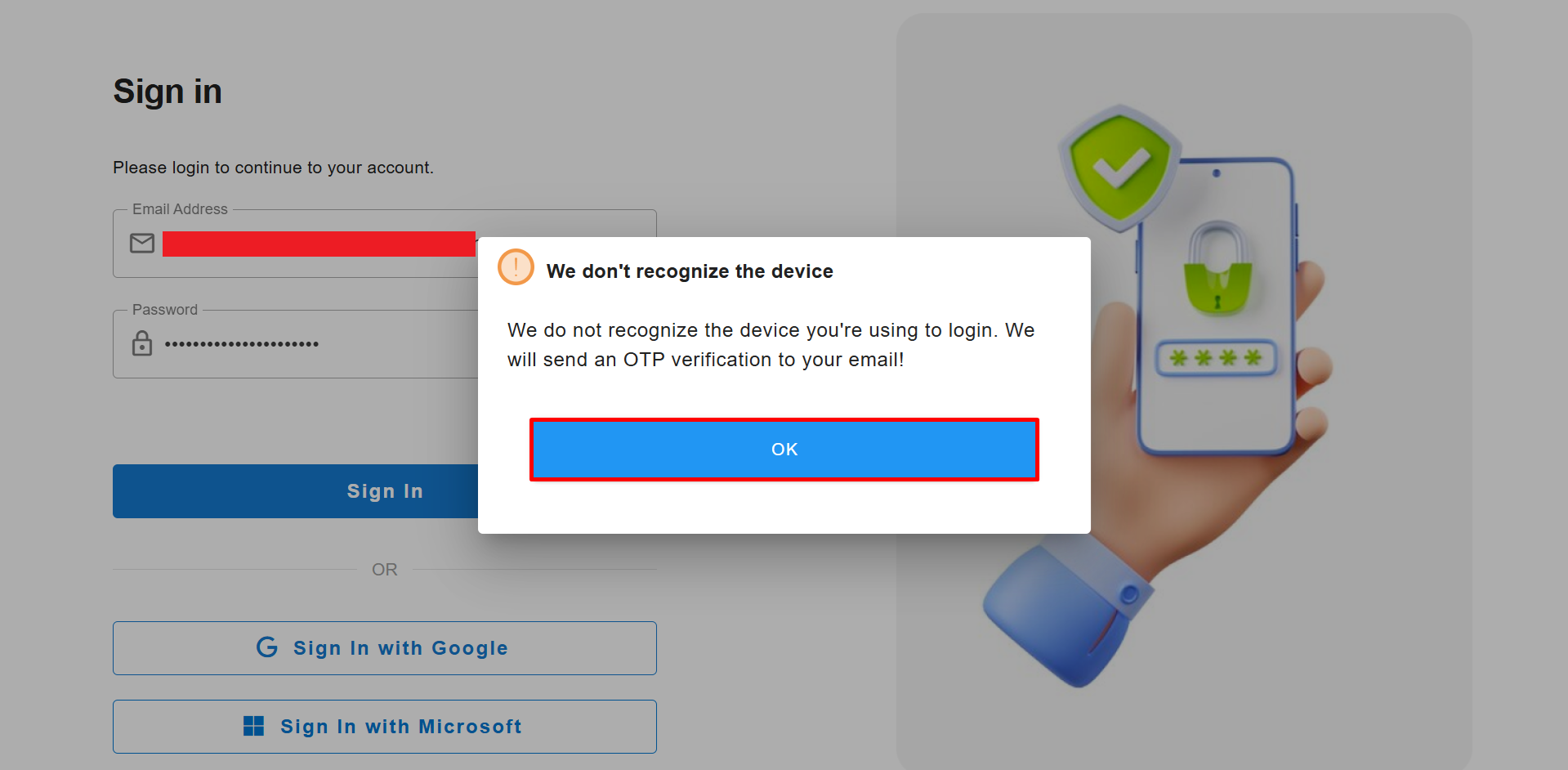
You are redirected to the new Cloudeka Service Portal sign-in page. Enter the email address and password used in the previous Service Portal, then click **Sign In** to access the new portal.
### We don't recognize the device
After clicking **Sign In**, the system displays a **We don't recognize the device** notification. Click **OK** to proceed with device verification. The system sends an OTP to the registered email address.
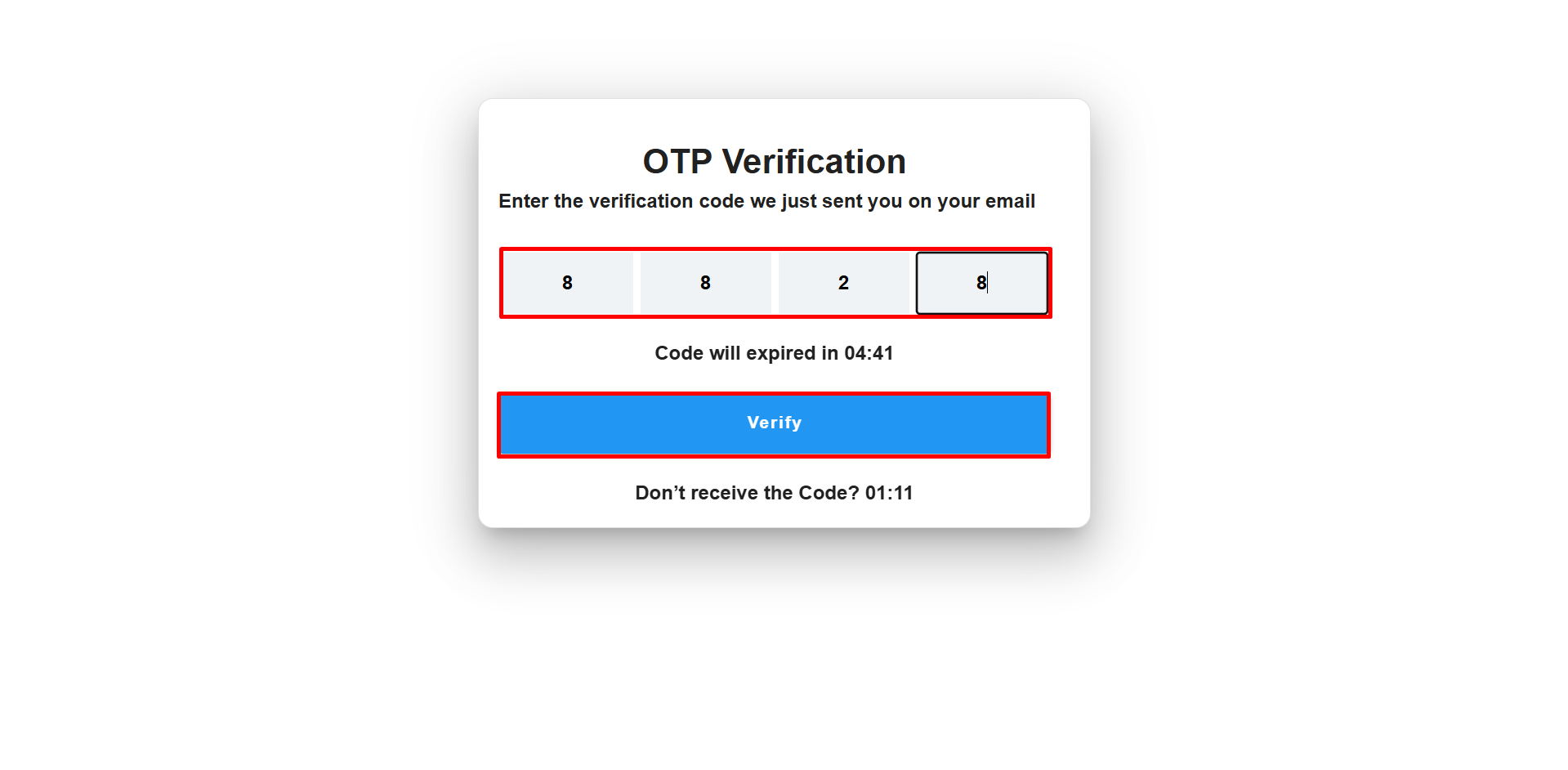
### Enter the OTP verification code
After clicking **OK**, the system displays the **OTP Verification** page. Enter the verification code received by email, then click **Verify** to complete the device verification process.
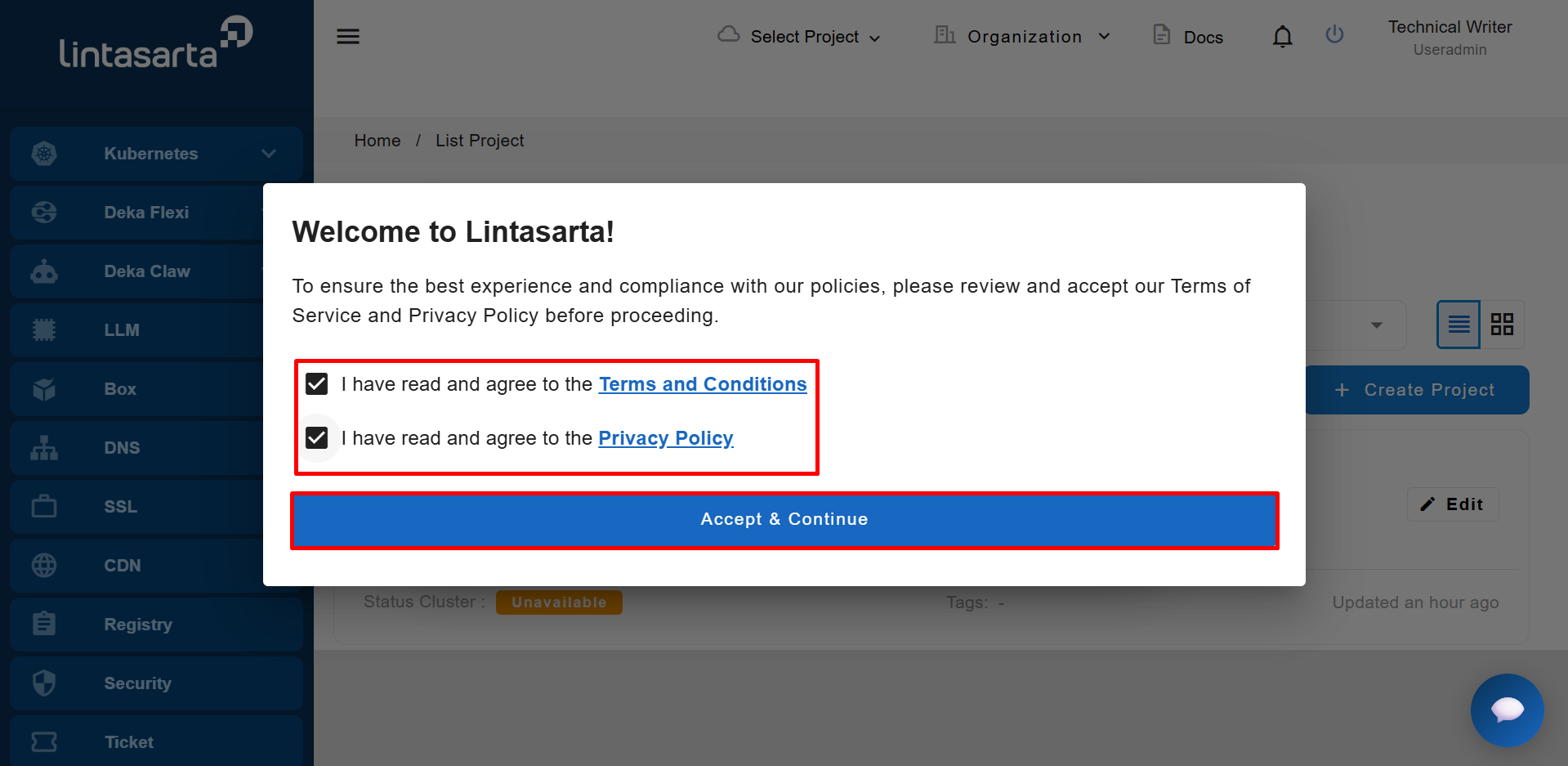
### Accept the terms and conditions
After device verification, the system displays a pop-up containing the [End User License Agreement (EULA)](broken://pages/xKTxHqcRvpkJ0zJblTCC) and [Privacy Policy](broken://pages/xKTxHqcRvpkJ0zJblTCC#privacy-policy). Select both checkboxes to agree to the [Terms and Conditions](broken://pages/xKTxHqcRvpkJ0zJblTCC#terms-and-conditions) and [Privacy Policy](broken://pages/xKTxHqcRvpkJ0zJblTCC#privacy-policy), then click **Accept & Continue** to proceed.
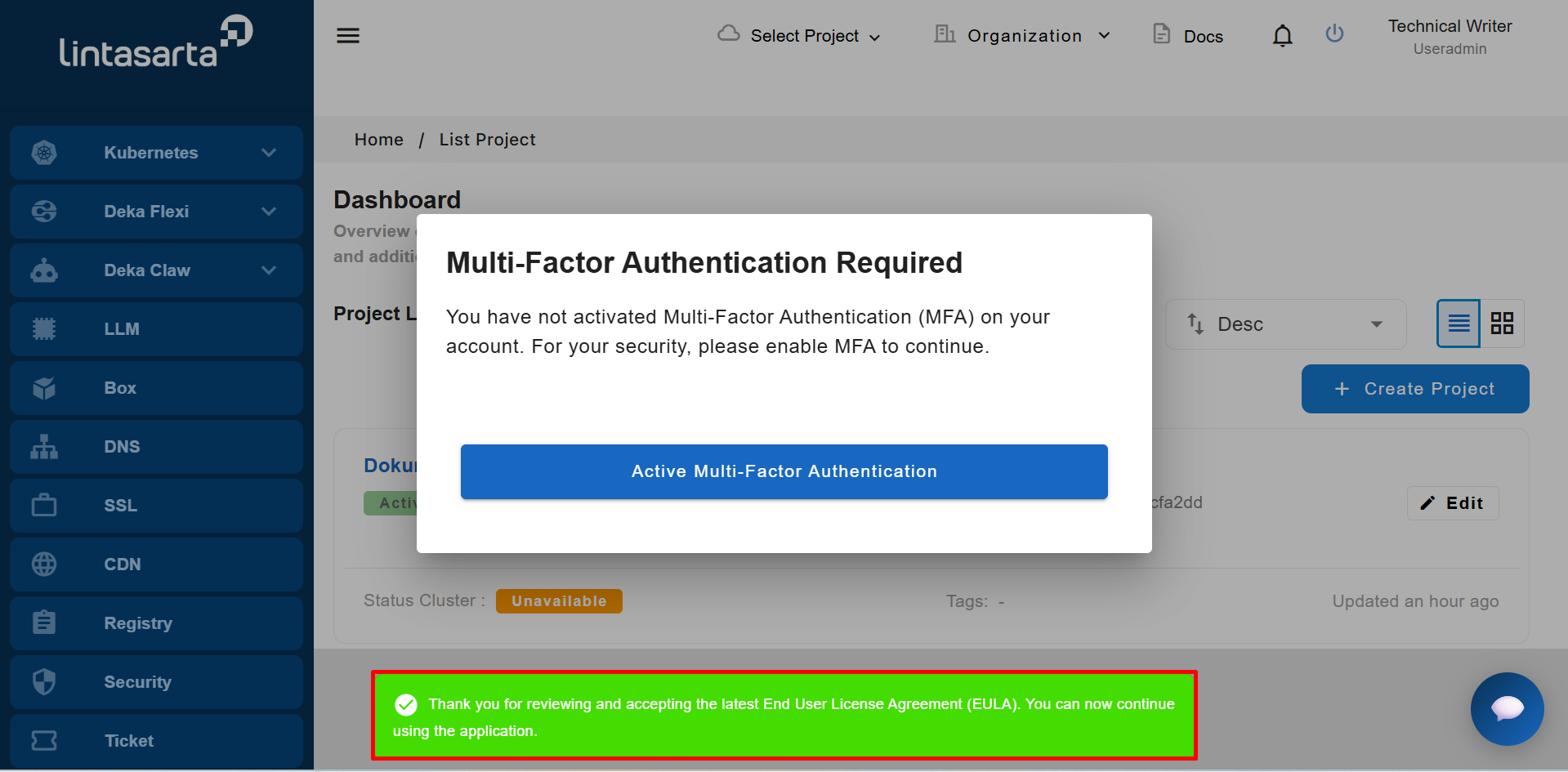
After accepting the Terms and Conditions and Privacy Policy, the system displays a confirmation notification stating, **“Thank you for reviewing and accepting the latest End User License Agreement (EULA). You can now continue using the application.”** This notification confirms that the EULA has been successfully accepted.
### Activate Multi-Factor Authentication (MFA)
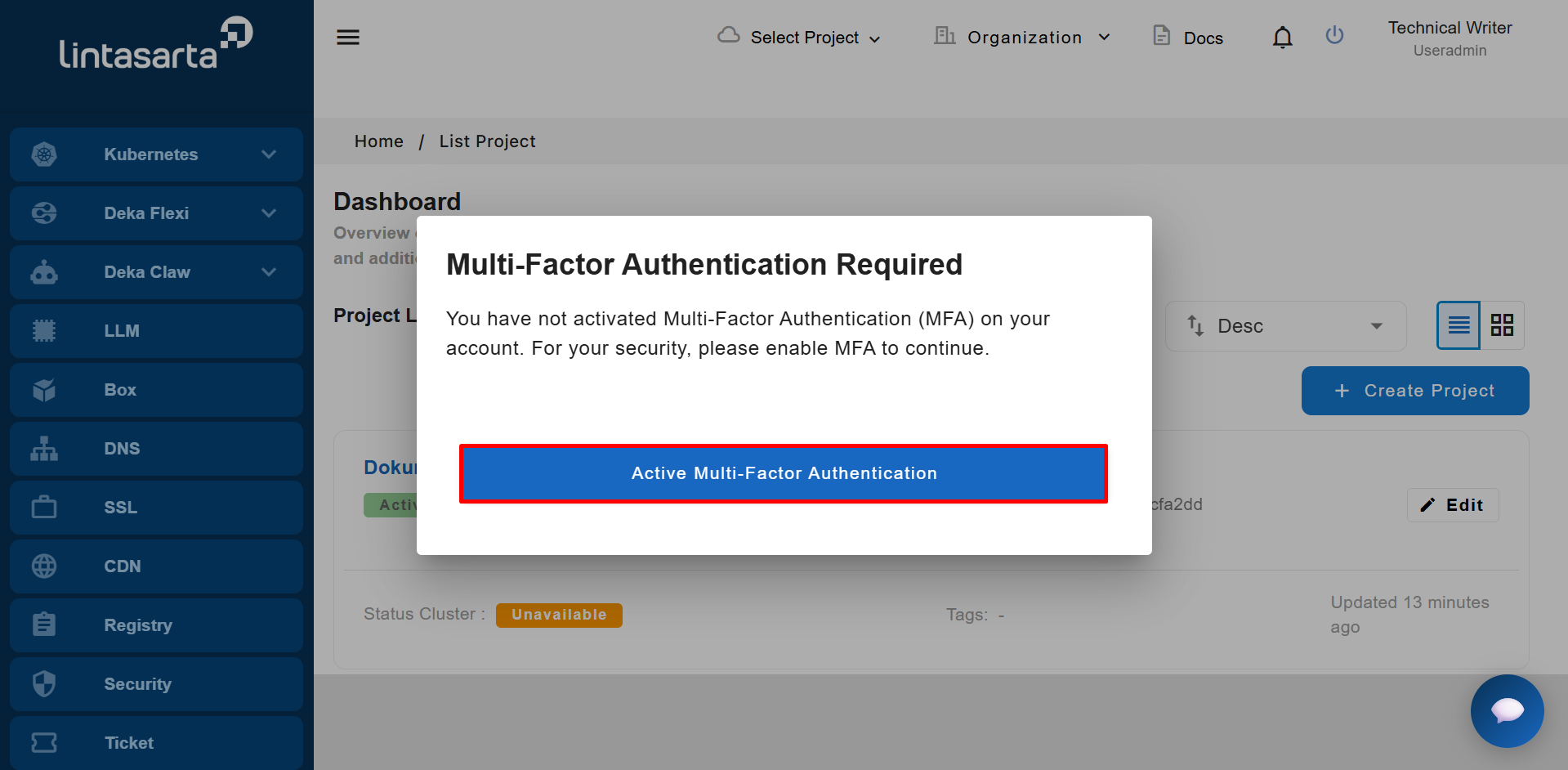
In the **Multi-Factor Authentication Required** notification, click **Active Multi-Factor Authentication** to proceed with MFA activation.
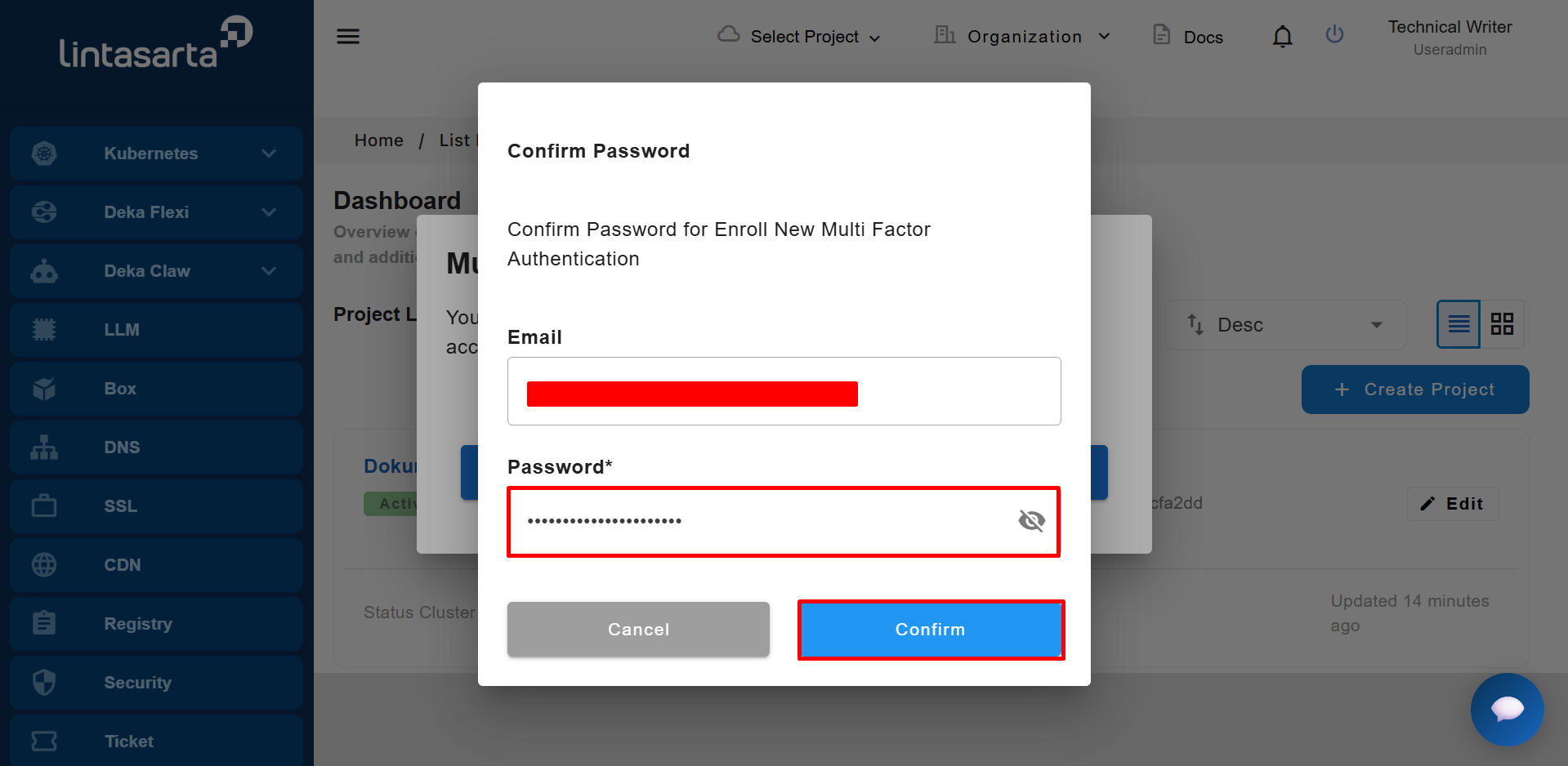
The system displays a **Confirm Password** pop-up. Enter the password used to sign in to the Cloudeka Service Portal, then click **Confirm** to display the MFA QR code.
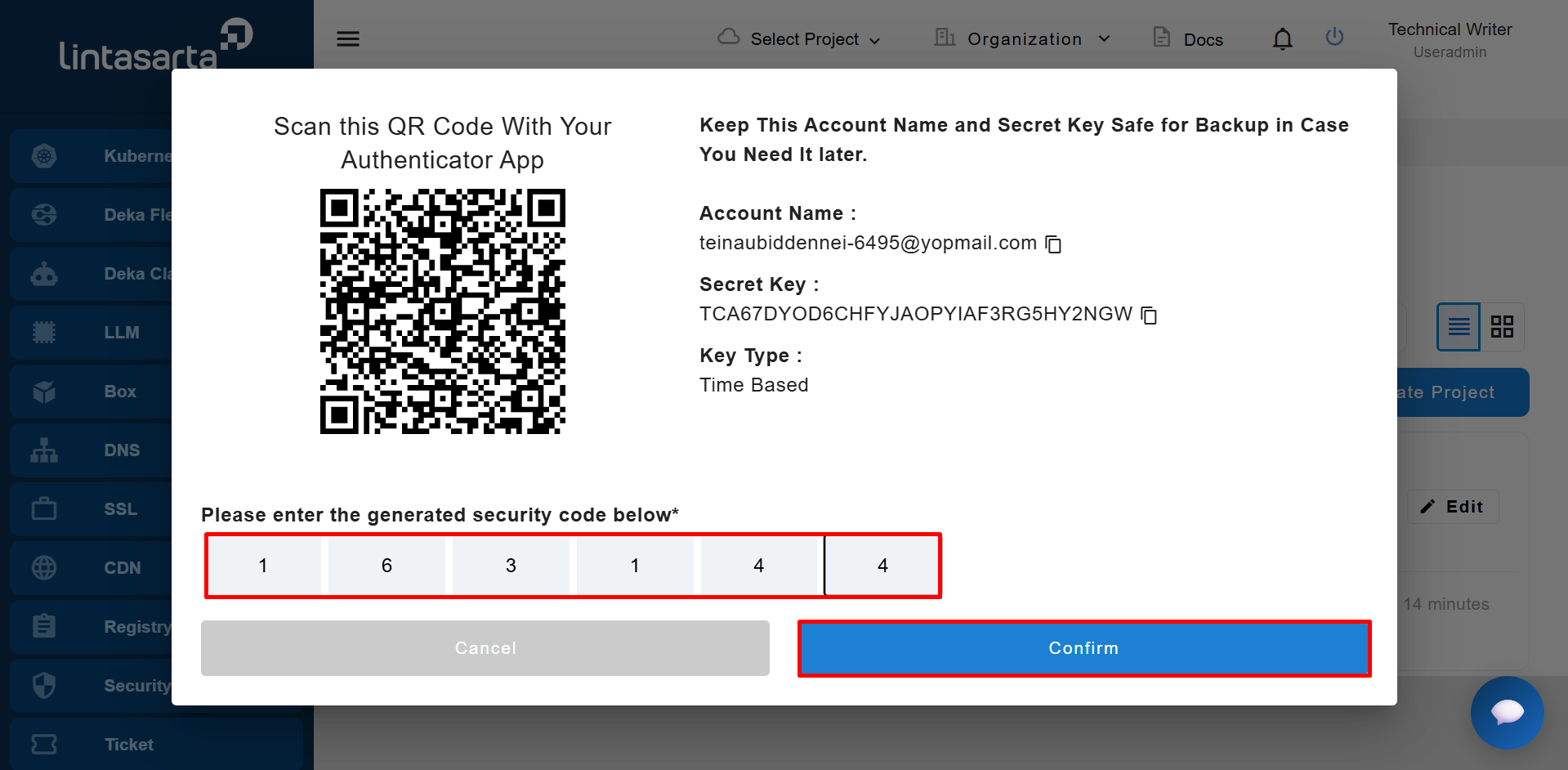
Scan the QR code using the[ Google Authenticator](broken://pages/YYAXNs6Q3Xeon7f7AimB)/[Microsoft Authenticato](broken://pages/vdig47IYkyZcFmYqy1RA)r app. Enter the generated verification code in the designated fields, then click **Confirm** to complete the MFA activation process.
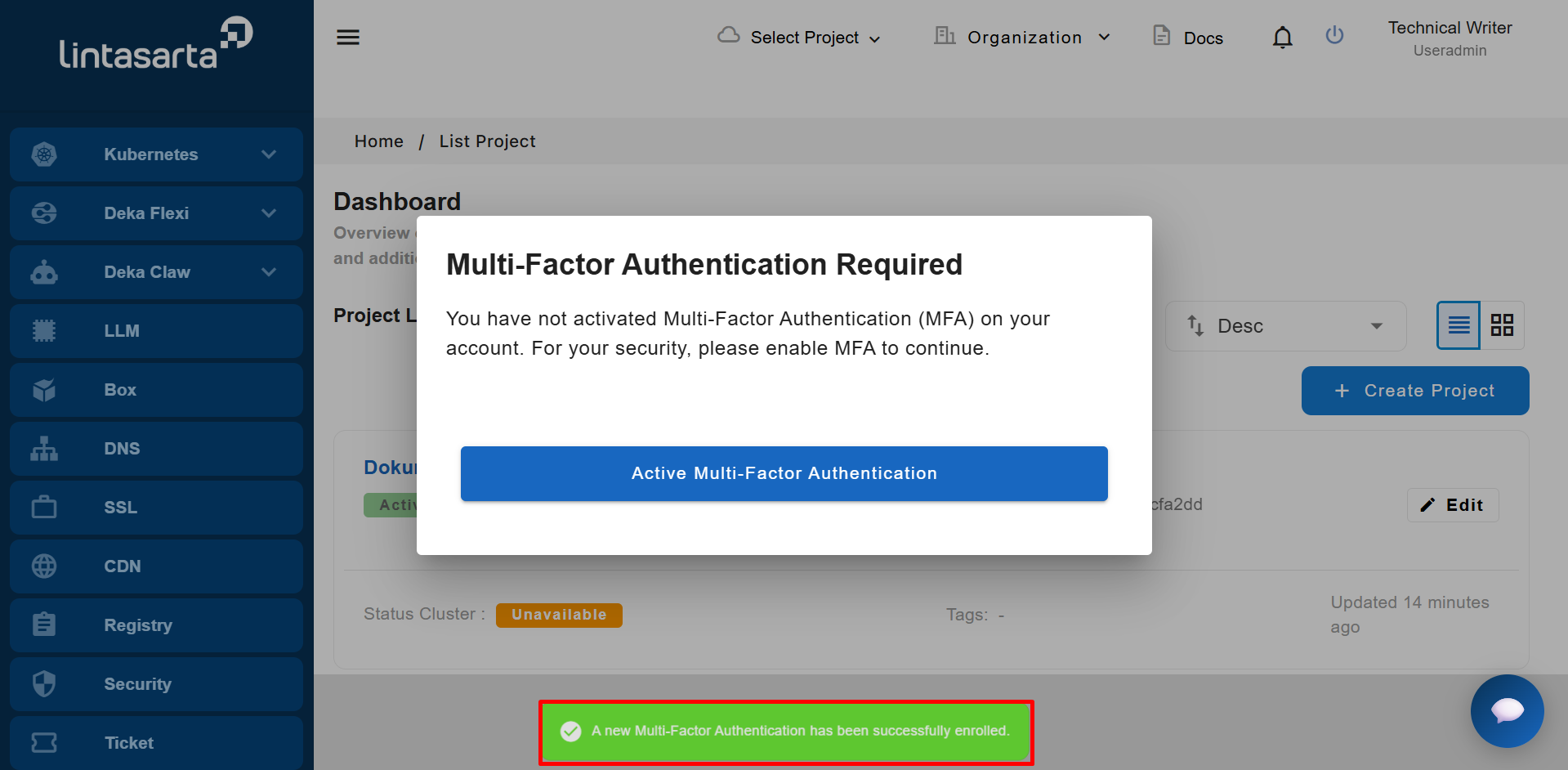
Once MFA activation is successful, the system displays the notification **“A new Multi-Factor Authentication has been successfully enrolled.”** This notification indicates that MFA has been successfully activated.
### Access the Cloudeka Service Portal
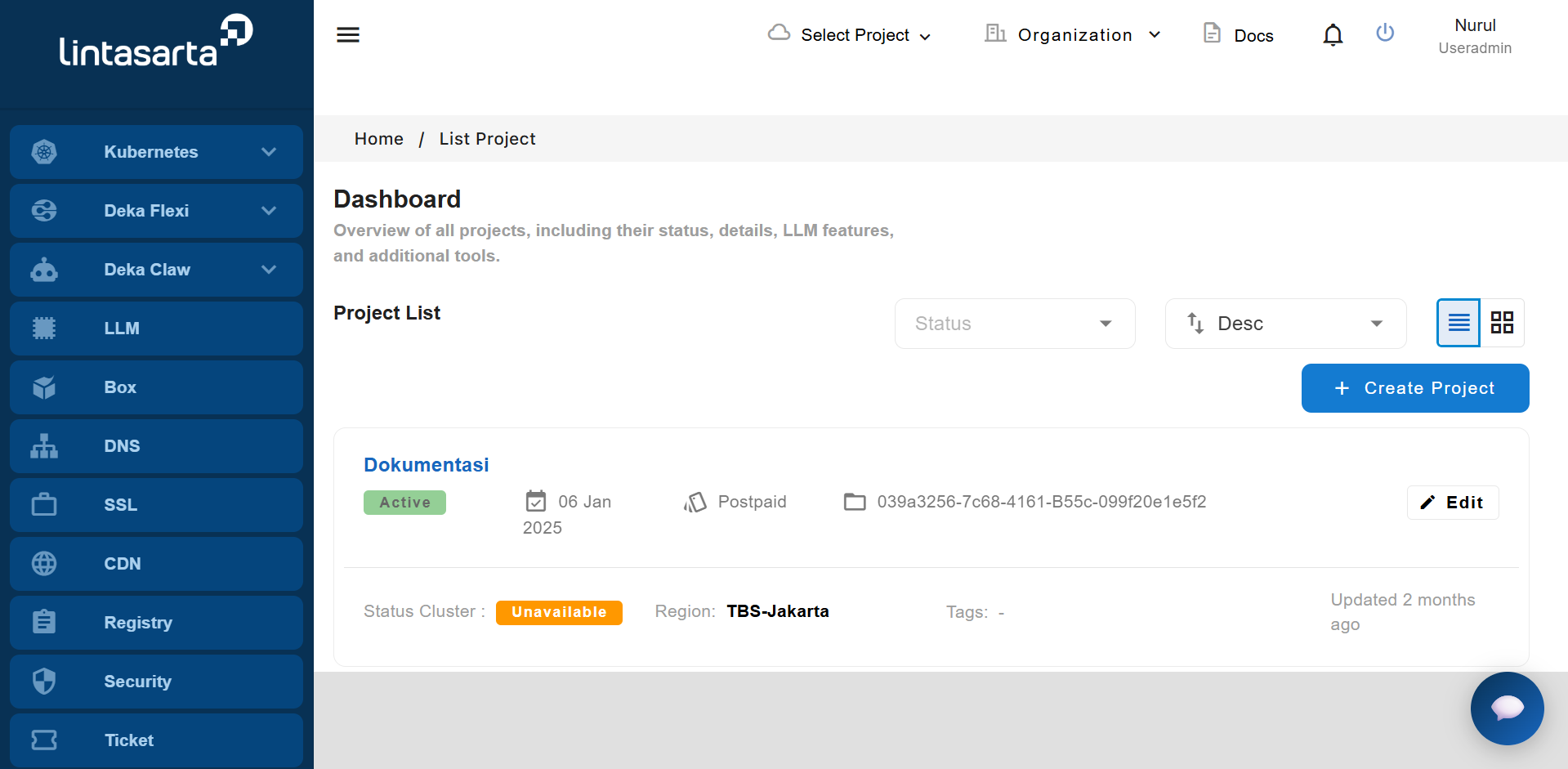
After MFA activation is successful, the system redirects you to the Dashboard page. You can now access your projects in the Cloudeka Service Portal.