> For the complete documentation index, see [llms.txt](https://docs.cloudeka.ai/llms.txt). Markdown versions of documentation pages are available by appending `.md` to page URLs; this page is available as [Markdown](https://docs.cloudeka.ai/reference/how-to-install-nvidia-grid.md).
# How to Install NVIDIA GRID
In this guide, you will find step-by-step instructions for installing the NVIDIA GRID driver on a Linux-based system and configuring the NVIDIA vGPU (virtual GPU) license for use in a virtualization environment.
## Download Driver NVIDIA GRID
Download the [NVIDIA GRIDD](https://lintasarta-my.sharepoint.com/:f:/g/personal/dekagpu_support_lintasarta_co_id/Eve2n6OG5DdFlZ92DI3q9YMBnEb6HF1tD9rOrhykEZp_dw?e=INH6jg) driver.
## Instalasi Driver NVIDIA GRID
First, update and upgrade your Linux system by running the command below.
```
sudo apt update -y && sudo apt upgrade -y
```
Once the system update and upgrade are complete, install the build essentials by running.
```
sudo apt install build-essential -y
```
Next, run the following commands to install the NVIDIA GRID driver:
```
chmod +x NVIDIA-Linux-x86_64-550.54.14-grid.run
sudo ./ NVIDIA-Linux-x86_64-550.54.14-grid.run
```
During installation, ensure you select the following options to avoid errors:
* Install DKMS module → Yes
* Register kernel module → Yes
* Install GRID vGPU drivers → Yes
After the driver installation is completed, verify GPU installation by running.
```
nvidia-smi
```
{% hint style="success" %}
If successful, details about the GPU and driver version `550.54.14` will be displayed.
{% endhint %}
## Add License
To obtain the license, please request it from Lintasarta so it can be generated. General instructions for license installation can be found [here](https://docs.nvidia.com/vgpu/latest/grid-licensing-user-guide/index.html#configuring-nls-licensed-client).
{% hint style="success" %}
Ensure the license file is available on the VM.
{% endhint %}
Navigate to the `/etc/nvidia/` directory and copy the `gridd.conf` file from the template, then adjust the GPU Type.
```
cd /etc/nvidia/
sudo cp /etc/nvidia/gridd.conf.template /etc/nvidia/gridd.conf
```
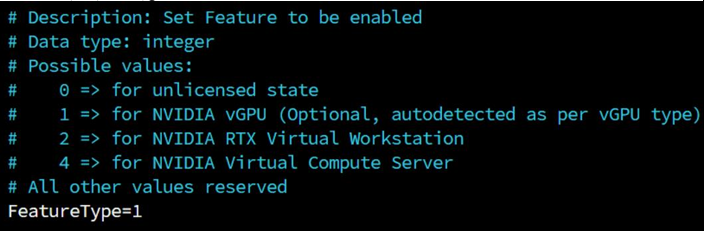
Open the `gridd.conf` file and modify the **Feature Type** to `"1"`
```
sudo nano /etc/nvidia/gridd.conf
```
```
FeatureType = 1
```
Save and exit the editor.
Copy the license token file to the `/etc/nvidia/ClientConfigToken` directory and set the appropriate permissions:
```
sudo cp /home/ubuntu/client_configuration_token_10-17-2024-01-10-51.tok
/etc/nvidia/ClientConfigToken/
cd /etc/nvidia/ClientConfigToken/
sudo chmod 744 client_configuration_token_10-17-2024-01-10-51.tok
```
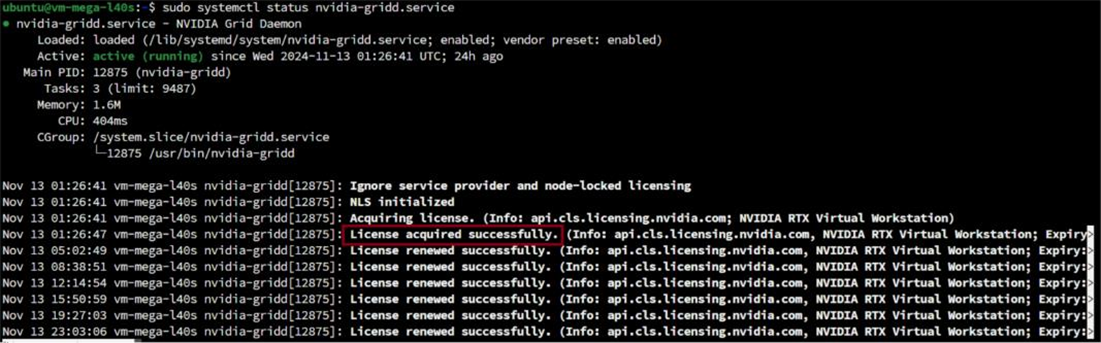
Restart the NVIDIA GRID service and verify that the license is correctly applied.
```
sudo systemctl restart nvidia-gridd.service
sudo systemctl status nvidia-gridd.service
```