> For the complete documentation index, see [llms.txt](https://docs.cloudeka.ai/llms.txt). Markdown versions of documentation pages are available by appending `.md` to page URLs; this page is available as [Markdown](https://docs.cloudeka.ai/reference/rapids/how-to-push-image-with-docker.md).
# How to push image with Docker
To upload a repository, make sure you have installed a desktop docker on your computer. Use an account with the role Creator to view keywords used in Members.
### Install Docker on Computer
Here are the steps to install Docker on a computer:
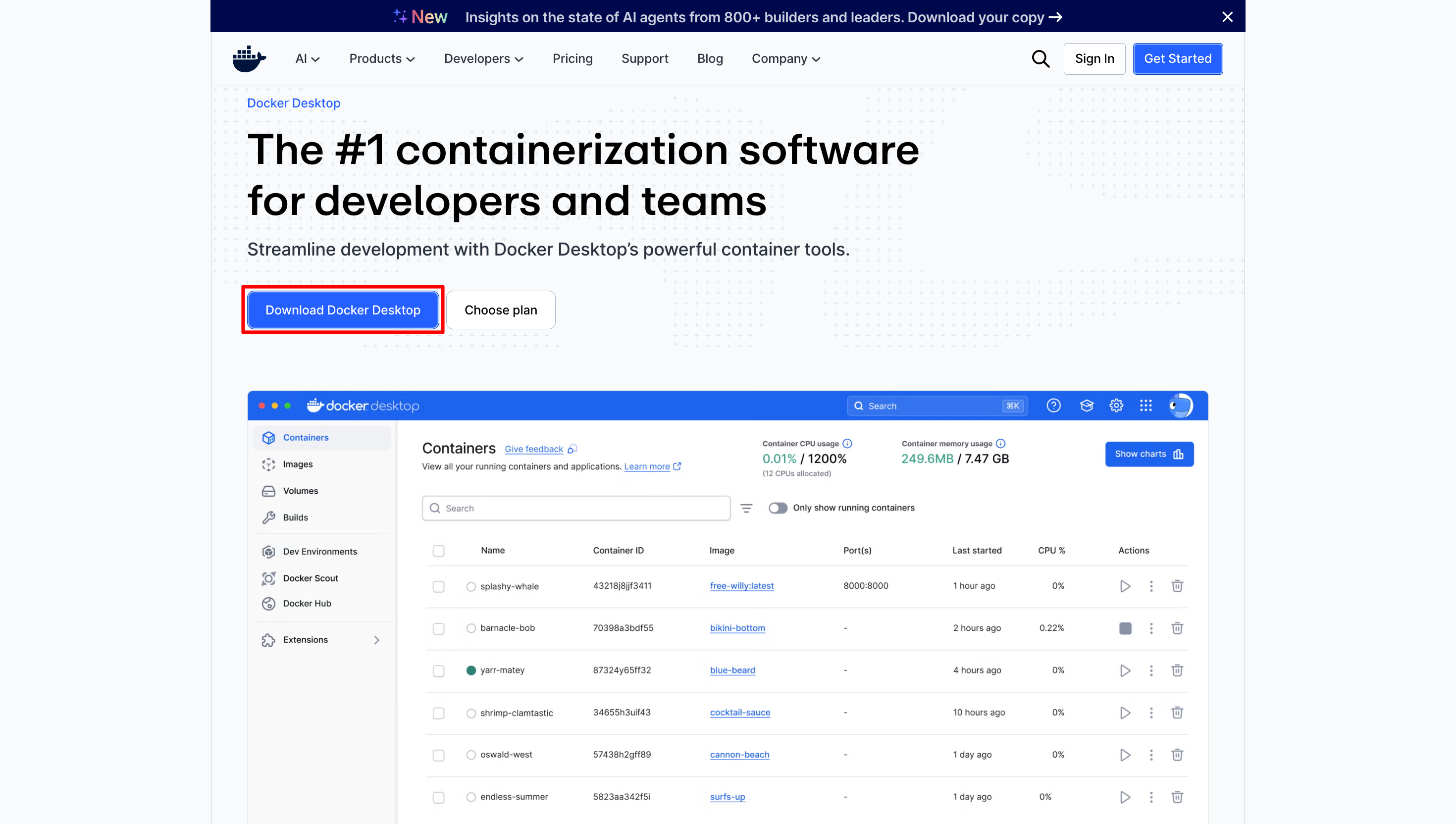
* Download Docker Desktop based on your operating system. In this guide, Windows is used as an example. Wait for the download to complete, then install Docker Desktop.
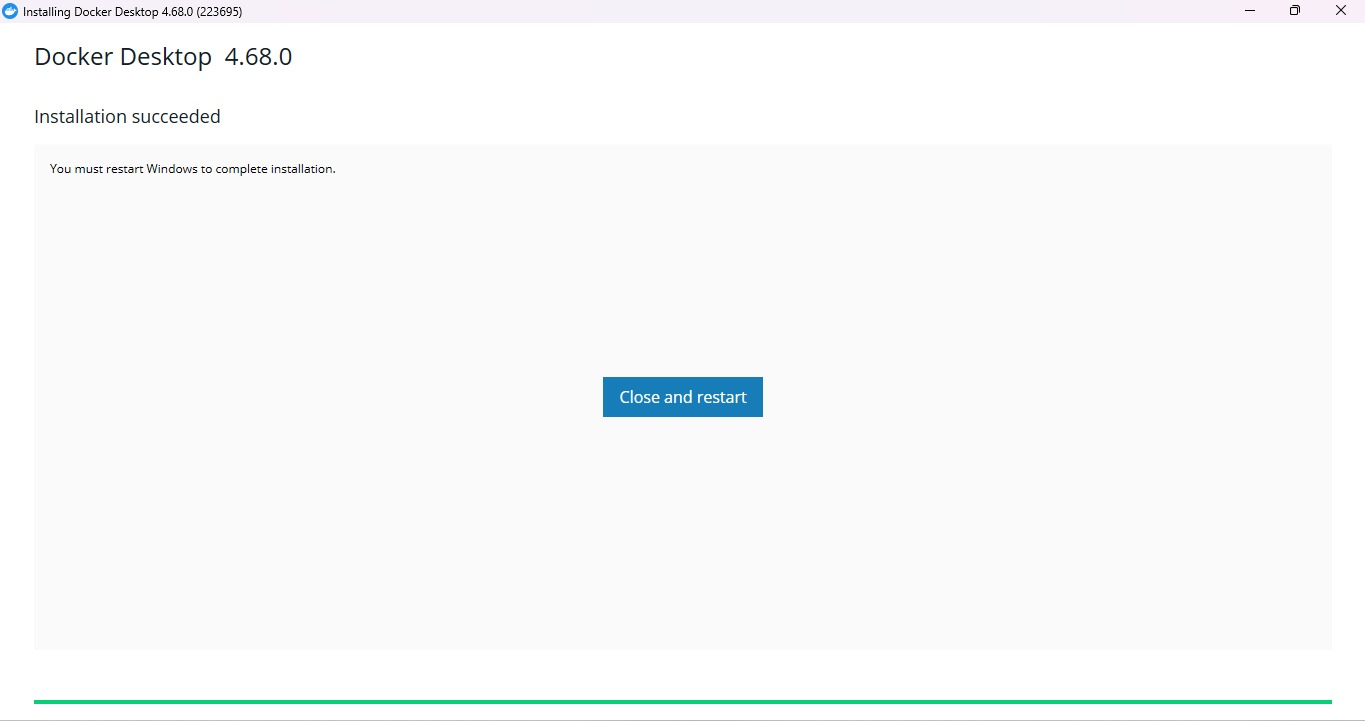
* Once the installation is finished, restart your computer to complete the setup.
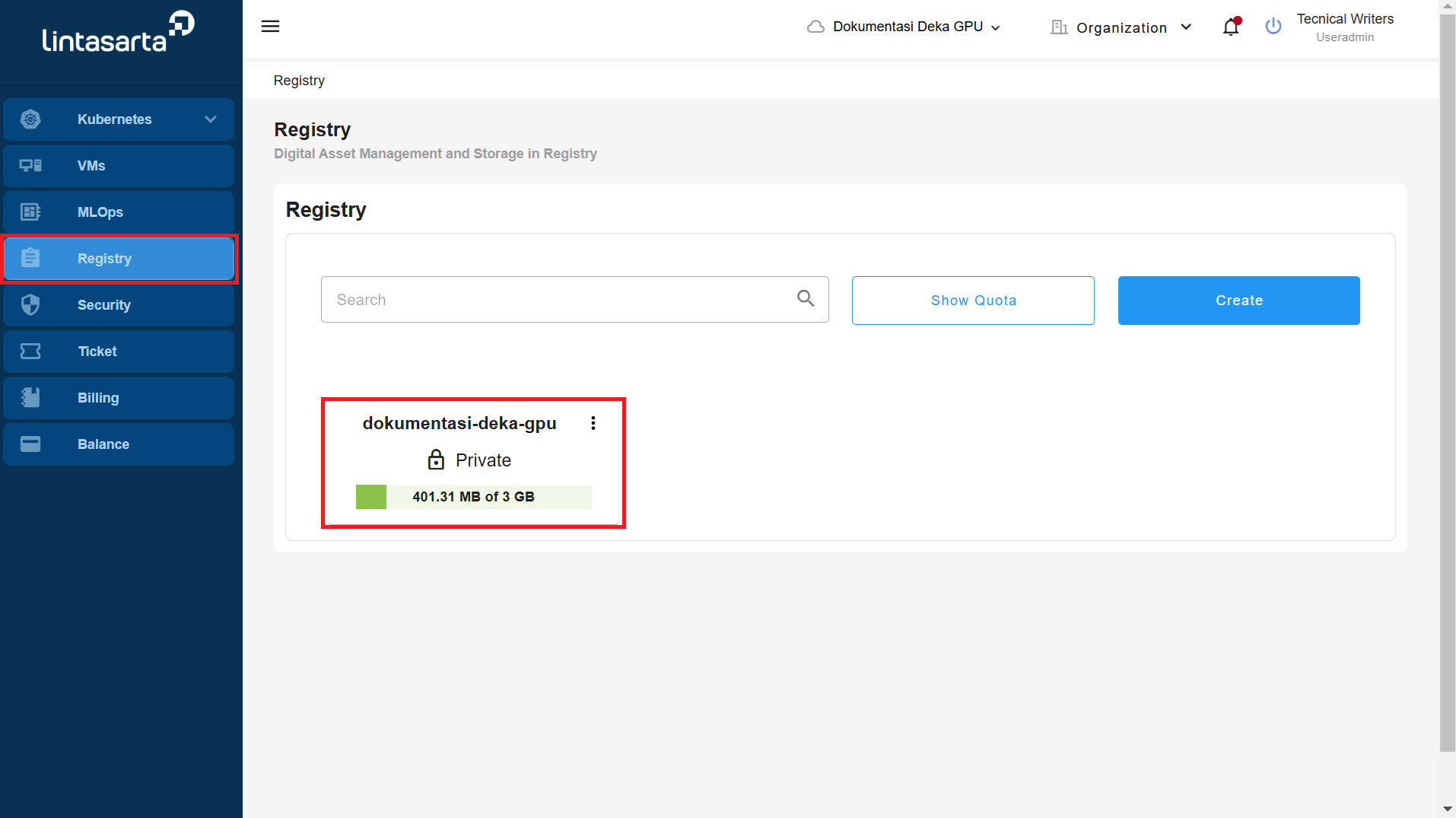
* On the Deka Registry page of the Deka GPU service portal*.*
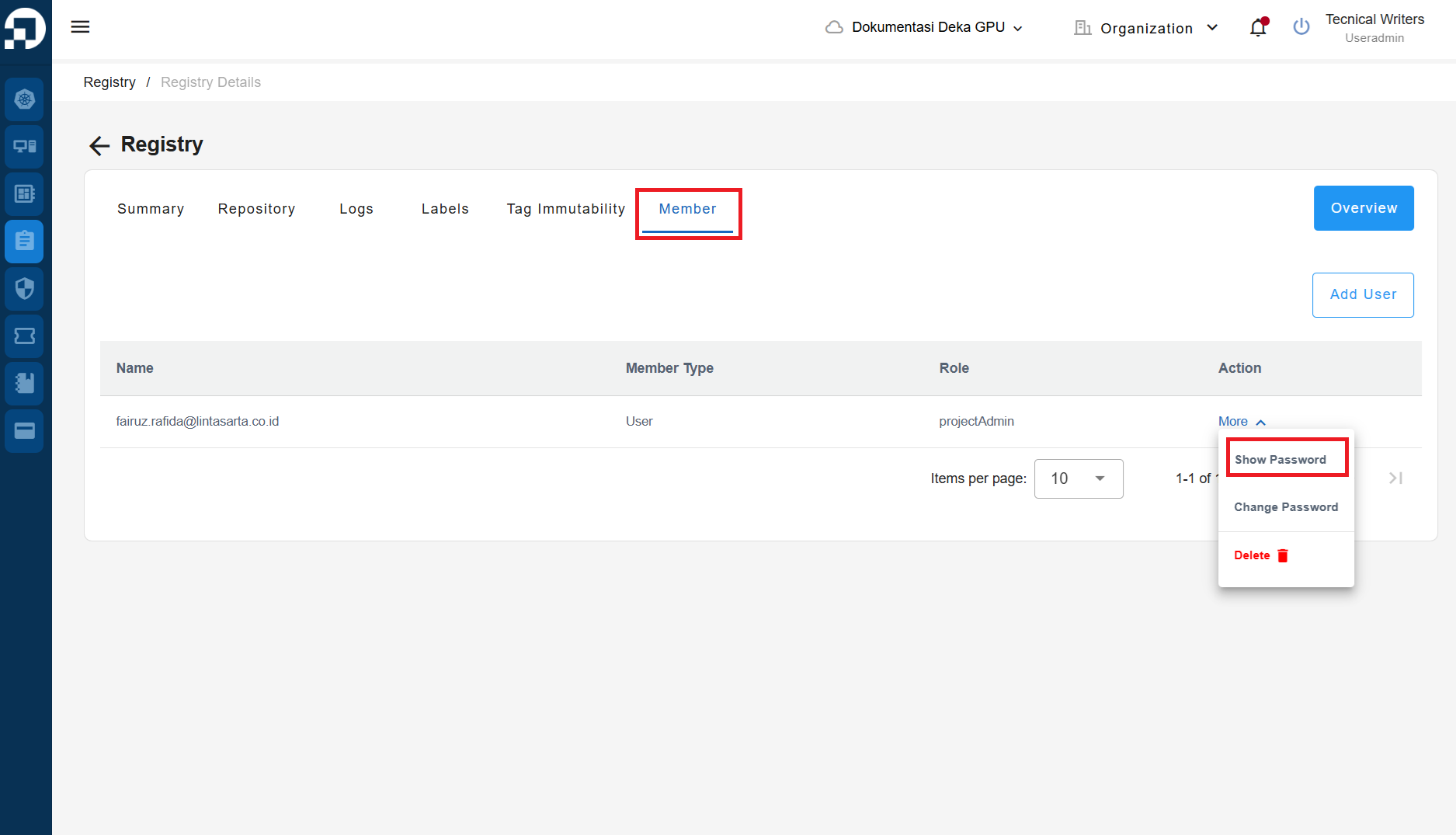
* On the Members tab click the More button and click Show Password.
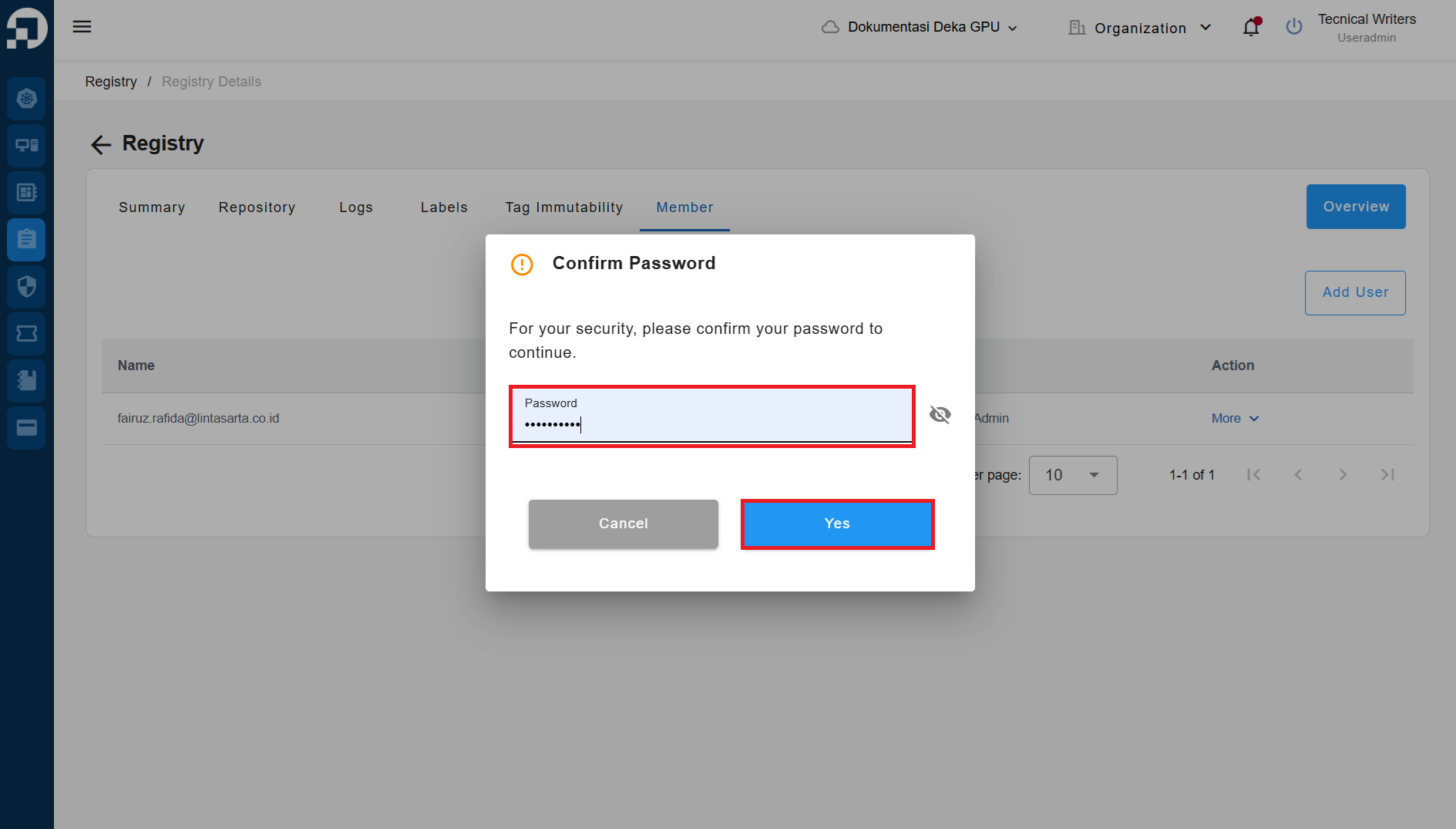
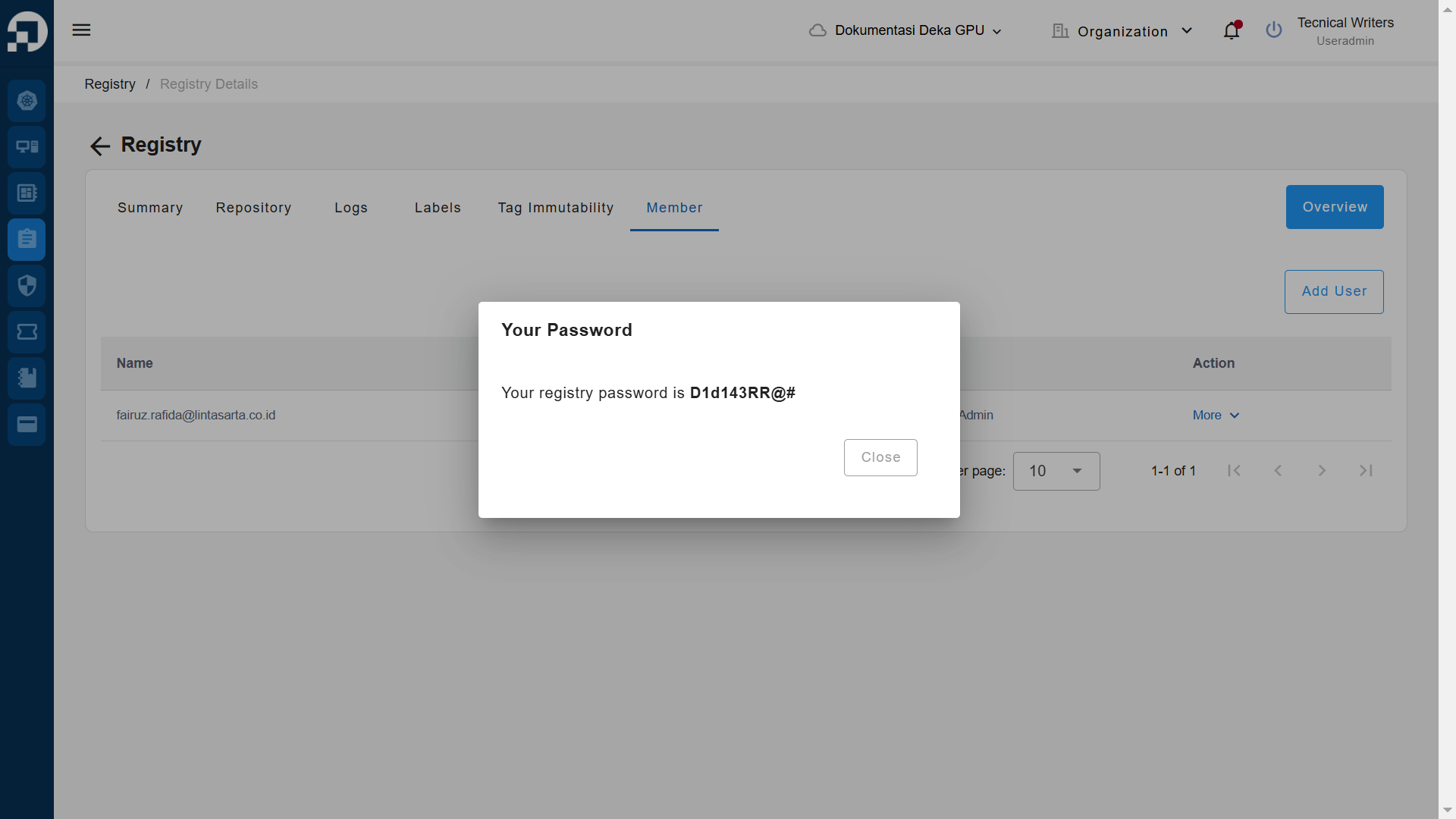
* Enter a password to log in to the Deka GPU Service Portal and click the Yes button to display the password that the Register Member uses.
* Copy the displayed password.
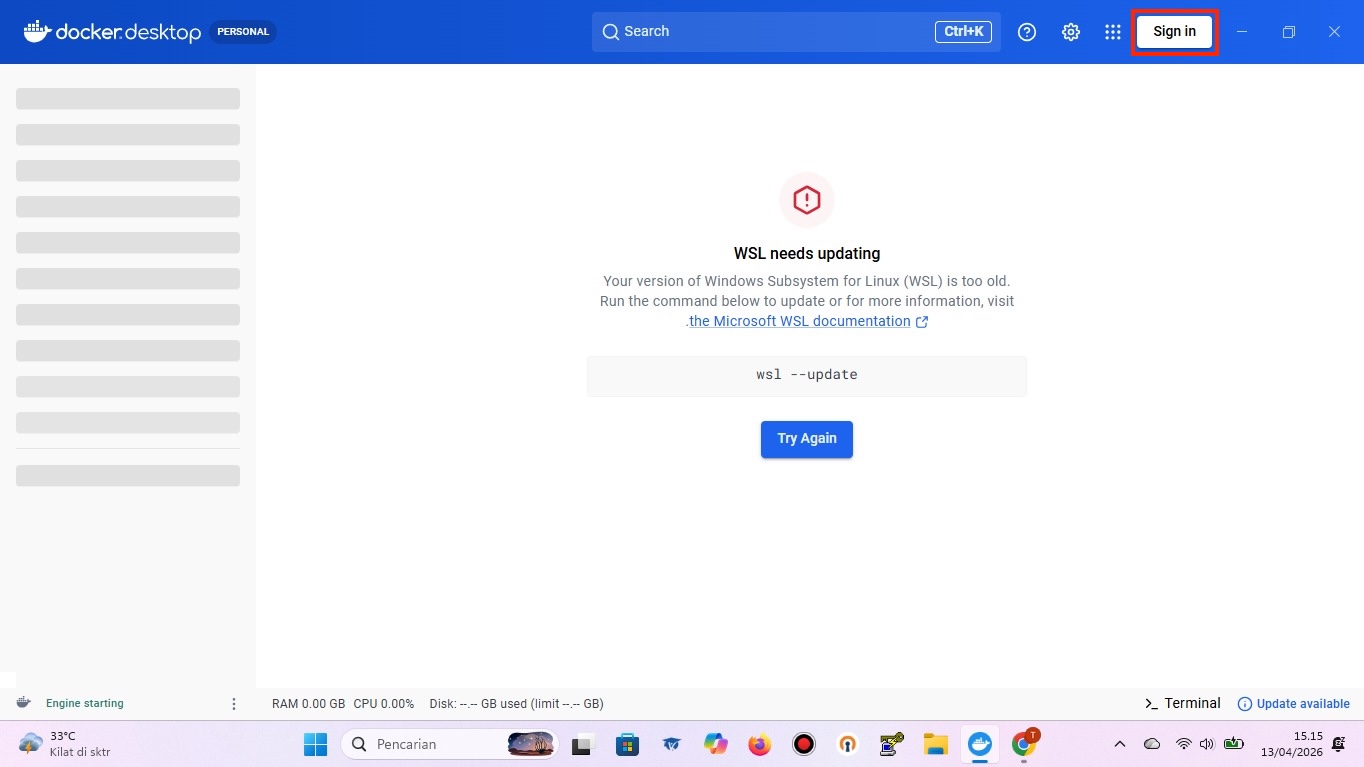
* Run a Docker Desktop that is already installed on the computer. In Docker Desktop click Sign In.
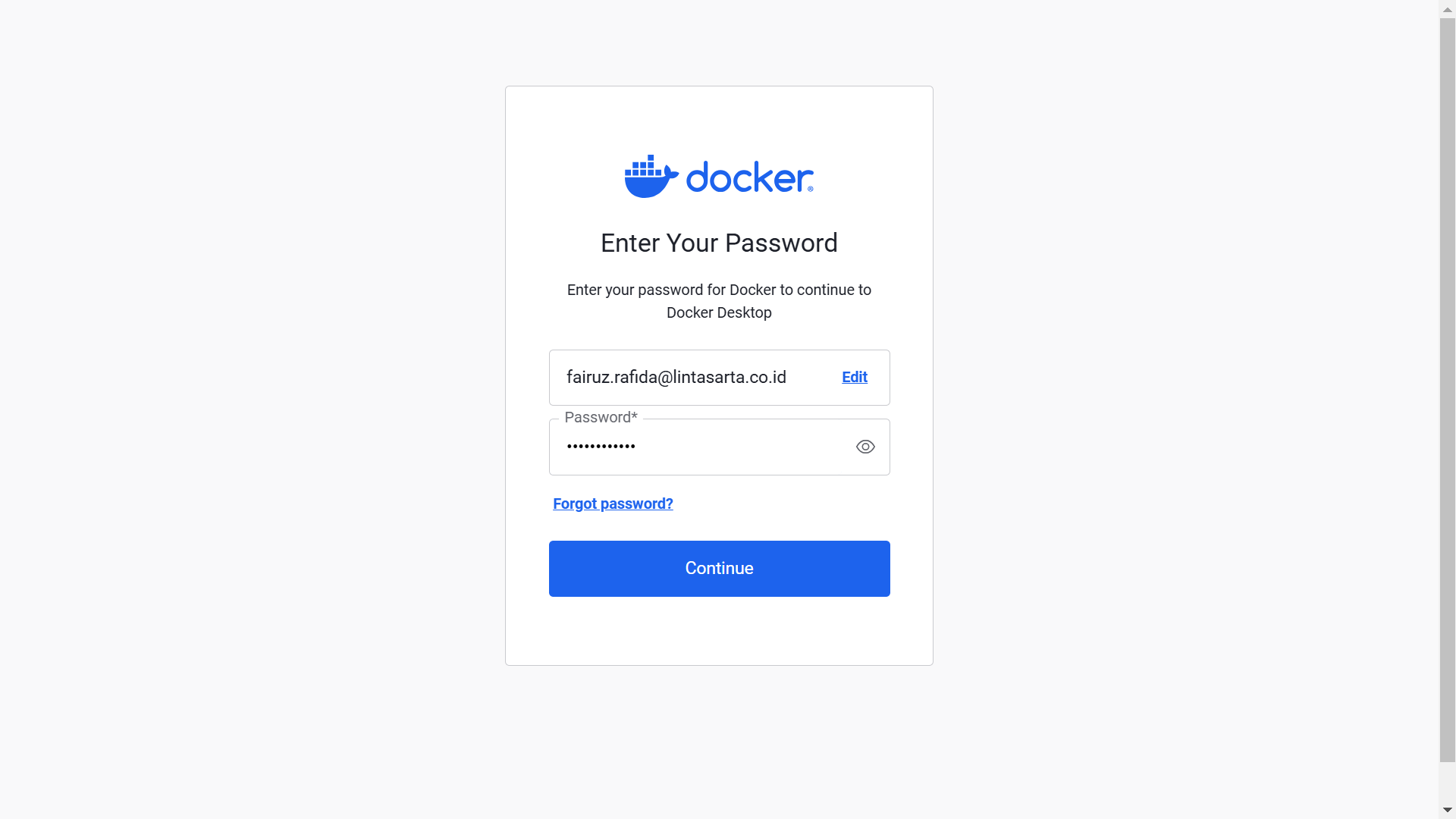
* Enter the name, password obtained in the member and click Continue to continue the process of logging into Docker Desktop.
* The following image shows the final step of the Docker Desktop setup process.
* Make sure you already have a repository to push to the Deka Rock repository.
## Push Image with Docker Terminal
{% hint style="info" %}
Make sure you have the images that will be uploaded to Deka Registry via docker.
{% endhint %}
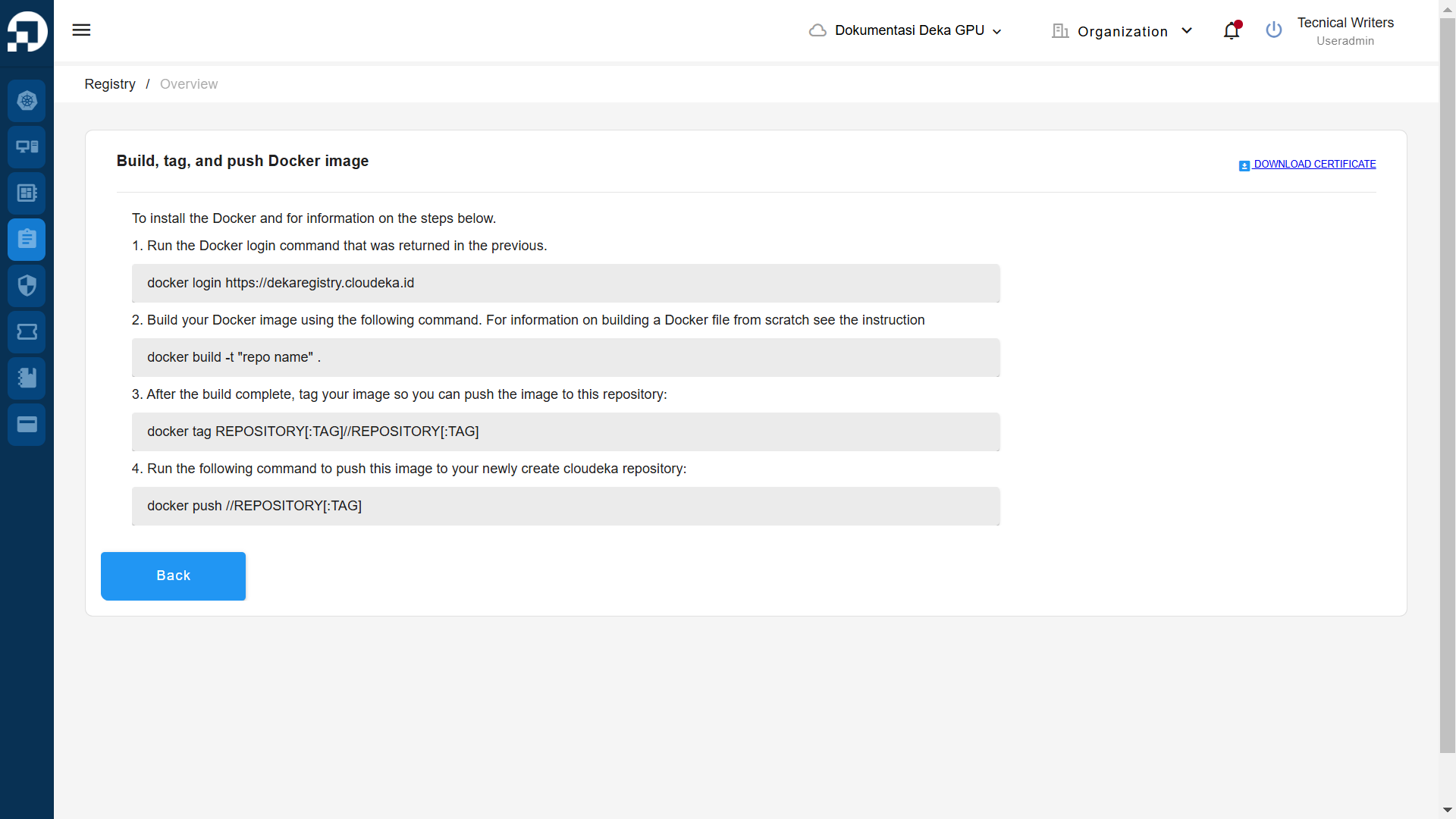
Here are the steps to upload a repository in the Cloudeka portal service:
* On the Register Deka page click the Overview button to view the syntax used to create the docker image.
The following is a tutorial for pushing images with Docker to Deka Registry.
{% embed url="" %}