> For the complete documentation index, see [llms.txt](https://docs.cloudeka.ai/llms.txt). Markdown versions of documentation pages are available by appending `.md` to page URLs; this page is available as [Markdown](https://docs.cloudeka.ai/service-portal-ai/sign-in/sign-in-using-enterprise-sso.md).
# Sign In using Enterprise SSO
Enterprise SSO allows users to sign in to the [Service Portal Cloudeka](https://ai.cloudeka.id/) using their organization's identity provider without creating a separate Cloudeka password.
Before signing in using Enterprise SSO, make sure your organization's Enterprise SSO has already been configured.
{% hint style="info" %}
Enterprise SSO must be configured by a **Useradmin** with the **Creator** role before organization members can sign in using Enterprise SSO. For configuration steps, refer to the [**Configure Enterprise SSO**](/service-portal-ai/organization-settings/configure-enterprise-sso.md) page.
{% endhint %}
{% hint style="warning" %}
Enterprise SSO currently supports **Google** as the Identity Provider (IdP).
{% endhint %}
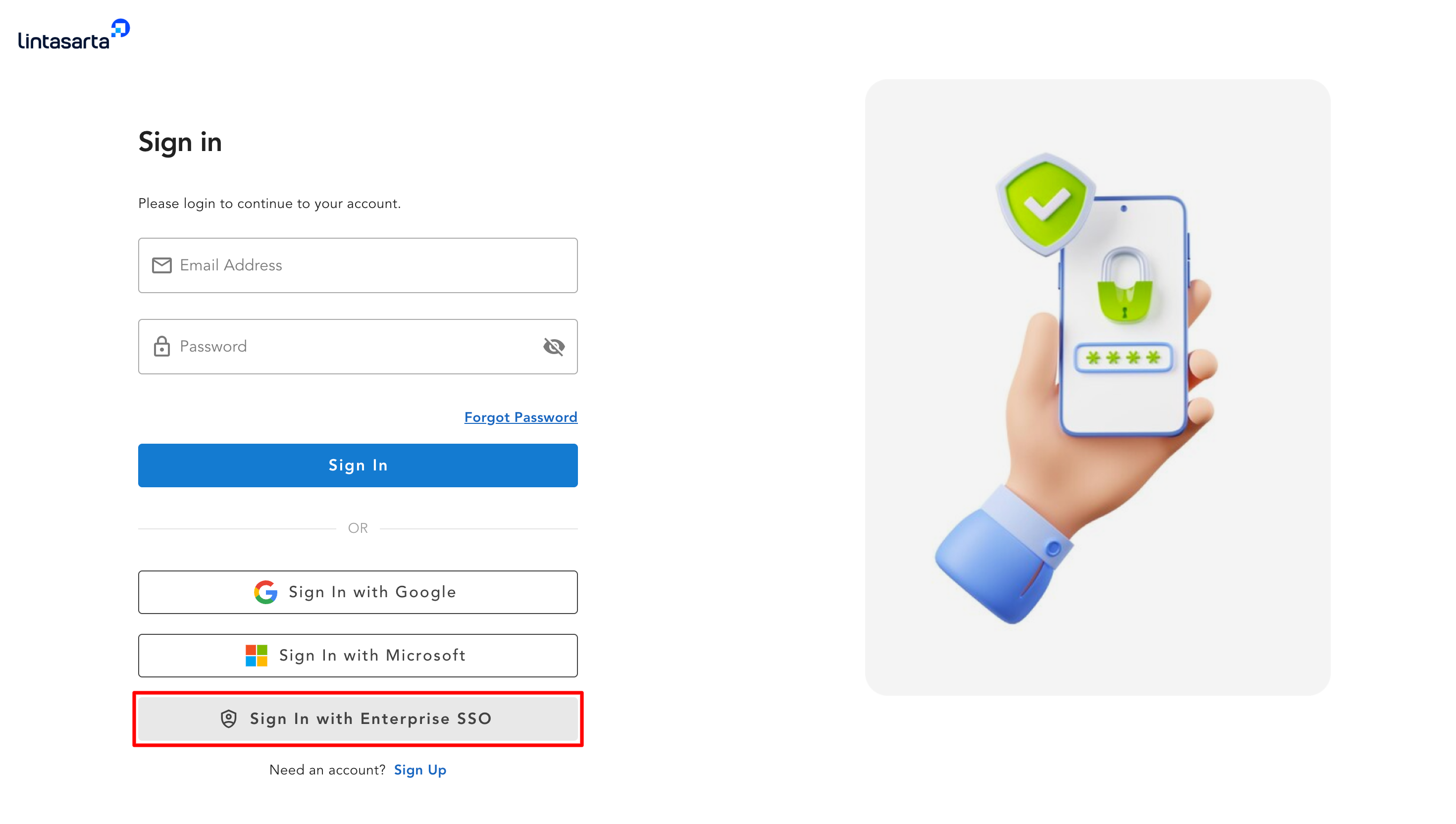
On the Sign In page, click the **Sign In with Enterprise SSO** button.
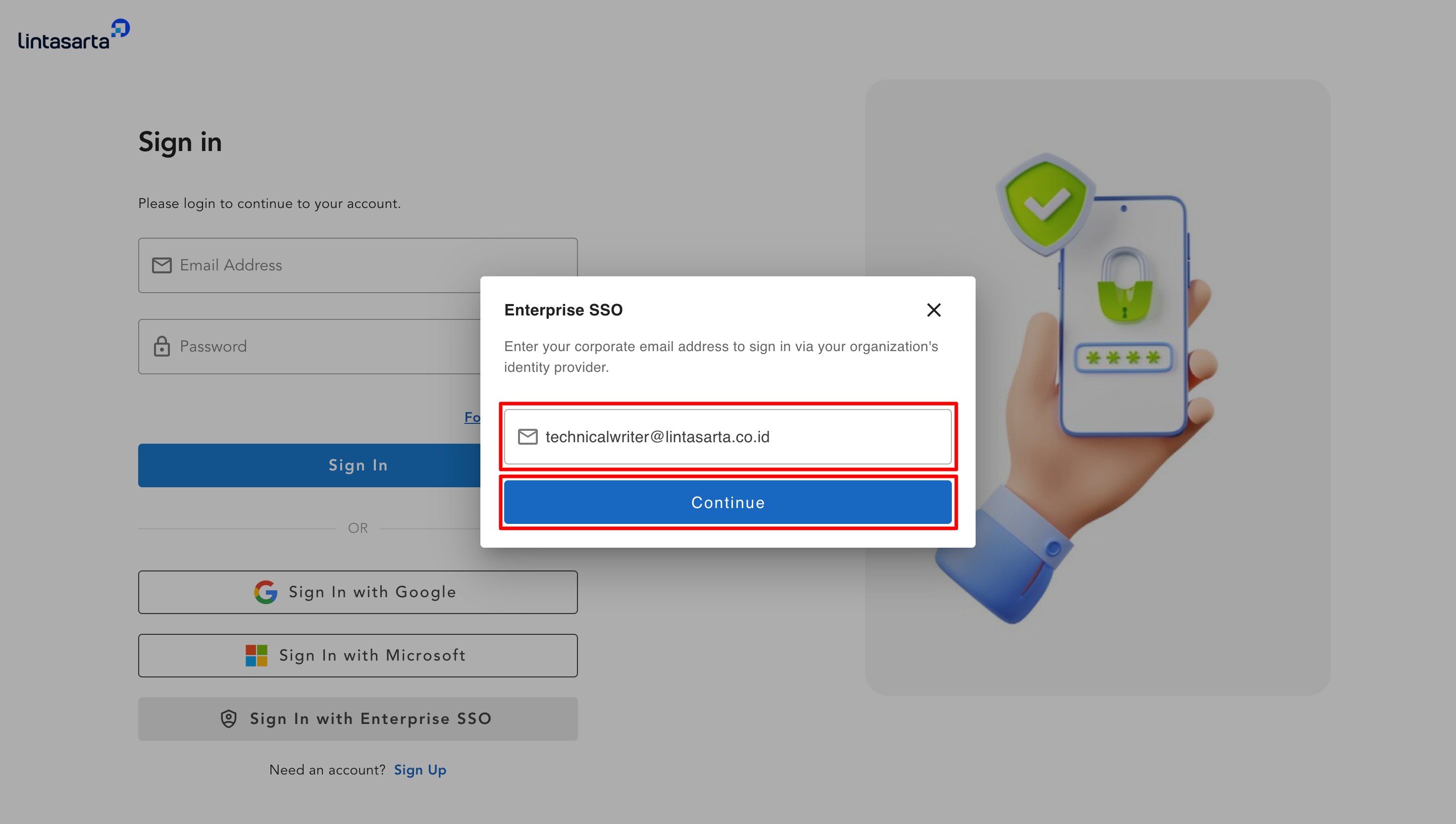
The Enterprise SSO dialog will appear. Enter your corporate email address, then click the **Continue** button.
After clicking the **Continue** button, complete the authentication process by following the instructions displayed by your organization's identity provider. Once the authentication is successful, you will be redirected back to the Service Portal Cloudeka.
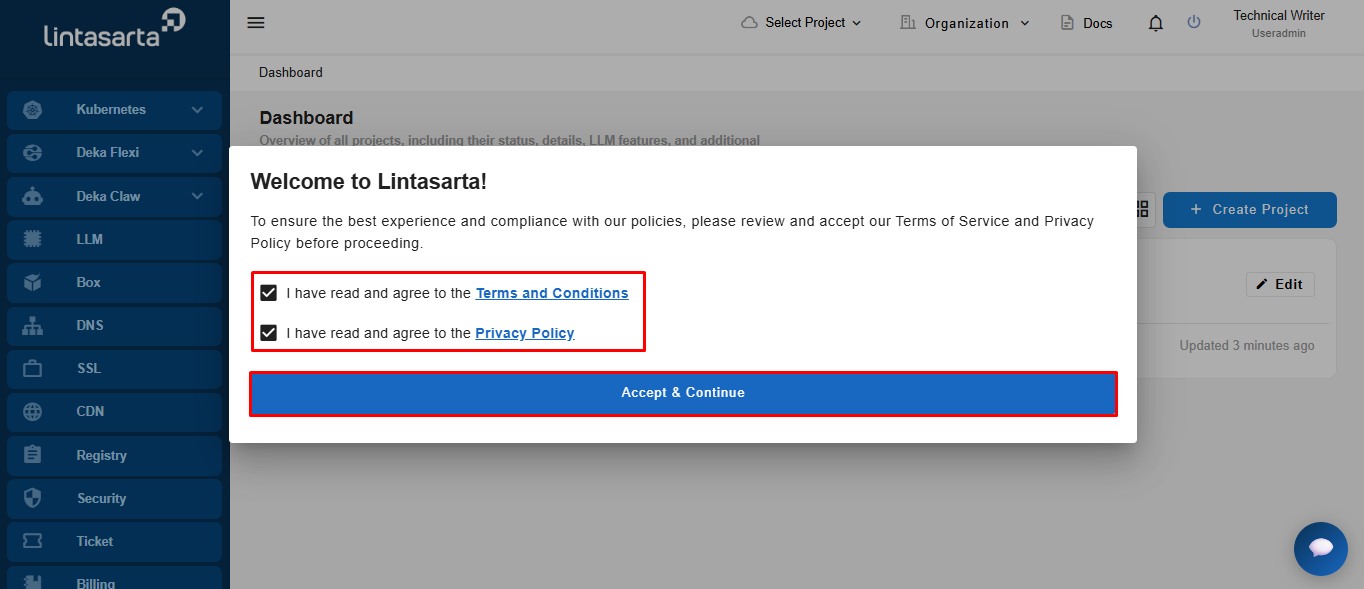
If this is your first time signing in, review the Terms and Conditions and Privacy Policy. Select **I have read and agree to the Terms and Conditions** and **I have read and agree to the Privacy Policy**, then click **Accept & Continue** to proceed to the Service Portal Cloudeka. You can also review the [End-User License Agreement](https://docs.cloudeka.ai/service-portal-ai/end-user-license-agreement) before continuing.
{% hint style="success" %}
This section will appear if your project type is Enterprise.
{% endhint %}
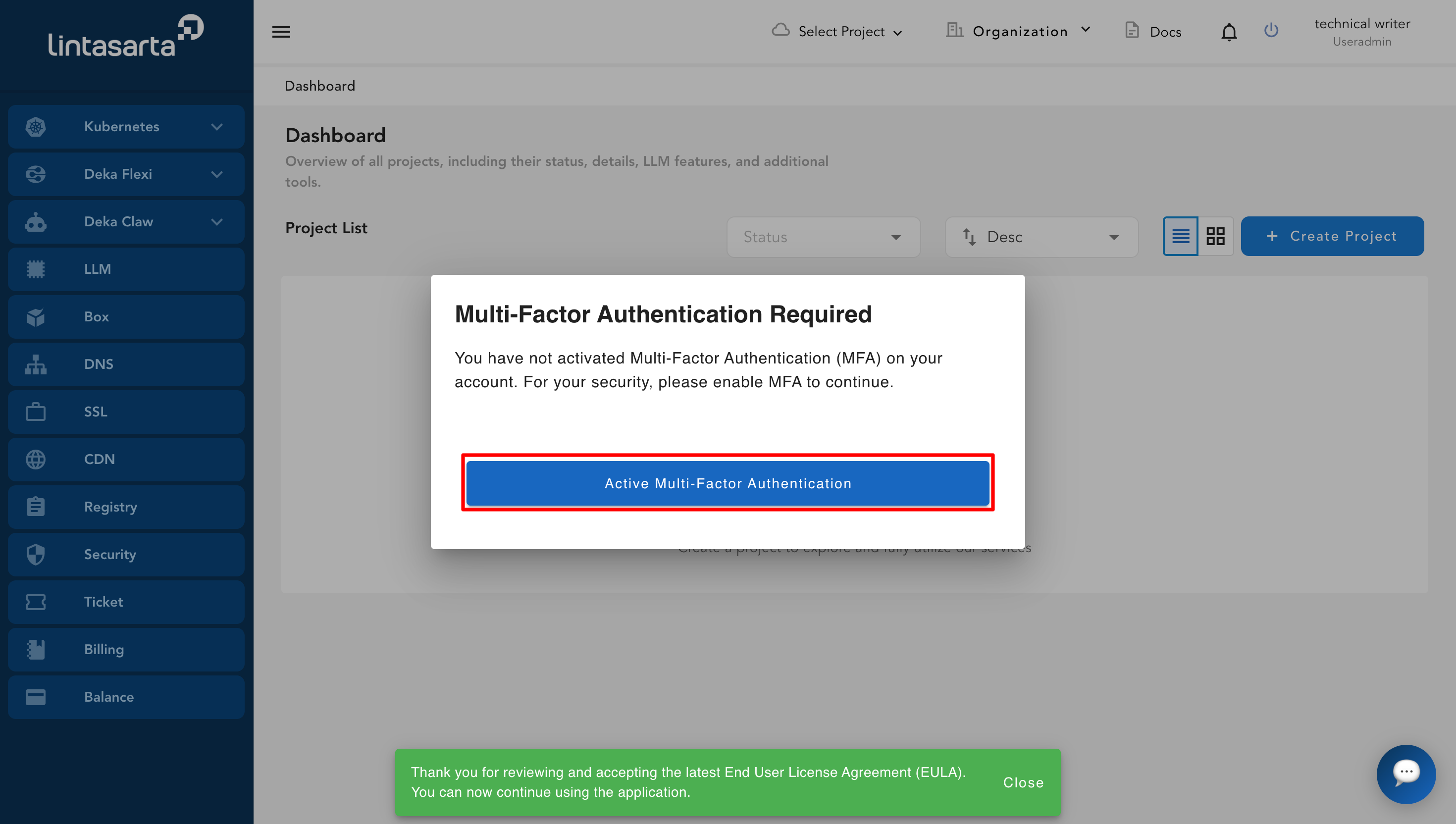
Once you have accepted the **Terms and Conditions** and **Privacy Policy**, the **Multi-Factor Authentication Required** window will appear. Click **Activate Multi-Factor Authentication** to begin the MFA setup.
Complete the Multi-Factor Authentication (MFA) setup by following the instructions displayed by your organization's identity provider. Once the verification is successful, you will be redirected back to the Service Portal Cloudeka Dashboard.