> For the complete documentation index, see [llms.txt](https://docs.cloudeka.ai/llms.txt). Markdown versions of documentation pages are available by appending `.md` to page URLs; this page is available as [Markdown](https://docs.cloudeka.ai/service-portal-ai/sign-in/sign-in-using-microsoft-account.md).
# Sign In using Microsoft Account
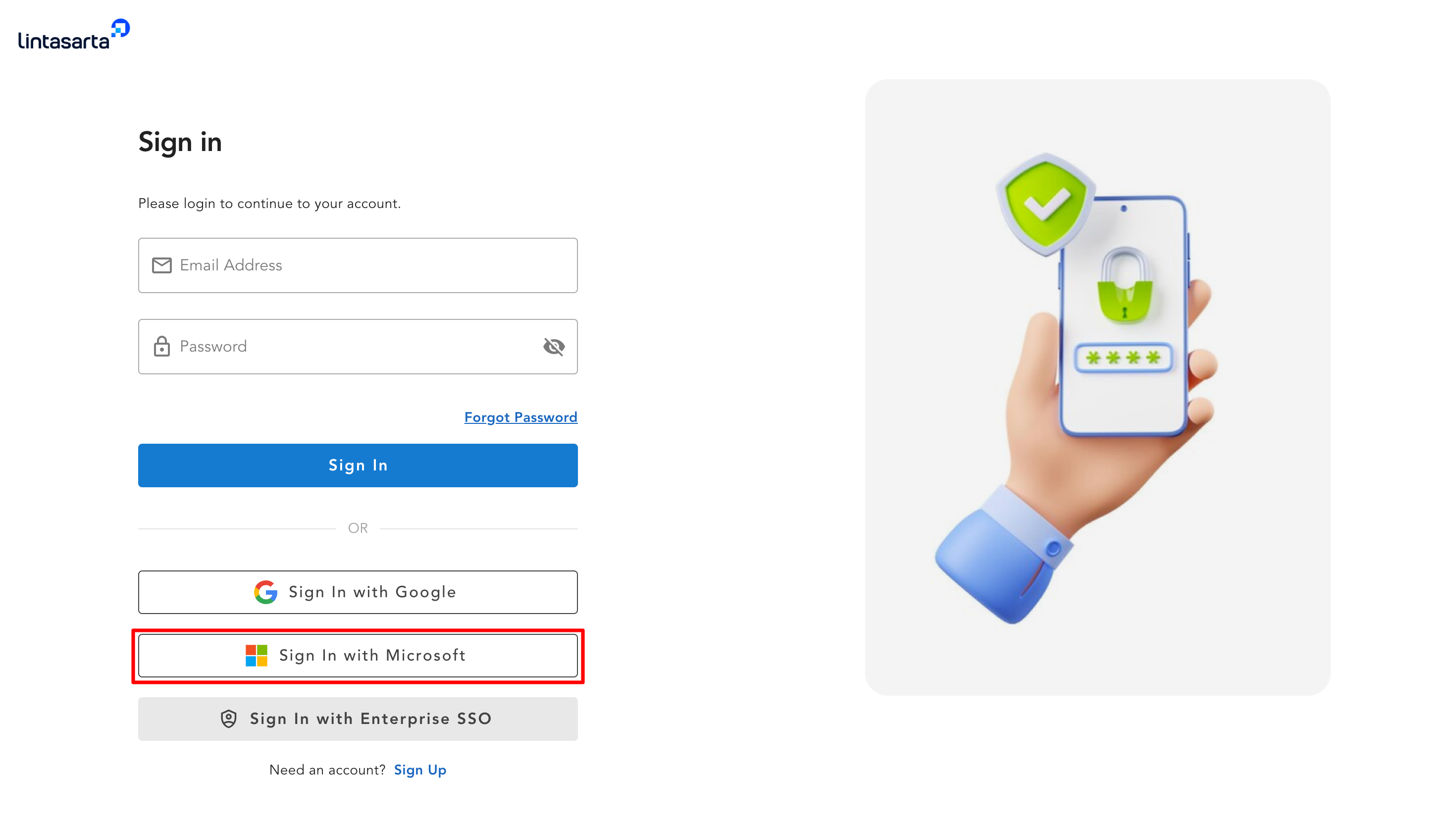
You can also sign in to the [Service Portal Cloudeka](https://ai.cloudeka.id/) using your Microsoft account. On the Sign In page, click the **Sign In with Microsoft** button.
{% hint style="success" %}
To use this feature, make sure your Microsoft account is already registered with the Service Portal Cloudeka.
{% endhint %}
{% hint style="warning" %}
Access using a Microsoft work account is subject to your organization's Microsoft Entra ID (Azure AD) policies. If you are unable to access Cloudeka after successful authentication, please contact your organization's IT administrator.
{% endhint %}
After clicking **Sign In with Microsoft**, you will be redirected to Microsoft's sign-in page to complete the authentication process. Follow the on-screen instructions to sign in. Once the authentication is successful, you will be redirected back to the Service Portal Cloudeka.
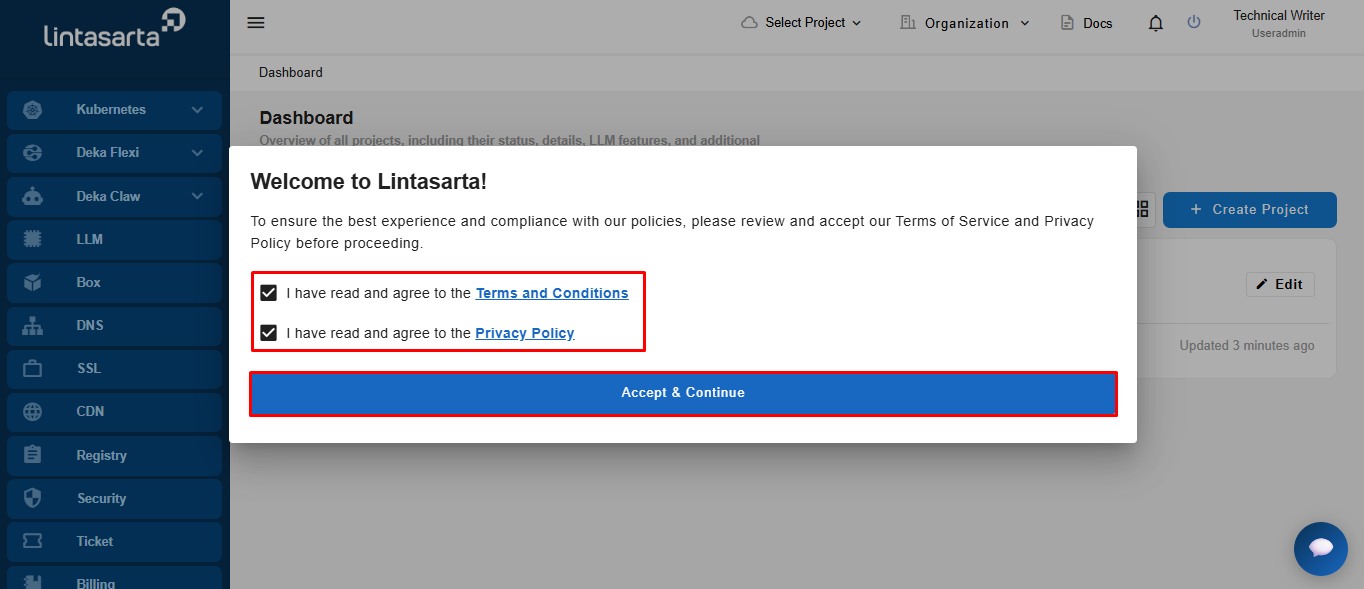
If this is your first time signing in, review the Terms and Conditions and Privacy Policy. Select **I have read and agree to the Terms and Conditions** and **I have read and agree to the Privacy Policy**, then click **Accept & Continue** to proceed to the Service Portal Cloudeka. You can also review the [End-User License Agreement](https://docs.cloudeka.ai/service-portal-ai/end-user-license-agreement) before continuing.
{% hint style="success" %}
This section will appear if your project type is Enterprise.
{% endhint %}
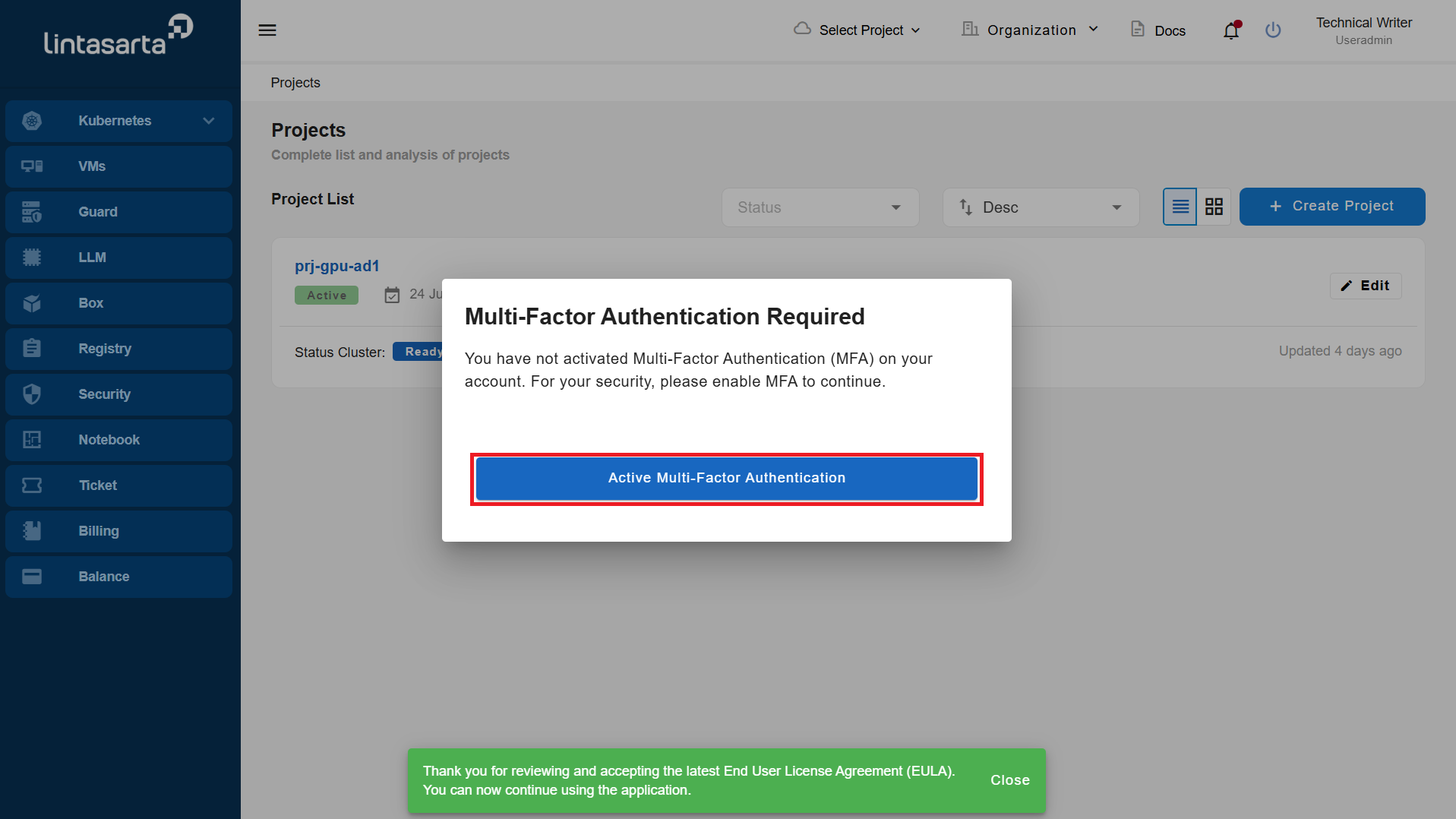
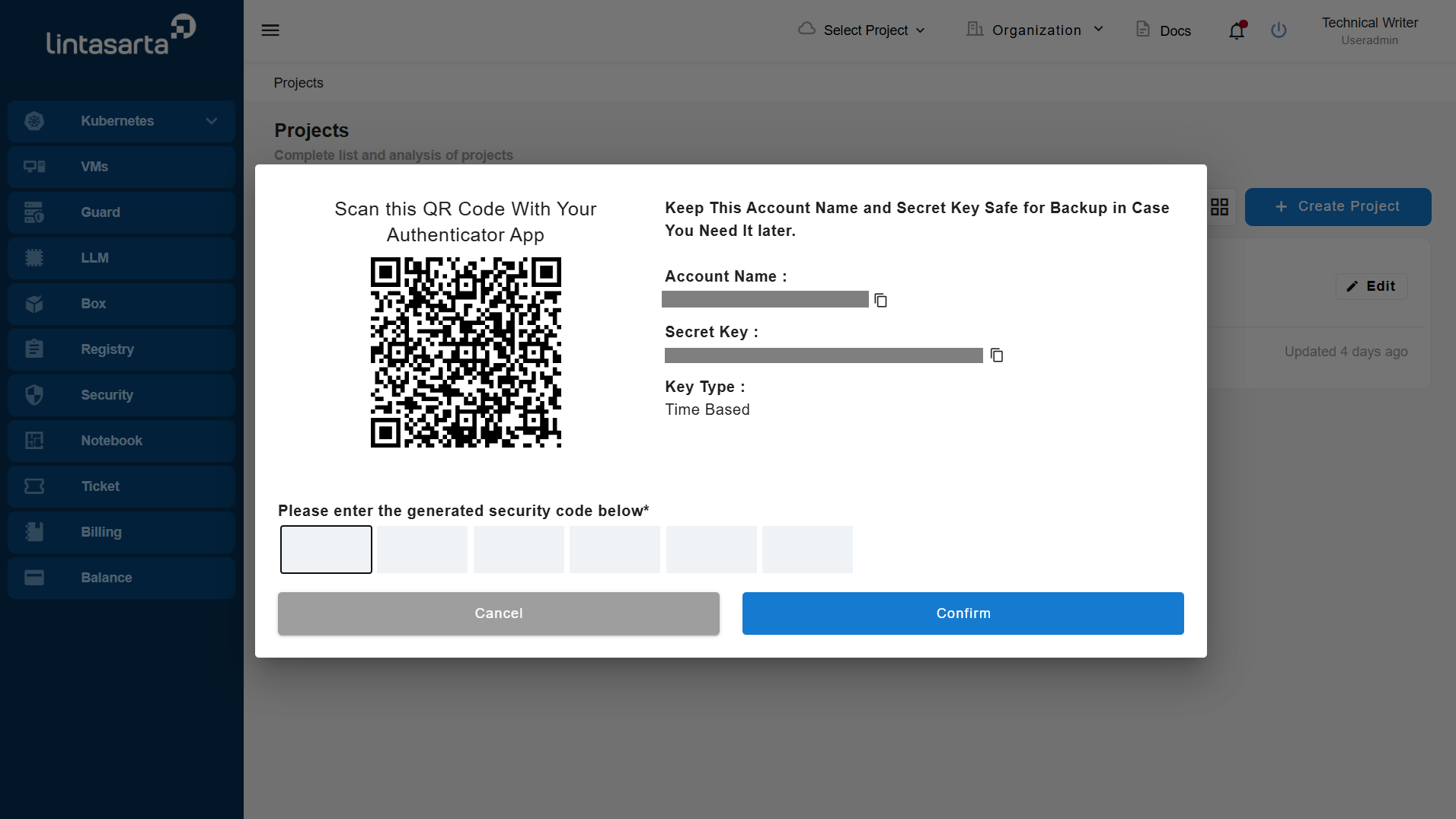
Once you have accepted the **Terms and Conditions** and **Privacy Policy**, the **Multi-Factor Authentication Required** window will appear. Click **Activate Multi-Factor Authentication** to begin the MFA setup.
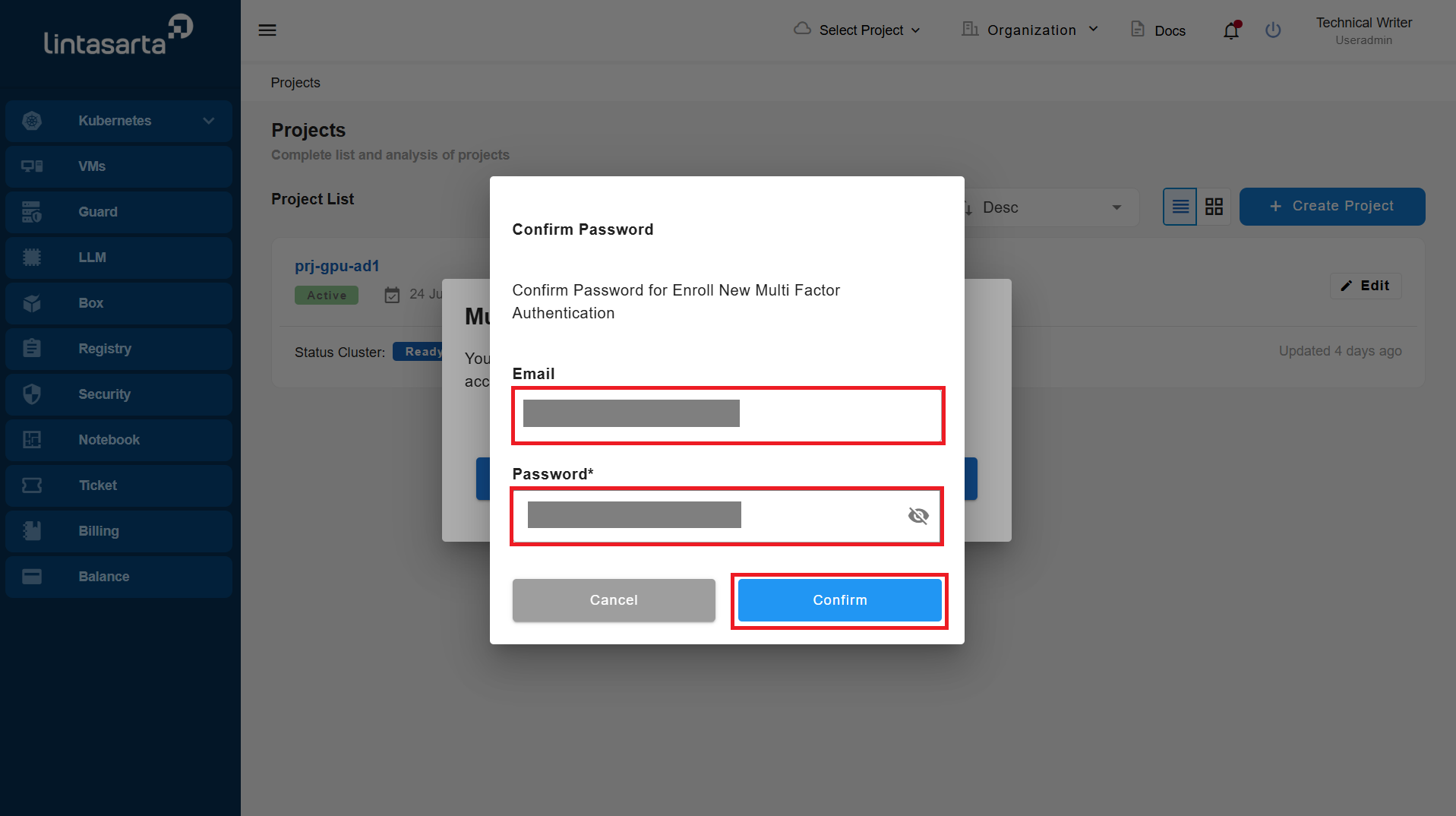
The Confirm Password window will then be displayed, enter your current password and click the Confirm button to proceed with the MFA activation.
In the next step, you can download an authentication app on your smartphone. This guide only demonstrates the use of Google Authenticator and Microsoft Authenticator. For Android smartphone users, here are the links for [Google Authenticator](https://play.google.com/store/apps/details?id=com.google.android.apps.authenticator2) and [Microsoft Authenticator](https://play.google.com/store/apps/details?id=com.azure.authenticator). For iOS smartphone users, here are the links for [Google Authenticator](https://apps.apple.com/us/app/google-authenticator/id388497605) and [Microsoft Authenticator](https://apps.apple.com/us/app/microsoft-authenticator/id983156458).