> For the complete documentation index, see [llms.txt](https://docs.cloudeka.ai/llms.txt). Markdown versions of documentation pages are available by appending `.md` to page URLs; this page is available as [Markdown](https://docs.cloudeka.ai/cloudeka-api-list/command-reference/cldkctl-registry/create.md).
# create
The cldkctl registry create command is used to create a new container image registry in your project. This command initializes a private registry and allows users to configure its details such as name, billing type, accessibility, storage size, and description. It is typically used when setting up a dedicated image storage for containerized workloads in Cloudeka AI.
## Usage
```
cldkctl registry create [flags]
```
## Steps
Follow the steps below to run and view the result of this command:
1. Run the following command in your terminal:
```
cldkctl registry create
```
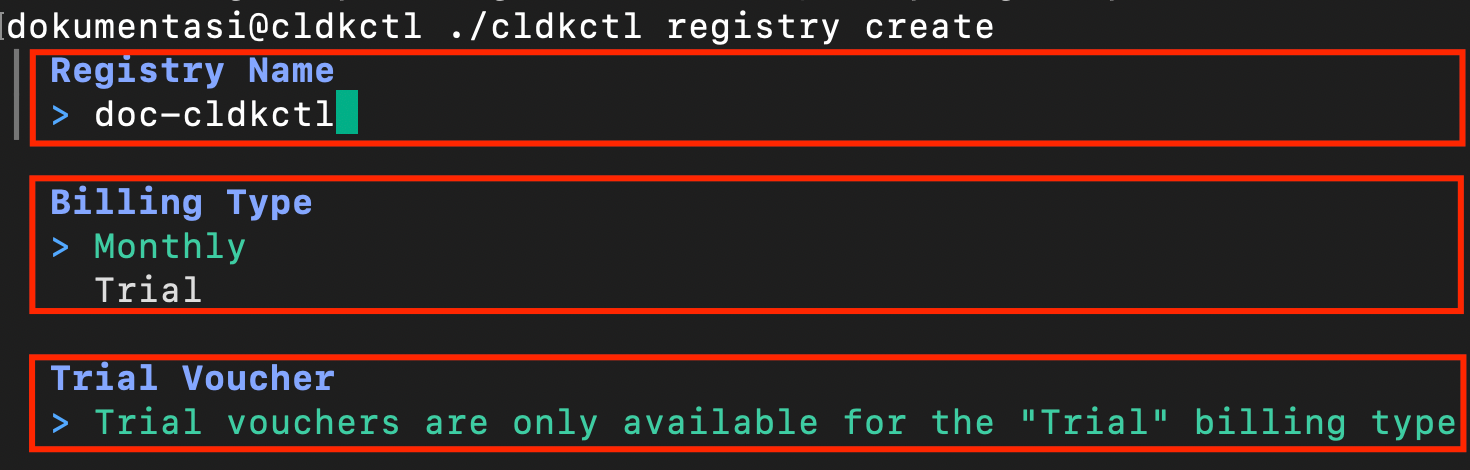
2. Enter the registry name.
3. Select the billing type, either Monthly or Trial.
4. If you choose Trial, note that trial vouchers are only available for this billing type.
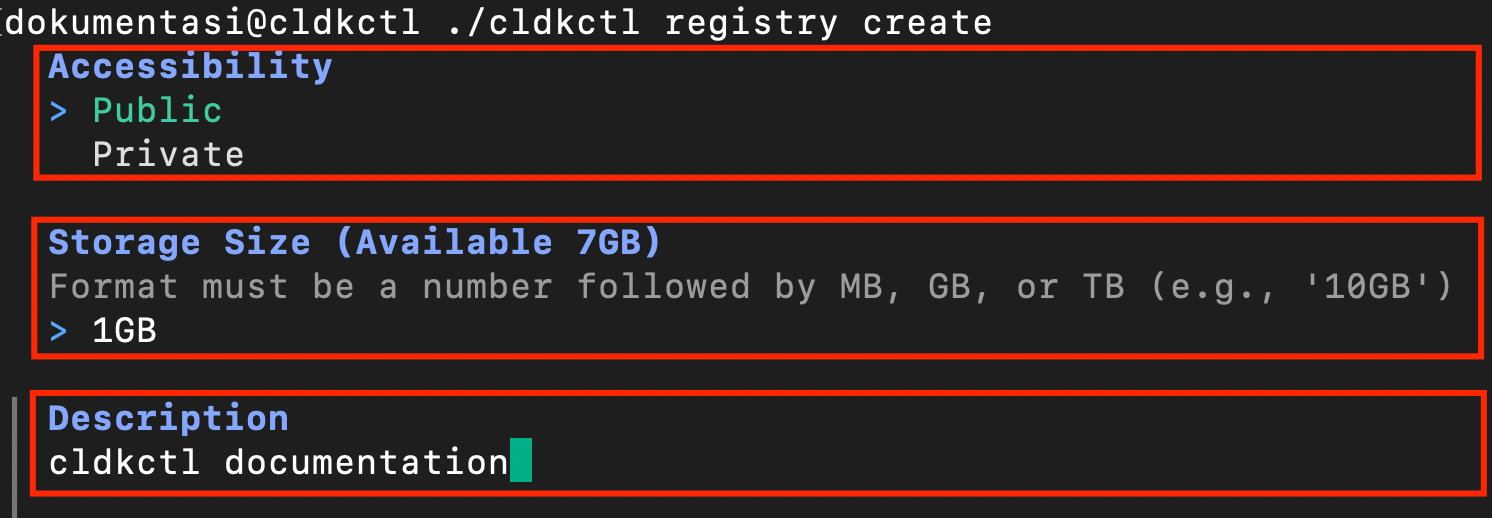
5. Choose the accessibility type, either Public or Private.
6. Specify the storage size in MB, GB, or TB.
7. Enter a description for the registry.
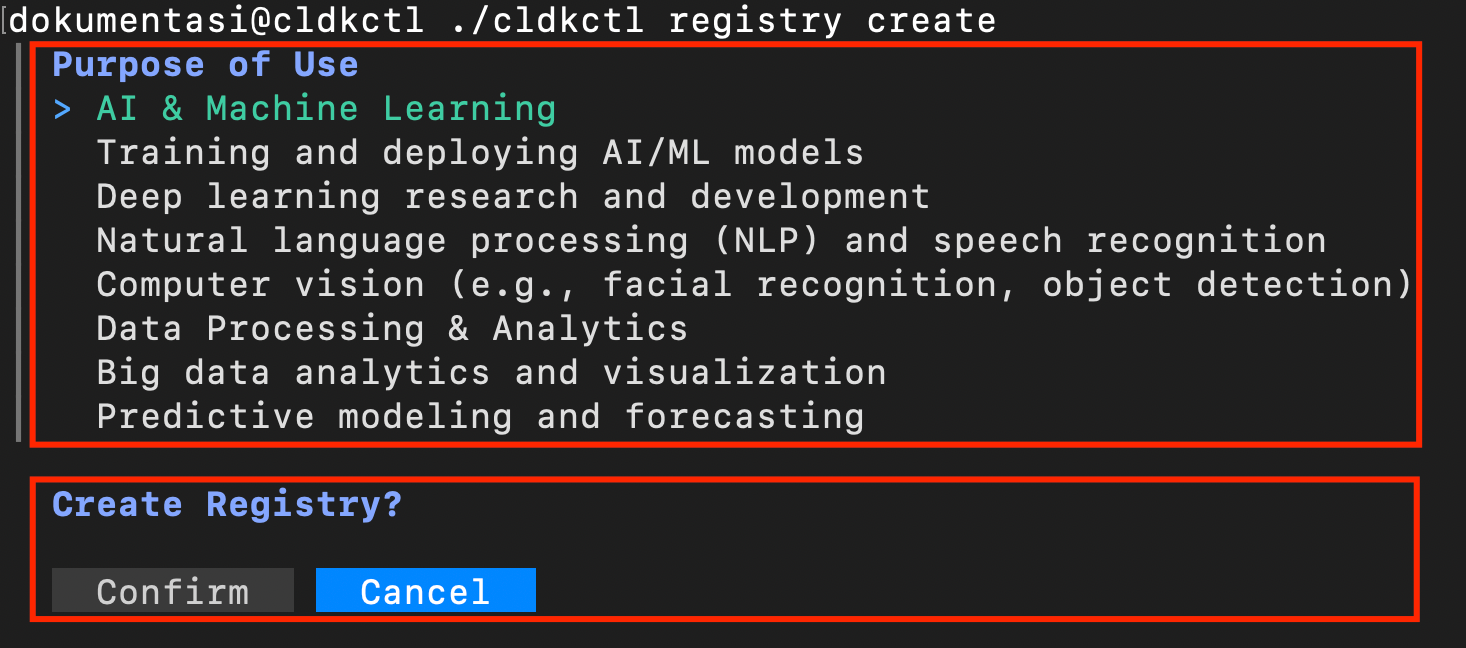
8. Select the purpose of use.
9. Confirm the setup by selecting Confirm when prompted.
10. Wait until the message “Registry created successfully” appears in the terminal, indicating that the registry has been successfully created.
11. Refer to the Registry List section to verify that your new registry has been created successfully.
## Flags
{% hint style="info" %}
This command supports [global flags](/cloudeka-api-list/global-flags.md). Refer to the Global Flags section for details
{% endhint %}
| Flag | Description |
| -------------------- | ------------------------------------------------ |
| -h, --help | Help for the registry create command. |
| -p, --project string | Specifies the project ID to scope the operation. |