> For the complete documentation index, see [llms.txt](https://docs.cloudeka.ai/llms.txt). Markdown versions of documentation pages are available by appending `.md` to page URLs; this page is available as [Markdown](https://docs.cloudeka.ai/cloudeka-api-list/command-reference/cldkctl-ticket/create.md).
# create
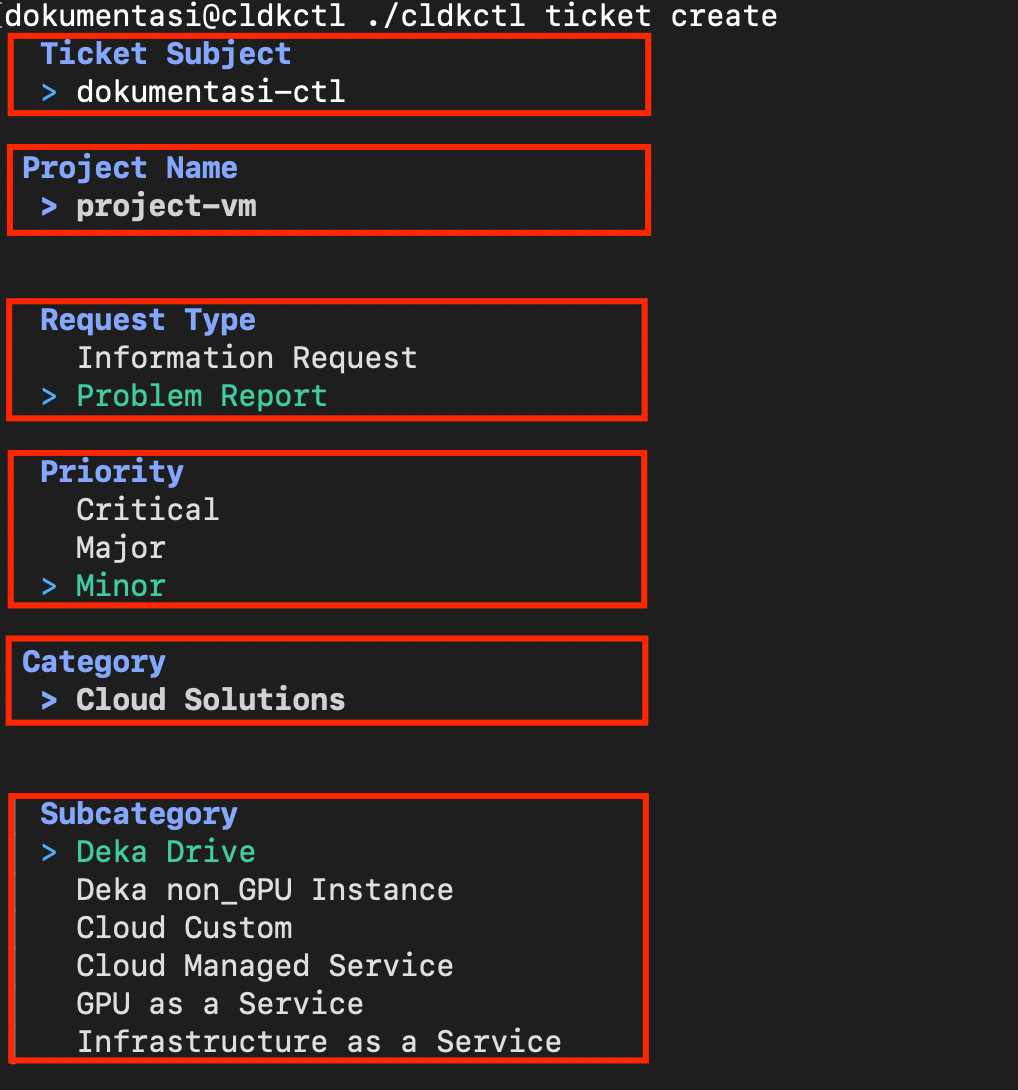
The cldkctl ticket create command allows you to create a new support ticket in your Cloudeka project. Through an interactive interface, you can specify the ticket subject, type, priority, category, and description. Once submitted, the ticket will be created and listed under your project’s active tickets.
## Usage
```
cldkctl ticket create [flags]
```
## Aliases
```
create, add
```
## Steps
Follow the steps below to run and view the result of this command:
1. Run the following command in your terminal:
```
cldkctl ticket create
```
2. The terminal will launch an interactive ticket creation form.
3. Enter the title or summary of your issue. This field is mandatory and cannot be left blank.
4. Select the project where the ticket will be created. If only one project is available, it is automatically prefilled
5. Choose the purpose of your ticket.
6. Select the urgency level for your ticket.
7. Choose a general category for your issue.
8. Select a more specific classification under the chosen category.
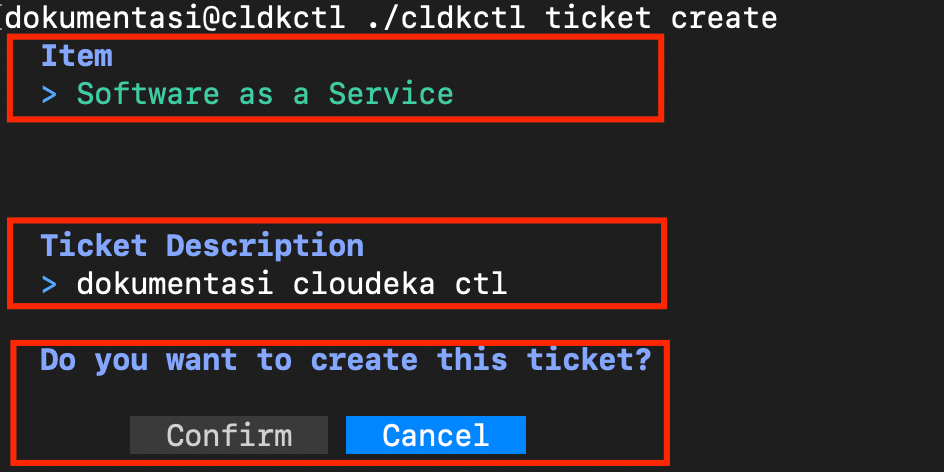
9. Choose the affected service or component.
10. Provide a detailed explanation of your issue or request. This field is mandatory and cannot be left blank.
11. Once all fields are filled, you will be prompted to confirm ticket creation:
```
Do you want to create this ticket?
```
* Press Y to proceed.
* Press N to abort ticket creation.
12. If the ticket is created successfully, the terminal displays the message “Ticket created successfully!”, followed by the generated ticket ID.
## Flags
{% hint style="info" %}
This command supports [global flags](/cloudeka-api-list/global-flags.md). Refer to the Global Flags section for details.
{% endhint %}
| Flag | Description |
| ---------- | -------------------------------------- |
| -h, --help | Help for the ticket create subcommand. |