# Create Ticket

Create Ticket is one of the features provided in the Service Portal Deka GPU that allows you, as a customer, to create a new ticket when experiencing an issue or needing assistance. The Cloudeka Team will help resolve your request.

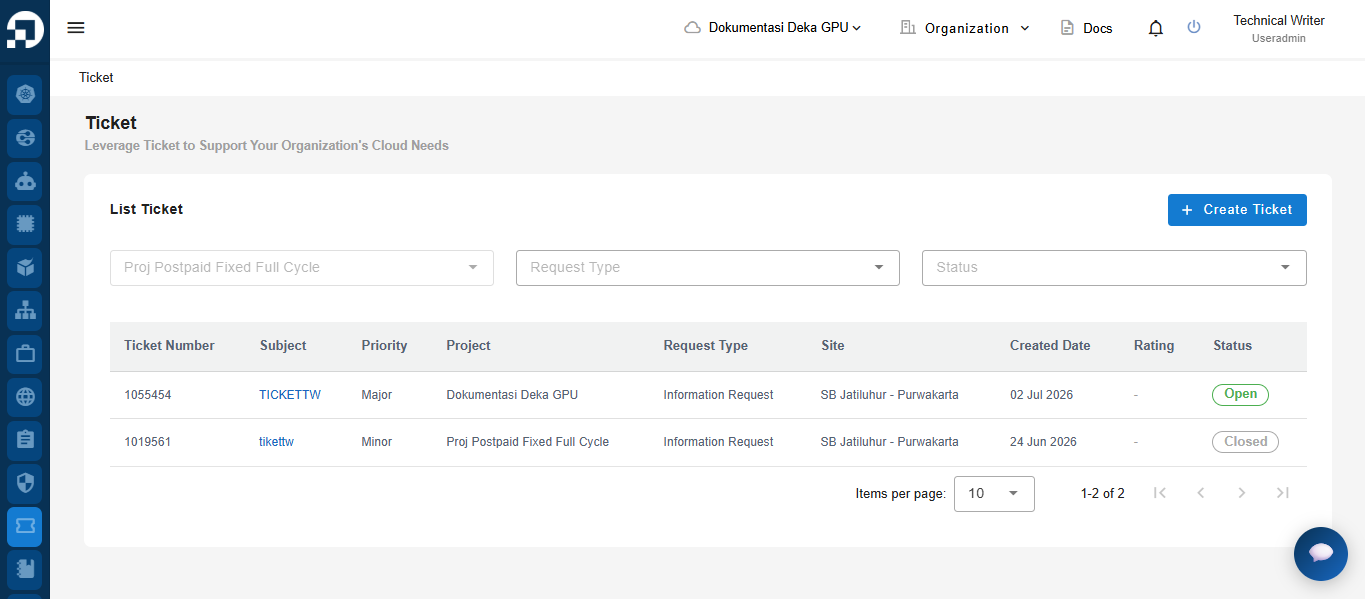
On the Service Portal Deka GPU page, select the Ticket menu and click the Create Ticket button.

<figure><img src="/files/rgxm7XehTuYvysX7sdmH" alt=""><figcaption></figcaption></figure>

<p align="center">Create ticket</p>

The Create Ticket page appears, fill in all the available columns. If you have filled in all the available columns on the Create Ticket page, press the Submit button to send the ticket order to the Deka GPU Portal Service system. For further explanation about each column.

<figure><img src="/files/eJ1bXQyQ1duWVfbBL00t" alt=""><figcaption></figcaption></figure>

<p align="center">Form create ticket</p>

<table><thead><tr><th width="212"></th><th>Description</th></tr></thead><tbody><tr><td>Subject Ticket</td><td>Title of the ticket to be created.</td></tr><tr><td>Project Name</td><td>The name of the project that will be affiliated with the created ticket.</td></tr><tr><td>Request Type Ticket</td><td><p>Types of tickets that will be created, currently there are two types of tickets that can be created, namely:</p><ol><li>Information Request </li><li>Problem Report</li></ol></td></tr><tr><td>Priority Ticket</td><td><ol><li>Critical</li><li>Major</li><li>Minor</li></ol></td></tr><tr><td>Category</td><td>The main classification of the issue or request being submitted.</td></tr><tr><td>Sub-Category</td><td>Sub-category of the selected service type.</td></tr><tr><td>Item</td><td>Specifies the detailed item of the service that is experiencing an issue or is the subject of the request, such as <em>SLA Report</em>. This item is usually directly related to the <strong>Sub Category</strong> field.</td></tr><tr><td>Description</td><td>A field used to provide a detailed explanation of the issue, request, or context of the ticket. Example input: <em>Demo Ticket</em>. This is important to ensure the support team clearly understands the purpose of the submitted ticket.</td></tr></tbody></table>

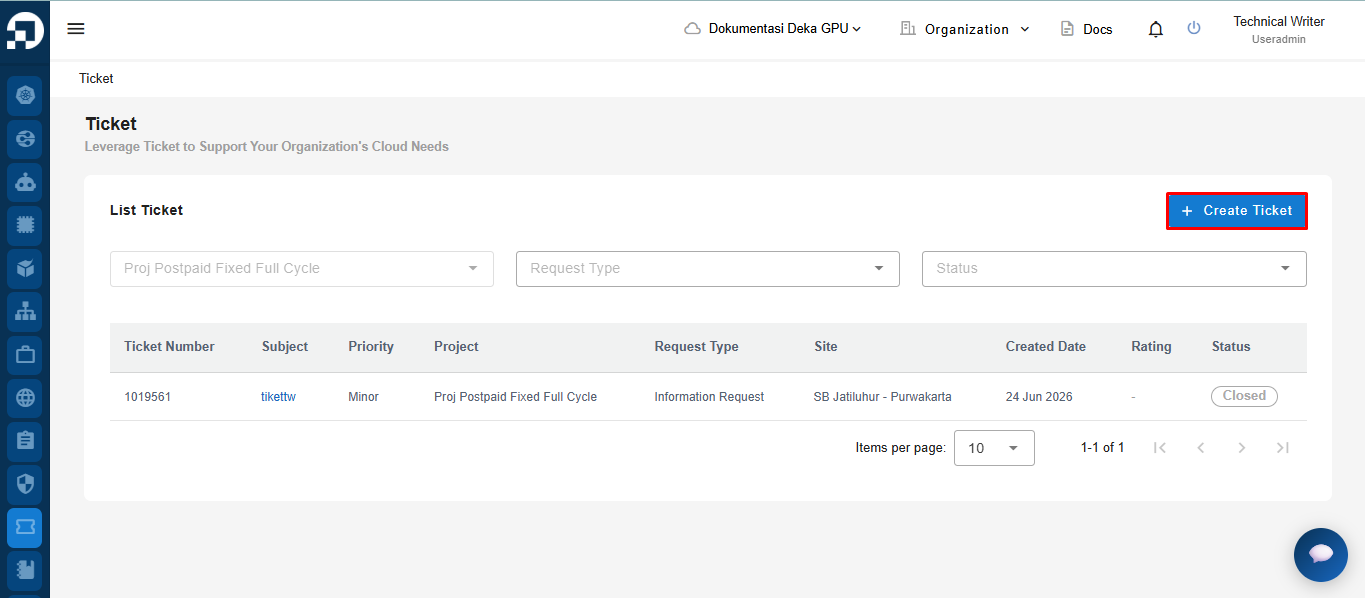
If successful, it can be seen in the Ticket table.

<figure><img src="/files/cx6O4PnxdPA4RViQK3qR" alt=""><figcaption></figcaption></figure>

<p align="center">Sucess create ticket</p>


---

# Agent Instructions: Querying This Documentation

If you need additional information that is not directly available in this page, you can query the documentation dynamically by asking a question.

Perform an HTTP GET request on the current page URL with the `ask` query parameter:

```
GET https://docs.cloudeka.ai/service-portal-ai/ticket/create-ticket.md?ask=<question>
```

The question should be specific, self-contained, and written in natural language.
The response will contain a direct answer to the question and relevant excerpts and sources from the documentation.

Use this mechanism when the answer is not explicitly present in the current page, you need clarification or additional context, or you want to retrieve related documentation sections.